The first 3 seconds of webpage load times can make or break conversion on a website! This means a user will take only 3 seconds to make an opinion about your website. That’s why your website speed is a critical factor in determining success – a user will stay or leave. Slow loading times can have a detrimental effect on user experience, leading to high bounce rates, low conversions, and ultimately, reduced revenue. Moreover, search engines like Google also take website speed into account when ranking websites, which makes it essential for website owners to optimize their website’s speed.
While improving website speed seems dismaying, there are several actionable steps that website owners can take to speed up their WordPress websites. Let us discuss some effective strategies that will help you improve your website’s speed and performance.
9 Steps that will improve your WordPress website speed
Step 1: Choose a Fast and Reliable Web Hosting Provider
When selecting a hosting plan, it’s important to understand the differences between shared, VPS, and dedicated hosting and their impact on website speed. Shared hosting is the most common and affordable hosting option, where multiple websites share the same server resources. Shared hosting can be slow and unreliable, as the server resources are divided among several websites.
VPS (Virtual Private Server) hosting is a more advanced hosting option that offers more control and better performance than shared hosting. VPS hosting involves dividing a single physical server into several virtual servers, each with its own resources and operating system. This ensures that the server resources are not shared among several websites, resulting in better performance and speed.
Dedicated hosting is the most advanced hosting option, where a single physical server is dedicated to a single website. It provides complete control over the server resources and offers the best performance and speed. However, it’s also the most expensive hosting option and may not be suitable for small businesses or websites with low traffic.
Shared Hosting
- Lowest cost
- Low performance
- Low security
- Restricted configurability
- Limited scalability
VPS Hosting
- Highest security
- High performance
- Highest configurability
- Mid-level cost
Dedicated Hosting
- Highest security
- Some configurability
- Mid-tier performance
- Mid-level scalability
- High cost
Understanding the differences between shared, VPS, and dedicated hosting and their impact on website speed can help you choose the hosting option that best suits your needs and budget. Some highly exercised hosting providers by our patrons include web hosting providers like GoDaddy, WPEngine, and SiteGround.
Step 2: Use a Lightweight and Optimized WordPress Theme
A theme with excessive features, complex code, and bloated scripts can significantly slow down your website, resulting in a poor user experience, low conversions, and reduced search engine rankings. A lightweight and optimized theme, on the other hand, can provide faster loading times, better performance, and improved user experience.
Highly recommended themes to consider while comparing a variety of others
When evaluating the performance and optimization of a WordPress theme, several key factors should be considered, including page load time, page size, script optimization, and compatibility with caching plugins. Page load time is the time it takes for your website to load, and it should ideally be under three seconds. Page size is the amount of data that needs to be downloaded to load your website, and it should ideally be under 1 MB. Script optimization involves optimizing JavaScript and CSS files to reduce the amount of data that needs to be downloaded to load your website. Compatibility with caching plugins is essential for improving website speed, as caching plugins can help reduce server load and improve website performance.
Step 3: Optimize Images and Media Files
Images and media files are an essential part of any website, but they can also significantly slow down a website if they are not optimized. Large image and media files can increase the loading time of a website, resulting in a poor user experience and reduced search engine rankings. Therefore, it is crucial to optimize images and media files to improve website speed and performance.
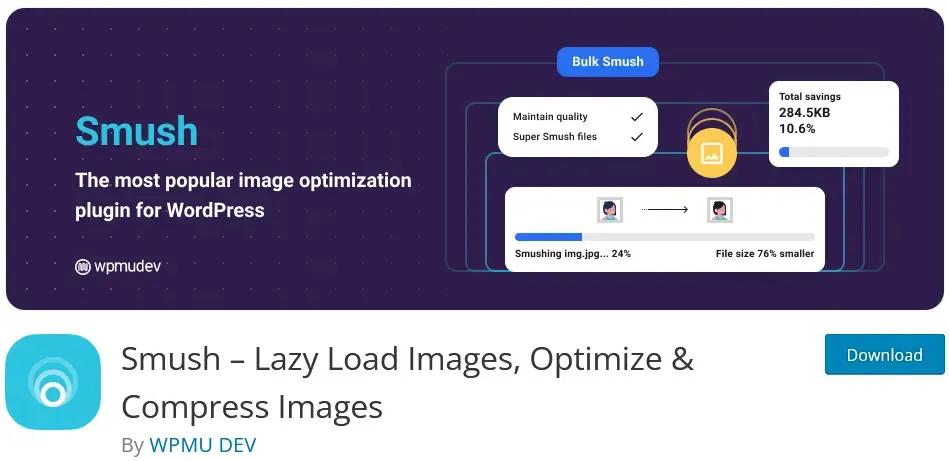
Several tools and plugins are available for optimizing images and media files on WordPress websites. These tools can compress, resize, and optimize images and media files to reduce their size without compromising their quality. Popular image optimization plugins for WordPress include Smush, ShortPixel, and Imagify. These plugins can automatically optimize images and media files on your website and reduce their size without compromising their quality.
Smush
ShortPixel

Imagify
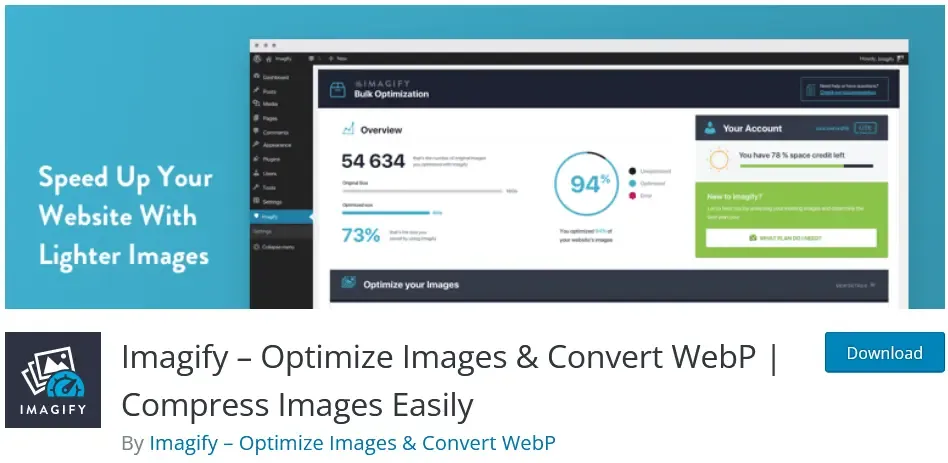
To reduce the size and improve the loading speed of images and media files, several tips should be followed.
Firstly, images should be compressed and resized to reduce their size without compromising their quality. Image compression tools can reduce the size of images without affecting their quality.
Secondly, images should be optimized for the web, which involves reducing their resolution, file size, and file format. JPEG and PNG are the most commonly used file formats for images on the web.
Thirdly, lazy loading should be enabled for images and media files. Lazy loading delays the loading of images until they are required, which can significantly improve website speed and performance.
Step 4: Minimize HTTP Requests and Database Queries
Excessive HTTP requests and database queries can have a consequential impact on website speed and performance. HTTP requests are made each time a resource, such as an image or a script, is requested from the server. Similarly, database queries are made each time a user requests data from the website. These requests slow down the website and result in a poor user experience. Therefore, it is crucial to minimize HTTP requests and database queries to improve website speed and performance.
One way to reduce HTTP requests is to minify website resources, such as CSS and JavaScript files. Minifying involves removing unnecessary characters from code, such as white spaces and comments, which can significantly reduce the size of website resources. Additionally, website owners can combine multiple CSS and JavaScript files into a single file to reduce the number of HTTP requests made to the server.
Optimizing database queries is another way to improve website speed and performance. This involves reducing the number of queries made to the database and optimizing existing queries. Additionally, optimizing database queries by using indexes and limiting the number of returned results can significantly improve website speed and performance.
Step 5: Use Content Delivery Networks (CDNs)
Content Delivery Networks (CDNs) are an excellent solution for improving website speed and performance. CDNs work by distributing website resources, such as images, videos, and scripts, across multiple servers located in various geographic regions. By doing so, CDNs reduce the distance between website users and website resources, resulting in faster loading times and improved website performance.
Using a CDN can be particularly useful for WordPress websites that have a global audience. When a user requests a resource from a website, the request is sent to the server hosting the website. However, if the user is located far from the server, the request may take longer to process, resulting in slower loading times. By using a CDN, website resources are distributed across multiple servers, allowing users to request resources from a server located closer to them, resulting in faster loading times.

Popular CDNs for WordPress websites include Cloudflare, MaxCDN, and Amazon CloudFront. Cloudflare, in particular, offers a free plan that includes a range of features, such as content optimization, security, and analytics. MaxCDN and Amazon CloudFront are paid services that offer more advanced features, such as real-time analytics and advanced caching options.
It’s important to note that while CDNs can significantly improve website speed and performance, they are not a replacement for other speed optimization techniques. Website owners should still optimize images and other website resources, minimize HTTP requests, and use a lightweight WordPress theme to achieve the best possible website speed and performance.
Step 6: Enable Gzip Compression and Browser Caching
Enabling Gzip compression and browser caching are two effective techniques for improving website speed. Gzip compression is a method of compressing files before they are sent to the user’s browser, reducing the size of the files and speeding up the website’s loading time. This is particularly effective for text-based files like HTML, CSS, and JavaScript. By enabling Gzip compression, you can significantly reduce the size of these files, resulting in faster load times.
Enabling Gzip Compression:
- Log in to your WordPress dashboard and navigate to the “Appearance” menu.
- Click on “Editor” and select “functions.php” from the list of files on the right-hand side.
- Add the following code to the bottom of the file, and save the changes to the file.
add_filter(‘wp_headers’, ‘my_gzip_output’);
function my_gzip_output($headers) {
$headers[‘Content-Encoding’] = ‘gzip’;
ob_start(‘ob_gzhandler’);
return $headers;
}
Browser caching, on the other hand, allows the user’s browser to store a copy of certain files, such as images, CSS, and JavaScript, on their computer. The next time the user visits your website, their browser can retrieve these files from their cache, rather than having to download them from your server again. This reduces the number of server requests, resulting in faster load times for your website.
Enabling Browser Caching:
- Install and activate a caching plugin like WP Fastest Cache, WP Super Cache or W3 Total Cache.
- Navigate to the plugin settings and enable browser caching.
- Configure the settings according to your preferences. Generally, it’s recommended to set the cache expiration time to at least a month. Save the changes to the settings.
WP Fastest Cache

WP Super Cache
W3 Total Cache
Step 7: Minimize Plugins and Remove Unused Ones
Plugins are undoubtedly one of the key features of WordPress that make it such a popular and flexible platform for website creation. However, it’s important to remember that each additional plugin you install on your WordPress website comes with a cost, in terms of server requests, file size, and potential conflicts. Excessive plugins can significantly slow down your website and negatively impact its performance, which is why minimizing plugins and removing unused ones is an important step in optimizing website speed.
To evaluate and remove unused plugins, start by taking an inventory of all the plugins you currently have installed on your WordPress website. You can do this by logging in to your WordPress dashboard and navigating to the Plugins page, which will list all the plugins you have activated. Take a critical look at each plugin and ask yourself whether it’s really necessary for your website’s functionality or performance. Are there any plugins that you haven’t used in a while, or that duplicate the functionality of another plugin you have installed?
Once you’ve identified the plugins that you no longer need, it’s important to properly remove them from your website. Simply deactivating a plugin isn’t enough, as it can still leave behind residual code and database entries that can negatively affect website performance. To fully remove a plugin, you should first deactivate it, then delete it from your WordPress dashboard. Be sure to check for any plugin-specific settings or options that you may need to manually remove or reset as well. Additionally, try to use plugins from reputable developers who update their plugins regularly and provide good support.
Step 8: Optimize Website Database and Server
The website database is an influential component of a WordPress website. It stores all the website data, including posts, pages, media files, and user information. A poorly optimized database can slow down website performance, leading to longer loading times and increased bounce rates. To optimize the website database, you can use plugins like WP-Optimize, which can remove unnecessary data, compress images, and optimize database tables.
WP Optimize
In addition to optimizing the database, it’s also essential to optimize the server configuration for WordPress. This includes adjusting the server settings, such as increasing the PHP memory limit, enabling caching, and configuring the server to use HTTP/2.
Furthermore, to optimize your PHP configuration, you can edit the php.ini file on your server to adjust settings like memory limits and file upload sizes.
Step 9: Monitor and Test Website Speed Regularly
Monitoring and testing your website speed on a regular basis can help you identify potential issues early and take necessary actions to optimize your website’s performance. Regular monitoring and testing can also help you keep up with the latest website speed trends and best practices, ensuring that your website is up-to-date and competitive in the online market.
Web vitals is an initiative by Google that bestows consolidated guidance for quality signals essential in delivering great user experience on the web. This initiative simplifies the landscape and helps website to focus on the metrics that are crucial for analyzing user experience.
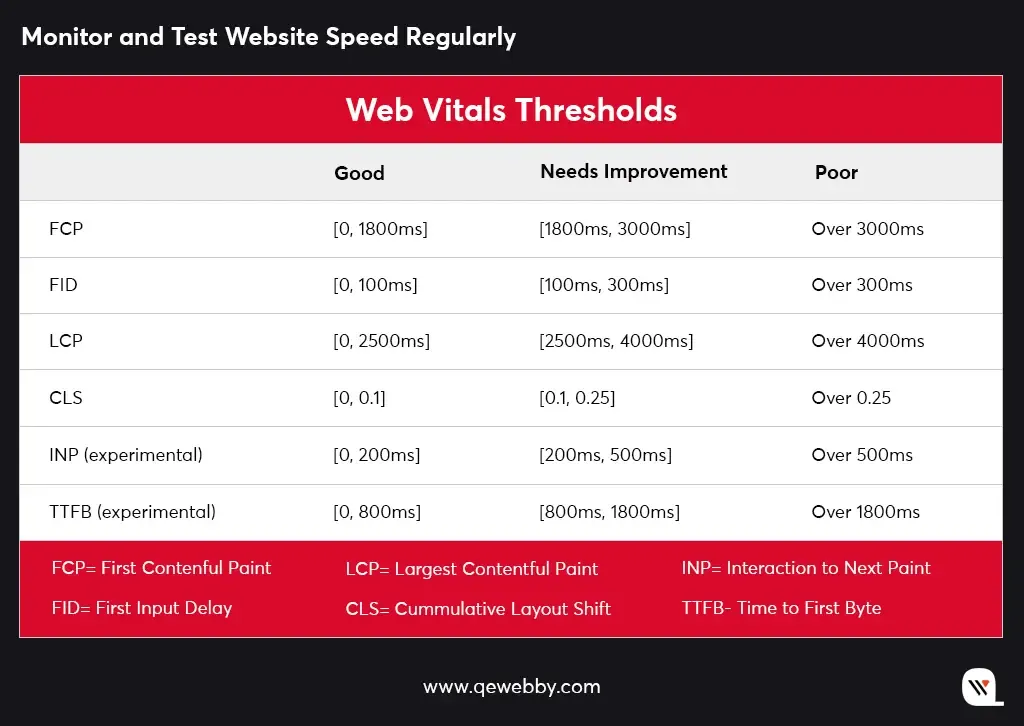
There are several tools available for measuring website speed and performance. Some popular tools include:
- Google PageSpeed Insights:This tool analyzes website speed and provides a score based on various factors such as page load time, server response time, and more. It also provides suggestions for improving website speed.
- GTmetrix: This tool provides a comprehensive analysis of website speed and performance, including page load time, page size, and the number of requests made to the server. It also provides recommendations for optimizing website speed.
- Pingdom: This tool provides real-time monitoring of website speed and performance, including uptime, downtime, and response time. It also provides alerts for potential issues and suggestions for improving website speed.
Pro Tip: Install Nitro Pack
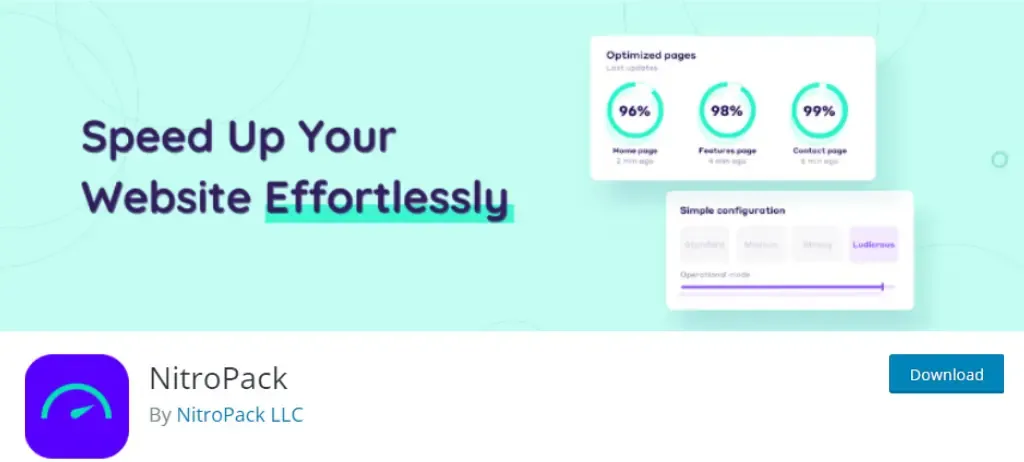
Are you tired of slow-loading WordPress websites?
Look no further than NitroPack – the ultimate solution for website speed optimization.
If you face difficulties implementing the above enhancements and plugins to your WordPress website, the NitroPack plugin will handle it all for you. With NitroPack, you can drastically improve the speed of your WordPress website with just a few clicks. Its powerful optimization algorithms compress and optimize your website files, images, and code, reducing your website’s loading time and improving user experience.
Here are some of the benefits of NitroPack:
- Instant speed improvements: NitroPack is designed to instantly speed up your website, without requiring any technical knowledge. Our innovative optimization technology ensures that your site is fully optimized for maximum speed and performance.
- Easy setup: Setting up NitroPack on your WordPress site is quick and easy. Just install our plugin, and our optimization process will automatically begin. You can also customize your optimization settings to suit your specific needs.
- Reliable hosting: We provide reliable and fast hosting solutions for your website. Our hosting infrastructure is optimized for maximum performance, ensuring that your site is always lightning fast.
- Continuous optimization: We continuously monitor your website’s performance and make real-time optimizations to ensure that your site is always performing at its best.
- Comprehensive support: Our support team is available 24/7 to assist you with any questions or issues you may have. We are committed to providing the best possible service and support to our customers.
So, if you want to improve your WordPress site’s speed and performance, NitroPack is the perfect solution for you. Try NitroPack today and experience the difference!
Conclusion
Remember, website speed is a critical factor in the success of your online presence. Slow loading times can negatively impact your bounce rates, conversions, and revenue. By optimizing your website speed, you can keep your visitors engaged, improve your search engine ranking, and boost your bottom line. The actionable tips recommended in this post will help you to improve your site speed and performance. However if you don’t have technical expertise to implement these yourself, consider hiring our professional web development services. Our team of experts can optimize your website speed, enhance its functionality, and provide ongoing maintenance and support.
Don’t let slow website speed hold you back from achieving your online goals. Our team has years of experience in optimizing WordPress websites for maximum speed and performance. We can help you identify areas for improvement, implement the necessary changes, and monitor your website’s progress over time. With our expertise, you can expect faster loading times, improved user experience, and better search engine rankings. Plus, you’ll see an increase in conversions and revenue as a result. So why wait?
Contact us today to learn more about how we can help you take your website to the next level.