The days of evaluating WordPress solely by its aesthetic themes and basic publishing workflows are officially over. As we navigate 2026, the platform has transformed into a sophisticated operating layer. For direct-to-consumer brands looking to scale, the focus has fundamentally shifted. You are no longer just building a digital destination. You are engineering a content ecosystem built to survive and thrive alongside Agentic AI and rapidly evolving search algorithms.
This evolution changes every metric of success. The most critical WordPress development trends today intersect directly with advanced visibility strategies like Answer Engine Optimization and Generative Engine Optimization.
The objective is no longer just rendering web pages. It is about structuring data so AI models can confidently discover, extract, and cite your brand authority, all while maintaining uncompromising rendering speeds.
If your development team is planning a new digital experience or growth stack, sticking to legacy build models is a massive risk. These seven trends highlight the precise architectural and operational shifts you must implement now to ensure your platform remains resilient, visible, and highly functional.
Quick Trend Snapshot
Trend
Why It Matters in 2026
Primary Impact
Priority Level
Full Site Editing
Block-first workflows are becoming standard.
Faster delivery and reusable systems
High
Headless WordPress
Modern delivery models need more flexibility.
Architecture freedom
Medium-High
AEO and GEO
AI search visibility is reshaping discoverability
Better AI citations and visibility
Critical
AI-Powered Workflows
Teams need faster production without operational overload
Workflow efficiency
High
Core Web Vitals
Performance directly affects rankings and conversion
Better UX and SEO
Critical
Low-code delivery
Businesses want faster launch cycles and iteration
Faster deployment
Medium
Composable integrations
WordPress now powers connected digital ecosystems
Operational scalability
High
Why Does WordPress Still Matter in 2026?
WordPress remains foundational because it strikes a rare balance among editorial control, developer extensibility, and ecosystem depth. While newer platforms push highly opinionated architectures, few match WordPress when content scale, workflow flexibility, and deployment speed are required simultaneously.
The critical shift is strategic. In 2026, WordPress will no longer be evaluated merely as a content management system. It is a content operating layer built to support SEO, AI-driven discovery, analytics integrations, and multi-channel delivery within a single cohesive stack.
The stakes for getting this right are high. According to recent McKinsey research, data-driven organizations are 23 times more likely to acquire customers and 19 times more likely to be profitable. Your CMS is the engine that structures and distributes that data.
1. Full Site Editing Is Becoming the Default Build Model
Full Site Editing continues to mature into the definitive standard for assembling modern WordPress sites. Instead of isolating templates, headers, and styling controls from daily content management, FSE unifies these layers within a single block-based editing system.
This standardization is a critical signal for digital agencies and in-house teams. According to Accenture’s 2026 Technology Vision research, 84 % of executives at diversified technology platforms are focused on fundamental transformation, compared to just 52 % at legacy companies. Sticking to rigid legacy theme architectures is an incremental tactic that slows down agility.
For developers, FSE delivers cleaner architectures and reusable components. For marketing teams, it allows template adjustments without creating engineering bottlenecks. Defaulting to classic themes without a strict legacy requirement is now a strategic misstep.
2. Headless WordPress Is Expanding Beyond Niche Use Cases
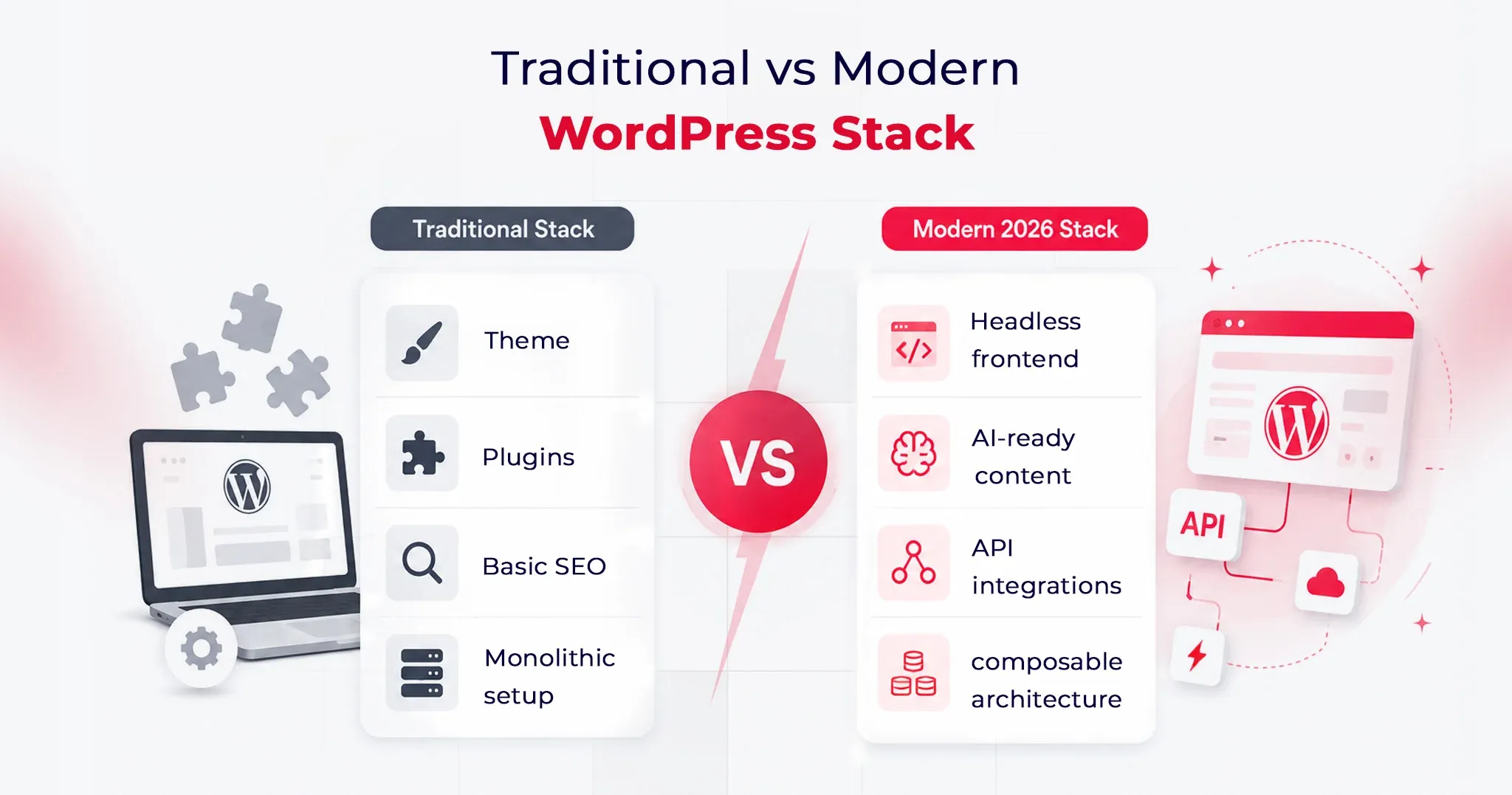
Headless WordPress is now a primary architectural strategy entering 2026. By decoupling the backend content workflows from a modern frontend presentation layer like Next.js or Astro, organizations gain unprecedented architectural freedom.
This is a practical requirement for DTC brands and enterprises that demand multi-channel publishing, granular performance control, and composable frontend stacks. The advantages include superior rendering performance and alignment with modern JavaScript patterns. The tradeoff involves increased deployment complexity and a higher coordination burden between content and engineering units.
Headless is a fit, not a default. Smart teams adopt it when the user experience ambition or a technical roadmap clearly justifies the separation.
3. AEO and GEO Are Becoming Core WordPress Visibility Priorities
Digital visibility in 2026 cannot rely on classic search models. Answer Engine Optimization and Generative Engine Optimization are mandatory priorities. Gartner predicts a 25 % decline in traditional search engine queries by 2026 as users shift to AI-generated answers and summaries.
Daily usage of AI integrated directly into search will be three times that of any standalone AI tool, with nearly one-third of adults encountering AI search summaries daily. Forbes corroborates this impact, noting that organic click-through rates have dropped 61 % on queries where AI Overviews appear, and 60 % of searches now end without a traditional click.
For WordPress teams, pages must be structured so AI systems can confidently extract and cite them. This requires sharp heading hierarchies, concise answer blocks, clean internal linking, and flawless schema markup. Technical SEO and citation readiness are now fundamental engineering tasks.
4. AI-Powered WordPress Workflows Are Becoming Operational Infrastructure
Artificial intelligence within WordPress has moved past the novelty phase. It is an operational infrastructure used to accelerate metadata generation, internal linking, and publishing operations.
The objective is not to flood the internet with thin content. The goal is operational efficiency. Agentic AI is driving the next era of enterprise integration, predicting that the majority of organizations will adopt agentic workflows by 2026. When integrated correctly, AI reduces production drag, allowing developers and strategists to focus on precision and conversion quality.
5. Core Web Vitals and Hosting Architecture Still Shape Outcomes
Performance remains a commercially critical development trend because it dictates visibility, retention, and conversion metrics. A visually polished site that responds slowly is a failing asset.
The current performance conversation revolves around LCP, INP, and CLS. With INP now the standard metric for interactivity, performance engineering must encompass script loading, font strategy, cache behavior, and rigorous plugin restraint.
Performance is an infrastructure decision that relies heavily on edge and object caching, as well as managed cloud environments.
6. Low Code and Pattern-Driven Delivery Are Speeding Up Launch Cycles
Pattern-driven workflows are accelerating how projects are shipped. Repeatable layout execution is becoming faster, freeing engineering teams to focus on bespoke integrations and performance-critical elements.
This rapid deployment is vital for minimal viable products, campaign hubs, and landing pages. Reusable block libraries reduce the time to market materially when governed with strict discipline. The optimal approach is selective acceleration: utilizing visual assembly tools to reduce drag while aggressively avoiding long-term technical debt.
7. Composable Integrations Are Defining the Next WordPress Stack
WordPress operates within a broader digital ecosystem. The most capable 2026 implementations connect seamlessly with CRMs, marketing automation platforms, commerce systems, and external APIs.
Content supports lead generation, customer education, and retention simultaneously. A platform that publishes well but integrates poorly creates systemic friction. Developers are building modular data flows and intentional plugin stacks, moving WordPress toward a composable operating model that delivers enterprise connectivity without forcing full headless complexity.
Final Thoughts
WordPress remains relevant in 2026, but the reasons are more strategic than before. It is no longer enough for a site to be easy to edit or quick to launch. It also has to perform well, integrate cleanly, stay secure, and remain visible in both traditional search and AI-mediated discovery.
That is why the most important WordPress development trends in 2026 intersect content, engineering, infrastructure, and discoverability. Teams that adapt early will build sites that are easier to scale, easier to govern, and far more resilient as the web continues to shift toward answer-driven discovery.
WordPress 7.0 launched on May 20, 2026, and it is the most consequential release the platform has shipped in nearly a decade.
This is not a point release with incremental improvements. WordPress 7.0 formalizes Phase 3 of the Gutenberg roadmap, ships a provider-agnostic AI infrastructure layer, rebuilds the admin interface using React, and restructures how editorial teams collaborate inside the editor.
The release was originally scheduled for April 9, 2026, but the core team delayed it to address architectural concerns, a decision that signals where priorities sat. WordPress 7.0 has officially arrived. It came with one flagship feature removed and the platform’s foundations meaningfully strengthened.
This guide covers every meaningful change, skips the minor patches, and ends with the exact three things you should test before clicking Update on a live site.
What’s Actually New in WordPress 7.0 vs 6.0
Here’s what changed at the feature level (not just bug fixes):
Native font library — upload and manage custom fonts without a plugin
Interactivity API improvements — better client-side state management for dynamic blocks
Performance: Core Web Vitals improvements averaging 15-18% faster LCP
Full-site editing: new template hierarchy controls for finer page-level design
Updated media library: bulk edit, better search, and folder-like collections
Tip: If you’re updating from 6.3 or earlier, read the migration notes for each version between yours and 7.0 some intermediate releases introduced breaking changes for specific plugin categories
Why WordPress 7.0 Matters More Than Recent Updates
WordPress 7.0 formalizes Gutenberg Phase 3, which shifts the platform’s editorial model from individual-user publishing to team-based content operations.
Infrastructure Evolution, Not Just an Interface Refresh
WordPress 7.0 is not a cosmetic update. The admin interface, AI integration model, media processing pipeline, and PHP support boundaries have all been rearchitected to touch every layer of a running WordPress installation.
That separation from typical incremental updates changes the risk profile for agencies and enterprise teams planning upgrades, and it is the first thing worth understanding before a single plugin compatibility check.
WordPress 7.0 as the Foundation for AI-Ready Sites
The most important thing WordPress 7.0 ships is not a single feature. It is the AI infrastructure layer that governs how every future AI-powered plugin interacts with the platform.
Before this release, WordPress had accumulated a fragmented set of competing AI implementations, in which each plugin built its own permission system, provider connection, and access logic. That fragmentation created security exposure and unpredictable behavior across sites running multiple AI tools simultaneously.
WordPress 7.0’s AI Client and Abilities API resolve that fragmentation structurally rather than through guidelines alone. Whether or not you activate any AI features today, your site now runs on a platform that has defined how AI integration should work for the entire ecosystem going forward.
Major Features in WordPress 7.0: A Complete Breakdown
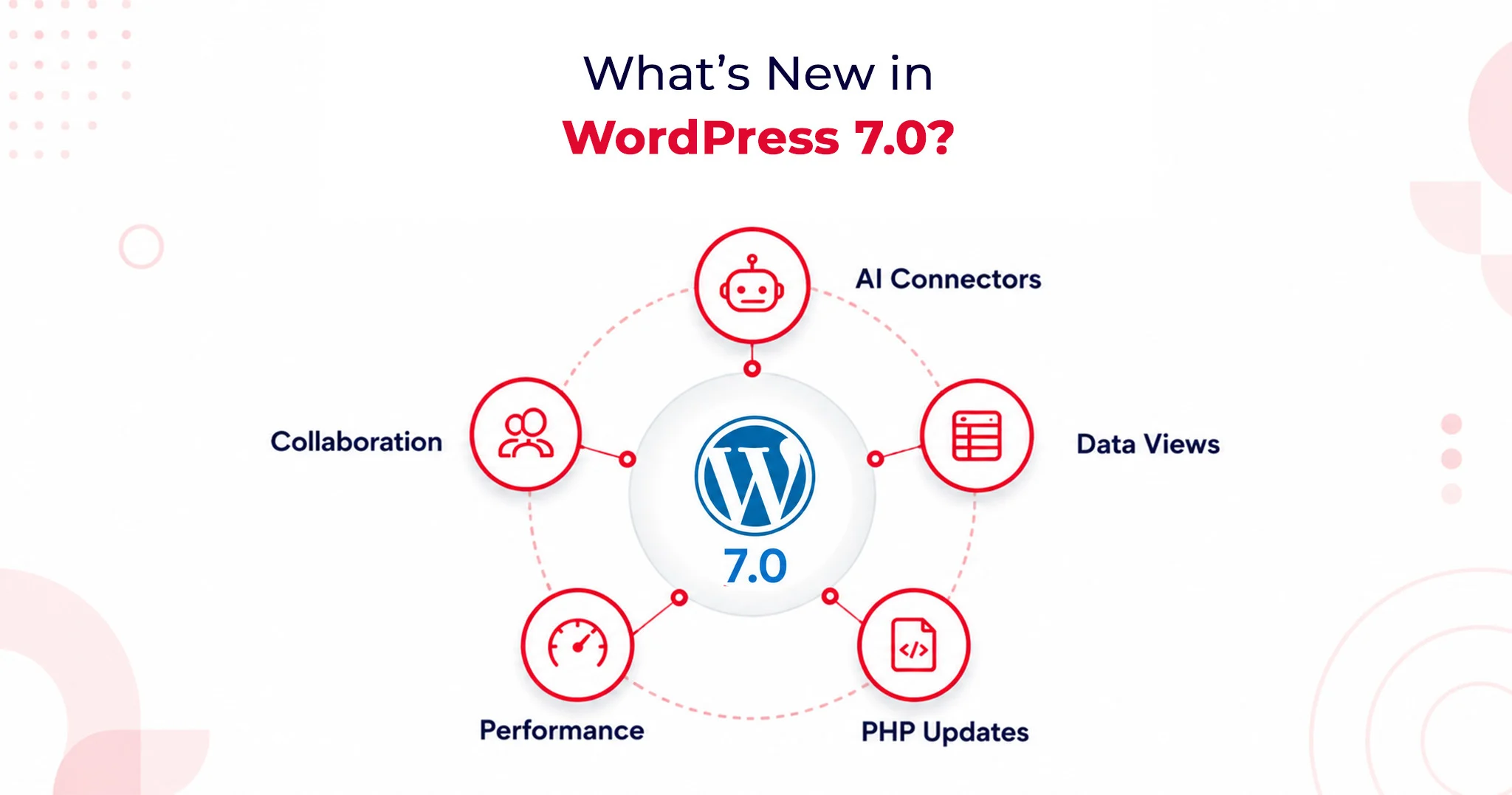
WordPress 7.0 introduces fundamental shifts in how the platform handles artificial intelligence, backend management, and team collaboration. Here is an optimized look at what you need to know about this landmark update.
1. AI Client and AI Connectors: A Provider-Agnostic AI Layer
WordPress 7.0 officially brings AI into the core experience by shipping a Web Client AI API. This establishes a standardized, deeply integrated interface that plugins and themes can use to connect to external AI providers.
According to WordPress.com’s official release documentation, the platform includes three pre-registered connectors right out of the box: OpenAI, Anthropic, and Google.
Why this matters:
Vendor Neutrality: The core team deliberately avoided locking users into a preferred AI service. You aren’t forced into a single model provider.
Centralized API Management: Site administrators simply enter one API key per provider. Any plugin built against the AI Client can leverage that connection immediately without requiring a separate plugin-level setup.
Future-Proofing: This design protects site owners from lock-in as the AI landscape shifts and gives developers a highly stable API surface to build against.
Practically, this streamlined setup powers features like:
Smart content suggestions
Auto-generated alt text
One-click summarization
Translation assistance
The Abilities API: Enterprise-Grade Security
To keep these powerful tools in check, WordPress 7.0 introduces the Abilities API. This defines exactly what AI tools are permitted to do within your installation.
Plugins must explicitly register their capabilities (e.g., creating posts, editing metadata, generating image descriptions). AI tools read these permissions in a structured way and operate strictly within defined boundaries. For enterprise site owners managing complex automation workflows, this boundary enforcement provides foundational security architecture, not just a convenience layer.
2. DataViews Admin Redesign: A Modern SaaS-Style Control Center
Say goodbye to WordPress’s classic PHP-rendered admin list tables. DataViews is a new React-based content management interface for posts, pages, media, and users. This redesign fundamentally alters how the backend behaves, not just how it looks.
The DataViews Upgrade:
Zero Reloads: Filtering, sorting, and bulk editing happen instantly without a full-page reload.
Seamless Toggling: Site administrators can fluidly switch between table, grid, and list views on the exact same screen.
Instant Updates: Grouping by status, author, or category updates on the spot.
This operational speed saves measurable hours per month for teams managing large content libraries. By bringing the admin experience closer to modern SaaS workflows like Notion and Airtable, editorial teams no longer have to justify a clunky backend to stakeholders.
3. Notes and Editorial Collaboration
Editorial workflows are getting a massive asynchronous upgrade, though the highly anticipated live-editing feature has been pushed back.
Real-Time Co-Editing Delayed
Real-time collaborative editing was officially removed from WordPress 7.0 on May 8, 2026. The core team pulled the flagship feature after race conditions, fuzz testing failures, and server memory concerns under concurrent load made it unsafe to release at scale.
If you were planning to restructure your editorial workflow around live co-editing, you will need to look toward a future WordPress release.
What Shipped: The Block-Level Notes System
While live co-editing is delayed, the new block-level Notes system has successfully shipped, and it covers the vast majority of what editorial teams actually need daily.
Key Collaboration Features:
Targeted Feedback: Editors can leave comments tied directly to specific blocks or text selections.
Team Tagging: Easily loop in teammates using @mentions.
Suggestions Mode: Propose changes that preserve the original text until the author explicitly accepts or rejects the edit.
This asynchronous collaboration model resolves major coordination friction without demanding the heavy WebSocket infrastructure that live co-editing requires from hosting environments.
Performance and Infrastructure Improvements
WordPress 7.0 Upgrade Guide: What Changes Under the Hood
Browser-side media processing is one of the most significant infrastructure changes in WordPress 7.0, profoundly impacting both site performance and plugin compatibility.
Uploaded images are now processed directly in the browser using WebAssembly before ever reaching the server. This means compression, resizing, and thumbnail generation all happen on the client side.
The media uploader now features real-time compression previews via slider controls, alongside saliency detection for automatic smart cropping based on an image’s most visually significant area.
With WordPress 7.0, the Block Editor loads noticeably faster. The iframe isolation model, which prevents style bleed between the admin area and the frontend, has also been refined, improving editing accuracy across both Block and Classic theme configurations.
The Benefit: This shift drastically reduces server resource consumption and adds native support for modern image formats, including HEIC and AVIF, without requiring server-side library updates or changes to your hosting environment. It also demonstrates how performance improvements are shaping modern web design by delivering faster, more efficient media handling directly in the browser.
PHP 7.4 Minimum Requirement and PHP 8.3 Compatibility
WordPress 7.0 officially draws a line in the sand regarding server environments:
The Baseline: It sets the PHP 7.4 Minimum Requirement, officially dropping support for PHP 7.2 and 7.3. Sites running those outdated versions will remain on the 6.9 branch (which receives security patches only) and will not receive the WordPress 7.0 update. Discovering this non-negotiable boundary on upgrade day is an avoidable operational disruption.
The Goal: The core team strongly advocates for PHP 8.3 Compatibility. Running PHP 8.3 or higher delivers measurable performance improvements, stronger type safety, and better alignment with modern development tooling. Upgrading to 8.3 positions your site safely for the next two to three release cycles.
Action Item: Check your hosting control panel or contact your host to verify your PHP version before scheduling your upgrade.
What Website Owners Should Check Before Updating to WordPress 7.0
Your WordPress 7.0 Upgrade Guide: Pre-Update Checklist
The only safe path to upgrading to WordPress 7.0 runs through a staging environment first. You must clone your production site, apply the update, and test comprehensively before pushing it live. This is entirely non-negotiable for installations that run custom blocks, have heavy admin modifications, or use server-side image plugins.
Your Pre-Update Checklist:
Full Backup: Secure the database and file system. WordPress 7.0 alters database structures and file handling, complicating mid-upgrade recovery if things go wrong.
PHP Verification: Confirm your version at the hosting level.
DataViews Compatibility: Review plugin changelogs for explicit DataViews support notes.
Editor Testing: Verify theme behavior within the new iframe-based editor.
React 19 Audit: Test custom block compatibility with React 19’s updated patterns.
Rule Validation: Check your caching and CDN rules following the admin interface change.
WordPress 7.0 Upgrade Guide: Plugin and Theme Compatibility Testing
The shift from classic PHP list tables to the React-based DataViews interface means certain plugins are at risk. Admin plugins that add custom columns, filters, bulk actions, meta boxes, or custom quick-edit fields to the Posts, Pages, or Users screens may not render correctly until their maintainers ship compatibility patches. This is especially important when evaluating the best A/B testing plugins compatible with WordPress 7.0, as they should be updated to support the new DataViews interface.
Media Plugins: Because image processing now begins in the browser before server-side hooks fire, media plugins that rely on early-stage upload interception must update their integration points. Actively maintained plugins should already have patches.
WordPress 7.0 WooCommerce Compatibility: What Store Owners Need to Know
Major ecosystem players WooCommerce, Yoast SEO, ACF, and Elementor have already shipped WordPress 7.0 compatibility updates ahead of the May 20 release. WooCommerce’s compatibility advisory confirmed rigorous testing across the release candidate cycle; standard configurations with major eCommerce extensions passed without regressions.
Where the risk lies:
Older, poorly maintained WooCommerce extensions.
Custom payment gateway integrations using legacy WordPress admin hooks.
Modified checkout flows are dependent on classic list table structures for order management.
If your store runs a standard WooCommerce setup, your risk is low. If your order management relies on custom admin modifications, prioritize those on your staging checklist immediately.
Will WordPress 7.0 Break Existing Plugins or Themes?
Yes, WordPress 7.0 carries a meaningfully higher risk profile than a typical point update. This is due to architectural depth, not careless engineering. The core shifts to the admin interface, media processing pipeline, and React version create new surface areas where older integrations can break without warning.
However, the core team’s commitment to backward compatibility remains firm:
Classic themes remain fully supported.
The Font Library, previously restricted to Block Themes, now officially extends to Classic Themes.
Custom blocks built against older React patterns require focused attention. Because the admin move to React 19 alters component lifecycle behaviors, any custom block development untouched in the last 18 months needs a dedicated compatibility audit on a staging site.
Is WordPress 7.0 Safe to Update Immediately?
For personal sites & standard blogs: Yes. Test on staging first, then update.
For Enterprise, Agencies & WooCommerce: No. Wait for the 7.0.1 and 7.0.2 minor patch releases before touching production.
Minor patches historically address the edge-case failures that crop up in the first 2–4 weeks. Given the architectural depth of 7.0, an active issue queue is guaranteed. Waiting costs little, but protects you from disproportionate recovery efforts in complex environments.
Agency Best Practice: Build a validation workflow. Require staging confirmation, plugin compatibility sign-off, client communication regarding interface changes, and a verified rollback path. WordPress 7.0 is stable, but planning for edge cases is the only professional response.
The Verdict
WordPress 7.0 is a genuine infrastructure release, not a marketing milestone. The AI Client, DataViews admin redesign, and browser-side media processing collectively shift what WordPress can do for content teams operating at scale. While real-time collaborative editing did not ship, the platform’s foundations are substantially stronger, highly AI-ready, and better suited to modern content operations than they were before May 20, 2026.
An AI search visibility audit is a process that evaluates how often your brand is mentioned, cited, and accurately represented across AI search engines like ChatGPT, Google AI Overviews, and Perplexity.
It measures citation frequency, retrieval accuracy, and whether your content is selected as the source in AI-generated answers.
Clients want to know why their brand does not appear in ChatGPT answers or Google AI Overviews’ citations. And agencies need to answer in terms of strategy and numbers. But why is this so urgent?
In July 2025, TechCrunch reported that Google AI Overviews reached about 2 billion monthly users, with AI Mode at around 100 million in the US, making AI discovery a measurable channel rather than a future bet.
Google is no longer the only search engine that matters for your traffic. In 2026, ChatGPT Search, Perplexity, and Google’s own AI Overviews collectively influence millions of queries and most websites have no idea whether they’re showing up.
This 6-step audit tells you exactly where you stand across all three AI search surfaces, what’s blocking your visibility, and what to fix first.
What Is an AI Search Visibility Audit (And Why It’s Different from an SEO Audit)?
Traditional SEO is about ranking in a list of 10 blue links. AI search visibility is about being the source an AI model cites, quotes, or summarizes when a user asks a question.
The rules are different:
Google ranks pages. AI models cite authoritative sources.
SEO rewards keywords. AI search rewards structured, factual, quotable content.
A page can rank #1 on Google and never appear in an AI Overview or vice versa.
You need both strategies. This audit covers what’s unique to AI search.
How AI Search Visibility Differs from Traditional SEO?
Traditional SEO still plays a foundational role in AI visibility, especially for crawlability, content structure, and authority signals. Many businesses now combine SEO services with GEO/AEO strategies to improve both search rankings and AI citations.
This matters because AI answers compress the buyer journey, and a single cited source can win the click that organic listings used to capture.
Here are some key differences.
Dimension
SEO Audit
AI Visibility Audit (GEO and AEO)
Primary goal
Improve rankings and traffic
Improve citations and answer selection
Inputs measured
Keywords, pages, links, crawl
Prompts, entities, schema, citations, trust
Success metrics
Rank, CTR, sessions
Mentions, cited URLs, accuracy, coverage gaps
Optimization focus
SERP positions
Model retrieval and citation readiness
Client question answered
Did we rank?
Did we become the answer?
Why AI Search Visibility Matters in 2026
AI search visibility matters because buyers are outsourcing evaluation to assistants that summarize, compare, and recommend vendors in one step. For businesses, the risk is that a competitor becomes the default recommendation inside answers, even when your brand ranks well for classic queries.
The fastest way to make this tangible is to define a baseline AI visibility audit score, then map each fix to the exact prompts where the brand currently disappears.
When you present improvements as citation lift and answer coverage, the audit stops being subjective and becomes operational.
Step 1: Set the Audit Scope (Platforms, Audience, Goals)
The audit scope matters because you cannot fix what you cannot measure across the right engines and buyer intents.
Start by selecting the AI platforms relevant to this client’s market.
A B2B SaaS client may prioritize ChatGPT and Perplexity prompts, while a multi-location consumer brand may prioritize Google AI Overviews.
Next, map prompt intent to the ideal customer profile and the buying stage, because informational prompts and vendor selection prompts require different content structures.
Finally, define what winning means for this client, such as accurate positioning, brand-mention coverage, or citations for high-intent prompts.
Create a one-page audit scope sheet that lists target engines, target personas, and the goal definition for reporting.
Step 2: Build Your Money Prompt Set (10-30 Prompts)
A money prompt set matters because prompts replace keywords as the unit of measurement for AI discovery. Build ten to thirty prompts that mirror real buyer questions and decisions, and then use the same prompt set as your audit baseline and ongoing reporting cadence. Use three prompt categories so you capture awareness, evaluation, and conversion intent in one system.
Category prompts for agency services.
Write prompts like Best payroll software implementation partner for healthcare so you can test whether the client appears in curated recommendations. Track which competitors show up, and record which URLs get cited in the answer.
Problem solution prompts for buyer pain.
Write prompts like How do retail brands reduce checkout abandonment without redesigning everything so you can test whether the client’s expertise gets pulled into the explanation. These prompts often cite guides, research summaries, and pages with clear definitions.
Comparison prompts for shortlist decisions
Write prompts like Brand A vs Brand B and Alternatives to Brand B so you can see where the model positions the category and which comparison pages it trusts. This is where agencies can sell AI-driven visibility services in geo aeo as a recurring program, because the prompts keep changing with the competitive landscape.
Deliverable: Create a prompt tracker sheet with columns for engine, prompt, response summary, brand mention, cited URLs, and competitors shown.
AI Search Visibility Audit Checklist
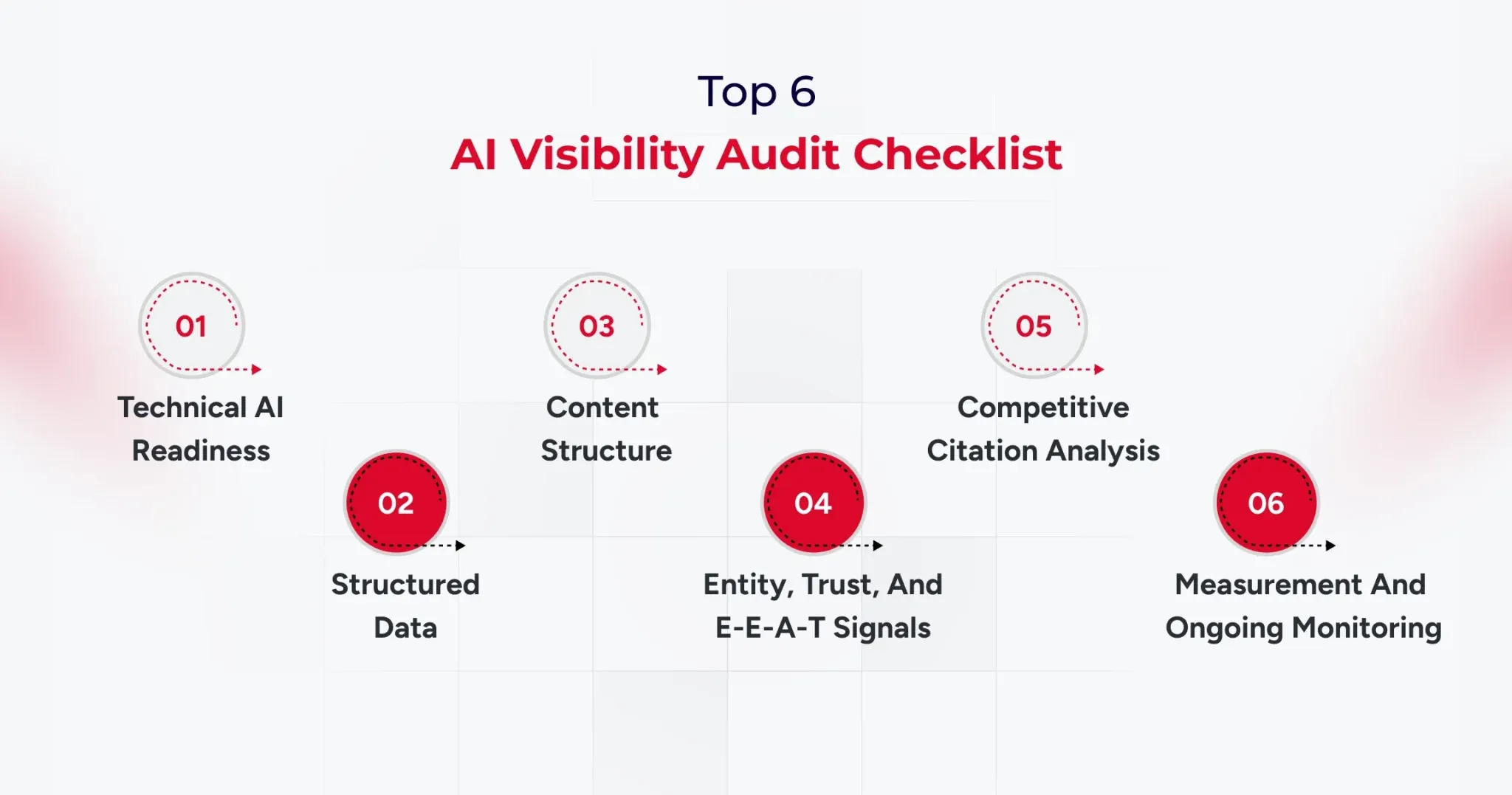
A six-category checklist matters because clients approve audits when you show clear weights, concrete checks, and failure definitions. Use a scored checklist totaling 0 to 100 points, and force every finding into a measurable category with a clear remediation path.
1) Technical AI Readiness (20 points)
Confirm that key AI user agents are not blocked in robots.txt, including GPTBot, ClaudeBot, and PerplexityBot.
Verify crawl eligibility, indexability, and snippet extractability on priority pages.
Check performance, rendering, and stability on critical templates, especially on mobile.
Confirm HTTPS, canonical consistency, and sitemap freshness for the pages you expect to be cited.
Failure looks like blocked bots, inconsistent canonicalization, and pages that render poorly for crawlers.
2) Structured Data and Machine Understanding (20 points)
Validate JSON-LD schema for Organization, Article, FAQ, and Product where relevant.
Confirm that the schema matches the visible content, with no mismatches that could raise trust issues.
Check for an llms.txt file if the client uses one, and ensure it aligns with content priorities.
Verify Knowledge Graph entity claims, including consistent brand descriptors across properties.
Failure can look like missing, mismatched, or inconsistent entity descriptions.
3) Content Structure and Citation Readiness (30 points)
Ensure the answer appears in the first two to three sentences after each heading.
Write clean definitions that are copy-friendly and context complete.
Add lists and tables where the prompt expects them.
Support claims with proof such as data, case studies, and measurable outcomes.
Use question-based H2 structures when the prompt set indicates direct questions.
Failure looks like slow responses, vague claims, and pages that read like marketing copy rather than evidence.
4) Entity, Trust, and E-E-A-T Signals (20 points)
Add author bylines with credentials when expertise matters.
Maintain consistent brand descriptions across the website, profiles, and listings.
Identify third-party mentions, citations, and references from authoritative sources.
Evaluate the entity’s presence on sources like Wikipedia and Wikidata when relevant to the brand.
Document methodology on key pages so claims look reviewable.
Failure looks like anonymous content, inconsistent brand bios, and no third-party validation.
5) Competitive Citation Analysis (5 points)
Identify which competitors win citations for the target prompt set.
Capture which competitor URLs are being cited and why they fit the prompt.
Map content gaps where the client is missing pages that match the prompt intent.
Failure appears when competing pages are consistently cited, even though the client has no equivalent asset.
6) Measurement and Ongoing Monitoring (5 points)
Maintain a prompt tracking system with weekly or biweekly checks.
Track citation frequency and brand mention coverage by engine and prompt cluster.
Create a before-and-after report format that clients can sign off on.
Failure looks like one-off screenshots and no repeatable baseline.
Scoring note: A score below 60 indicates a high risk of AI invisibility and should be addressed as a priority.
AI Visibility Checking Tools Agencies Should Use in 2026
AI visibility checking tools matter because agencies need proof, baselines, and ongoing monitoring beyond traditional rank tracking.
You need four tool categories, and you should select tools based on the audit category they support, not based on brand popularity.
AI Visibility Checking Tools for Technical and Crawl Readiness
Use Google Search Console, Screaming Frog, and a crawler suite like Semrush to validate indexability, rendering, and template issues. Tie every finding back to the prompt set pages you expect to be cited, because generic crawl stats do not move AI citations by themselves.
AI visibility checking tools for structured data validation
Use Google’s Rich Results Test and Schema Markup Validator to confirm schema accuracy and coverage. Report schema findings as pass fail checks with URLs, so the remediation list becomes straightforward for engineering teams.
AI visibility checking tools for citation monitoring and AI tracking
Use an AI visibility tracker when you need prompt-level history, citation URLs, and sentiment trends across engines. Platforms like Profound and Wellows are positioned around multi-engine citation tracking and workflow reporting, while suites like SE Ranking are building bridges between classic SEO signals and AI visibility monitoring.
AI visibility checking tools for reporting and workflow proof
Use prompt tracking spreadsheets, annotated screenshots, and versioned reporting templates so the client can see progress by prompt cluster.
This is also how you turn AI visibility work into a monthly program, because the system becomes your audit-and-reporting engine.
How to Package AI-Driven Visibility Services in GEO/AEO for Clients
Packaging matters because the AI visibility audit becomes more valuable when it leads directly to an execution motion. You can offer three service models, each with a clear scope, deliverables, and reporting cadence.
Model 1: One-time AI Visibility Audit Report
The scope focuses on baseline scoring, findings, and a Top 10 GEO fixes list.
Model 2: Monthly GEO retainer
Scope focuses on prompt tracking, monthly citation delta reporting, and ongoing content and structure improvements.
Model 3: Full GEO as a service
Scope includes audit, content restructuring, technical fixes, schema improvements, entity building, and reporting.
Timeline expectations should be conservative and measurable, with early movement often visible within four to eight weeks and more stable citation gains typically visible within eight to sixteen weeks.
Scoring Your Client’s AI Visibility (0-100 Agency Rubric)
A scoring rubric matters because clients approve work when you quantify risk and prioritize fixes with a consistent standard.
Use the 0 to 100 score as a weighted summary of the six audit categories, and make sure every finding can be traced to an explicit score impact.
Use three score bands so the client can quickly understand severity.
A score below 60 indicates high risk and major visibility gaps.
A score from 60 to 79 indicates moderate risk with clear optimization opportunities.
A score of 80 or above indicates strong readiness, with effort shifting to competitive citations and prompt coverage expansion.
From Audit to Action: The 30/60/90-Day GEO Roadmap
A 30/60/90 roadmap matters because clients want a plan that converts audit findings into a calendar they can approve.
Start by building a priority matrix based on impact and effort, then map each fix to a time-bound sprint.
30/60/90 structure
Days 0 to 30: complete technical fixes, finalize baseline prompt tracking, and deliver the scored report.
Days 31 to 60: restructure content for answer first format, improve definitions, add tables and comparisons, and align entity language.
Days 61 to 90: monitor citations, run competitive gap analysis, and deliver a second baseline comparison with deltas.
Deliverable: Create a Top 10 GEO fixes list with issue, impact, effort, owner, and deadline.
Conclusion
An AI visibility audit is now a core agency deliverable because AI answers shape discovery at a massive scale. When Google AI Overviews alone reach about two billion monthly users, agencies cannot treat citations and answer selection as optional.
Use this AI visibility audit checklist to score readiness, prioritize fixes, and move from baseline to measurable citation gains with a 30/60/90 roadmap. If you standardize prompts, scoring, and reporting, you can turn AI visibility audit work into a repeatable service line with clear proof.
And if you are looking to improve AI search visibility without going through the hassle of creating a template, connect with our experts now.
Over 43% of the web runs on WordPress, yet the moment someone needs to migrate a WordPress site to a new host, the process feels anything but routine.
The fear is legitimate.
A failed WordPress migration does not just break a website. It can affect SEO rankings, form submissions, analytics tracking, checkout functionality, and customer trust within hours.
According to W3Techs WordPress Usage Statistics, WordPress powers more than 43% of all websites globally, making migration reliability a critical operational concern for businesses of every size.
What most migration guides miss is that failure rarely happens during the transfer itself. It usually happens before the migration begins or after the new site goes live.
This guide covers the complete process, including:
pre-migration preparation
plugin-based migration
manual migration
SEO preservation
downtime prevention
post-launch validation
common troubleshooting scenarios
So you can migrate your WordPress website safely without damaging performance, visibility, or user experience.
Pre-Migration Checklist: What to Do Before You Start
The WordPress site migration checklist isn’t administrative busywork. Every item on it represents a failure mode caught in advance, rather than a recovery task you’ll face under pressure with a live site down. Skipping even one step can mean a corrupted database, missing media files, or an SSL mismatch that takes days to trace.
#1. Build Your WordPress Site Migration Checklist Around a Full Backup First
A full site backup means your database export (.sql file) AND your complete WordPress file directory, including wp-content, all themes, all active plugins, and your .htaccess file.
There are many tools that let you store backups to Google Drive, Dropbox, and Amazon S3. Run a fresh backup immediately before migrating, not the one from yesterday. The few minutes this takes pays off the moment something breaks mid-transfer.
#2. Create a Staging Environment Before Any Live Migration Work
A staging environment is a private, non-indexed copy of your site hosted on a subdomain or locally, where you can test the migrated version before switching DNS. Managed hosts like Cloudways, SiteGround, and WP Engine offer one-click staging environments.
If your current host doesn’t, set one up by pointing a subdomain at a temporary directory. Testing on staging catches the majority of migration errors before they touch your live site.
#3. Audit Your Plugin Stack, Theme Dependencies, and PHP Version
Check the PHP version your current site runs on and confirm your new host supports the same version. Plugin conflicts post-migration are frequently traced back to PHP version mismatches, not the migration process itself.
Deactivate any plugins you no longer use before migrating: fewer files, smaller export, and a cleaner environment on the new host. This step alone reduces migration time noticeably on sites with bloated plugin libraries.
#4. Document Your Current SEO Configuration as a Baseline
Record your current permalink structure, sitemap URL, and robots.txt setup. Screenshot your Google Search Console coverage report. These become your post-migration benchmarks.
A spike in 404 errors or crawl anomalies in Search Console within 48 hours of going live on the new host is the signal to investigate; a clean baseline tells you exactly what changed.
How to Avoid Downtime During WordPress Migration
DNS propagation issues, incomplete file transfers, or untested staging environments usually cause downtime during a WordPress migration. The safest migrations reduce risk before the DNS switch happens.
Practical Steps to Reduce Downtime
Lower DNS TTL 24 hours before migration
Complete all testing inside a staging environment
Keep the old hosting account active during propagation
Verify forms, images, redirects, and SSL before switching DNS
Schedule migrations during low-traffic hours
Avoid making content changes during migration windows
A properly planned migration often completes with minimal or no visible downtime for users.
Choosing the Right Migration Method
When Plugin-Based Migration Is the Smarter Call
Plugin-based migration handles file transfer, database export, import, and URL rewriting in a single coordinated workflow. For most site owners and small agencies, a WordPress migration plugin reduces a four-hour manual process to approximately 45 minutes.
Duplicator, with over 1 million active installs and a 4.9-star rating on WordPress.org, is the most commonly used tool for this. All-in-One WP Migration and Migrate Guru each cover the same core workflow with different trade-offs on file size limits, automation depth, and server-side processing.
The right choice depends on site size and technical comfort. All-in-One WP Migration works well for sites under 512MB with no technical configuration required. Duplicator’s free tier handles unlimited restore sizes and includes recovery tools. For large sites or multisite networks, Migrate Guru runs the migration on the server side, so your local machine never becomes a bottleneck.
When Manual Migration Gives You the Control You Need
Manual migration takes longer but gives you direct visibility into every layer of the process. Developers migrating sites with complex custom database tables, multisite configurations, or non-standard directory structures often find the manual route less prone to unexplained failures. If a plugin migration fails silently at the database import step, identifying which table caused it requires digging into logs. Manual migration makes every failure point explicit.
That said, manual migration is not inherently more reliable than a well-configured WordPress migration plugin. The reliability difference depends on the site’s complexity and your familiarity with phpMyAdmin, FTP, and wp-config.php, not on the method itself.
Best WordPress Migration Plugins in 2026
The right WordPress migration plugin depends on your website size, technical comfort level, and hosting environment.
How to Migrate a WordPress Site Using a Plugin (Step-by-Step)
This walkthrough uses Duplicator, since it handles the widest range of site sizes, and the free version covers most common migration scenarios without file size restrictions on restores.
Step 1: Install and Activate Your WordPress Migration Plugin
Log in to your WordPress admin dashboard. Go to Plugins > Add New, search for Duplicator, install it, and activate. Once active, Duplicator appears in your left sidebar under its own menu.
Step 2: Create the Migration Package on Your Current Site
Click Duplicator > Packages > Create New. Run the pre-build scan to catch any configuration warnings: large files, oversized databases, and non-standard table prefixes. Name your package, run the build, and download both the installer file (.php) and the archive (.zip). Both files are required for the next steps. The installer file is useless without the archive.
Step 3: Prepare a Fresh Database on Your New Host
On your new host, create a MySQL database, create a database user, and assign full privileges. If your new host uses cPanel, the MySQL Databases section handles all three in under five minutes. Note the database name, username, and password; you’ll enter these during the Duplicator import step.
Step 4: Upload the Package Files and Run the Installer
Upload both Duplicator files to your new host’s root directory via FTP using FileZilla, or through your host’s cPanel file manager. Navigate to yoursite.com/installer.php in a browser. The installer walks you through database connection, archive extraction, and URL updating in a guided interface. Enter your new database credentials when prompted.
Step 5: Complete Your WordPress Site Migration Checklist Verification
After the installer finishes, log in to your new WordPress admin dashboard. Check that pages load, images display correctly, and no critical functions are broken. Run a URL search-replace if Duplicator didn’t handle it automatically; the Velvet Blues Update URLs plugin covers this. Update your DNS pointing to the new host only after this full verification step passes.
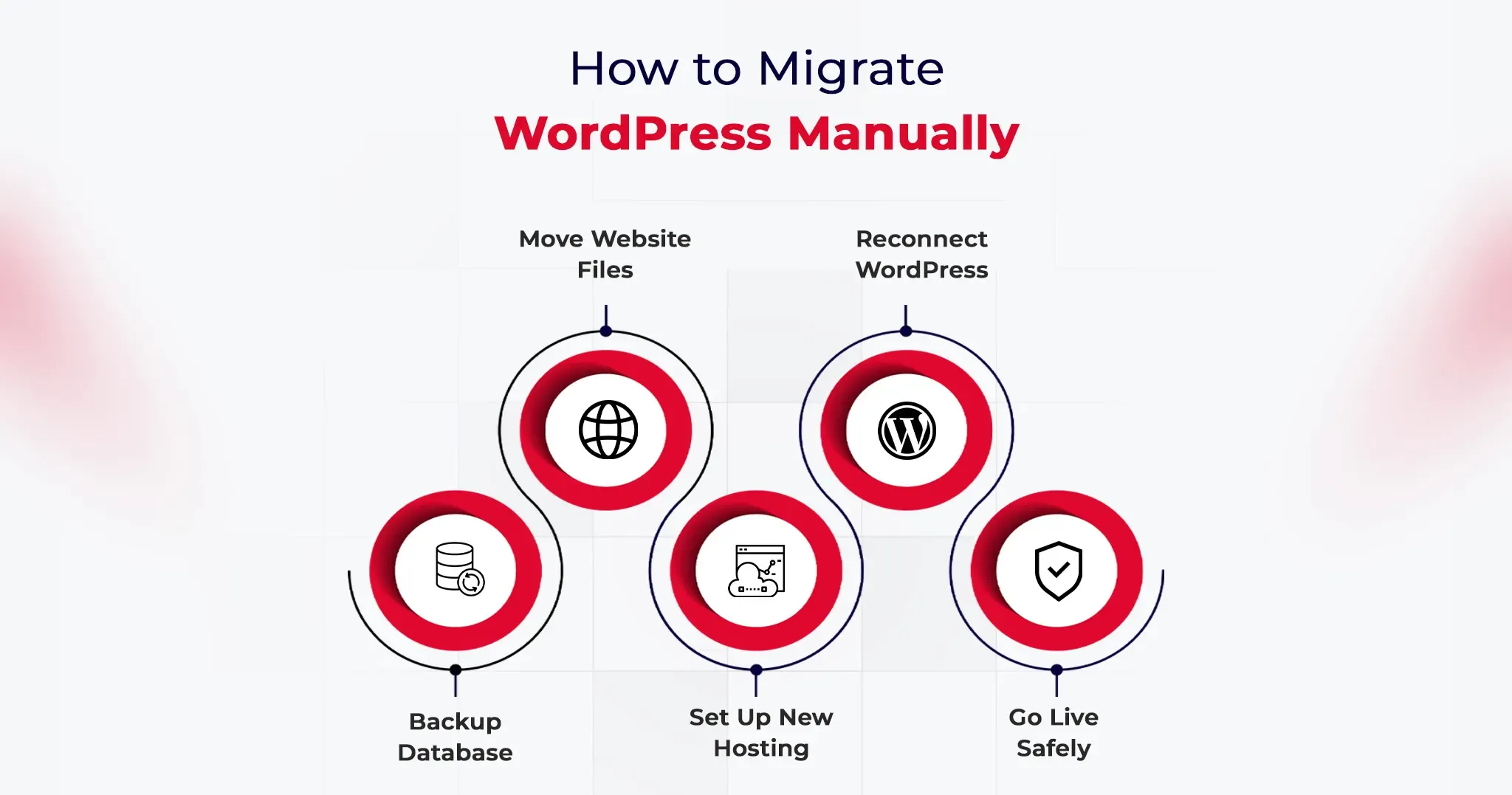
How to Migrate WordPress Site Manually (Step-by-Step)
Manual migration covers the same destination as the plugin method but gives you direct access to every component of the transfer.
Step 1: Export Your WordPress Database via phpMyAdmin
Log in to your current hosting cPanel and open phpMyAdmin. Select your WordPress database from the left panel, click the Export tab, choose the Quick export method, set the format to SQL, and click Go. Save the .sql file locally. This file contains every post, page, user, plugin setting, theme option, and WordPress configuration your site holds. Back it up separately before importing to the new host.
Step 2: Download All WordPress Files via FTP
Connect to your current server using FileZilla or an equivalent FTP client. Navigate to your WordPress root directory, typically public_html or www. Download the entire directory including wp-content, wp-includes, wp-admin, and the .htaccess file. Download time ranges from 15 minutes for a lean site to over an hour for wp-content folders heavy with media.
Step 3: Create a New Database on Your Destination Host
On your new host’s cPanel, open MySQL Databases. Create a fresh database, create a user, and assign all privileges to that user. Record the database name, username, and password precisely. The WordPress site migration checklist requirement at this step is exact credential matching: a single character mismatch between your wp-config.php and the actual database credentials will produce a database connection error.
Step 4: Import the Database and Reconfigure wp-config.php
Open phpMyAdmin on your new host, select the new empty database, click Import, and upload your .sql file. Once imported, open wp-config.php in a text editor and update DB_NAME, DB_USER, DB_PASSWORD, and DB_HOST to match your new database credentials. Upload the updated wp-config.php and all your WordPress files to the new host’s public root via FTP.
Step 5: Update URLs and Complete Your WordPress Site Migration Checklist
Navigate to your new site using the host’s temporary URL during the staging period. Run a database search-replace to update all instances of your old domain with the new one.
Better Search Replace handles serialized data correctly, which is critical for sites built with Elementor, Divi, or WooCommerce, where hardcoded URLs nest inside serialized arrays. Flush your permalinks by going to Settings > Permalinks and clicking Save Changes. That single action resolves approximately 90% of 404 errors that appear immediately after a manual migration.
How to Migrate WooCommerce Sites Safely
WooCommerce migrations require additional caution because they involve customer accounts, order data, payment gateways, and transactional functionality.
Important WooCommerce Migration Checks
Place the store in maintenance mode before migration
Backup WooCommerce orders separately
Test checkout and payment gateway functionality after migration
Reconnect Stripe, PayPal, and shipping integrations if needed
Verify transactional emails and automation workflows
Check product image references and inventory sync
Even when pages load correctly, payment or checkout issues can remain hidden until customers attempt purchases. That is why live transactional testing is essential after migrating WooCommerce websites.
Important Post-Migration Tasks You Shouldn’t Skip
The migration is not finished when the site loads correctly on the new server. These tasks are where most people create the problems they later spend hours debugging.
Verify SSL installation and HTTPS consistency. Confirm HTTPS works correctly on the new host. If your old host provisioned the SSL and your new host requires a fresh certificate, your site may load on HTTP but not HTTPS, which breaks any hardcoded HTTPS links stored in the database.
Recheck Google Analytics and Search Console tracking. Confirm your analytics tracking code fires on the new environment. If you changed domains, update your Search Console property and resubmit your XML sitemap to trigger a fresh crawl indexing the correct URLs.
Test every form, integration, and payment gateway. Contact forms, WooCommerce checkout flows, and third-party API connections (Mailchimp, Stripe, CRM hooks) need live testing. API keys and environment variables don’t transfer automatically, and a visual check of the page doesn’t confirm a form submission actually routes correctly.
Run a full crawl within 24 hours of going live. Screaming Frog or Sitebulb will surface broken internal links, redirect chains, missing image references, and duplicate content signals that a manual browse misses entirely. Even a 15-page site can return a crawl report with 30 actionable items.
Reduce DNS TTL 24 hours before the migration, not after. Lowering TTL to 300 seconds before you switch DNS means propagation completes in minutes rather than 24 to 48 hours. Set it back to 3600 once propagation confirms fully across major DNS resolvers.
WordPress Migration SEO Checklist
Moving a WordPress website without protecting SEO can quietly damage rankings, traffic, and indexed pages even when the migration itself appears successful. A structured SEO migration checklist helps preserve visibility and reduces the risk of crawl or indexing issues after launch.
Key SEO Checks Before and After Migration
Preserve the existing URL structure whenever possible
Configure 301 redirects for changed URLs
Verify canonical tags after migration
Re-submit your XML sitemap in Google Search Console
Review robots.txt configuration on the new environment
Monitor crawl errors and indexing coverage for at least two weeks
Check Core Web Vitals and page speed after DNS propagation
Validate internal links and image URLs after migration
According to Google Search Central, proper redirects and sitemap resubmission are critical steps when migrating websites without losing search visibility.
Even small migration errors like broken redirects or incorrect noindex settings can affect organic performance within days.
Common Migration Issues and How to Fix Them
404 errors across all pages. Go to Settings > Permalinks and click Save Changes without modifying anything. This regenerates the rewrite rules in .htaccess and resolves the majority of post-migration 404 issues within seconds.
White screen of death after migration. This points to a PHP version mismatch or an exhausted memory limit on the new host. Check the server error logs first. If logs show a memory error, add define(‘WP_MEMORY_LIMIT’, ‘256M’); to wp-config.php. If logs show plugin errors, rename the entire plugins folder via FTP to deactivate all plugins at once, confirm the admin loads, then reactivate plugins one by one to isolate the conflict.
Images not loading after the transfer. Hardcoded image URLs in the database still reference the old domain. Run Better Search Replace, searching for your old domain and replacing with the new one, with the dry-run option turned off. Confirm the serialized data checkbox is enabled.
Database import timeout or file size error. Large .sql files frequently exceed phpMyAdmin’s default upload limit. Compress the file to .sql.gz before importing, or use a tool like BigDump for databases exceeding 200MB. Alternatively, import via SSH: mysql -u username -p database_name < backup.sql.
Admin login broken after migration. This is typically a cookie domain mismatch or a siteurl/home URL conflict. Add define(‘COOKIE_DOMAIN’, ”); to wp-config.php to reset the cookie domain configuration, then log in and correct the URLs under Settings > General.
Bonus Tips to Make WordPress Migration Even Faster
Use your new host’s free migration service.Per hosting industry data, 63% of managed WordPress hosting plans include free site migrations. Providers like Kinsta, WP Engine, and Cloudways move your site at no additional charge and handle technical edge cases that trip up self-managed migrations. For non-developers, this is consistently the fastest and lowest-risk path.
Move to NVMe-based hosting while you’re migrating. Sites migrated from SATA SSD to NVMe infrastructure typically see a 50 to 70% reduction in server response time (TTFB), according to hosting benchmark data from Hostingstep. If your migration is performance-driven, the hosting infrastructure choice matters more than the migration method you use.
Migrate during low-traffic hours. Schedule migrations between midnight and 6 AM in your site’s primary audience timezone. Any DNS propagation window falls during minimum traffic, errors surface before peak audience hours, and your monitoring tools catch anomalies before users do.
Use WP-CLI for databases over 1GB. WP-CLI, WordPress’s command-line interface, handles database exports, imports, and search-replace operations directly on the server, with no phpMyAdmin file size caps and no browser timeout risk. For any site with a database above 1GB, command-line tooling is the correct approach, not a browser-based phpMyAdmin interface.
Conclusion
Getting the process of how to migrate a WordPress site right is not primarily a technical challenge. It is a sequencing challenge. Full backup happens before anything else. The staging environment gets tested before DNS changes. The post-migration checklist runs before you announce the new site is live.
Whether you use a WordPress migration plugin like Duplicator or work through the manual FTP and phpMyAdmin method, the structure of the process matters more than the specific tools. Follow the sequence, test before switching DNS, verify after switching, and most migrations complete without incident.
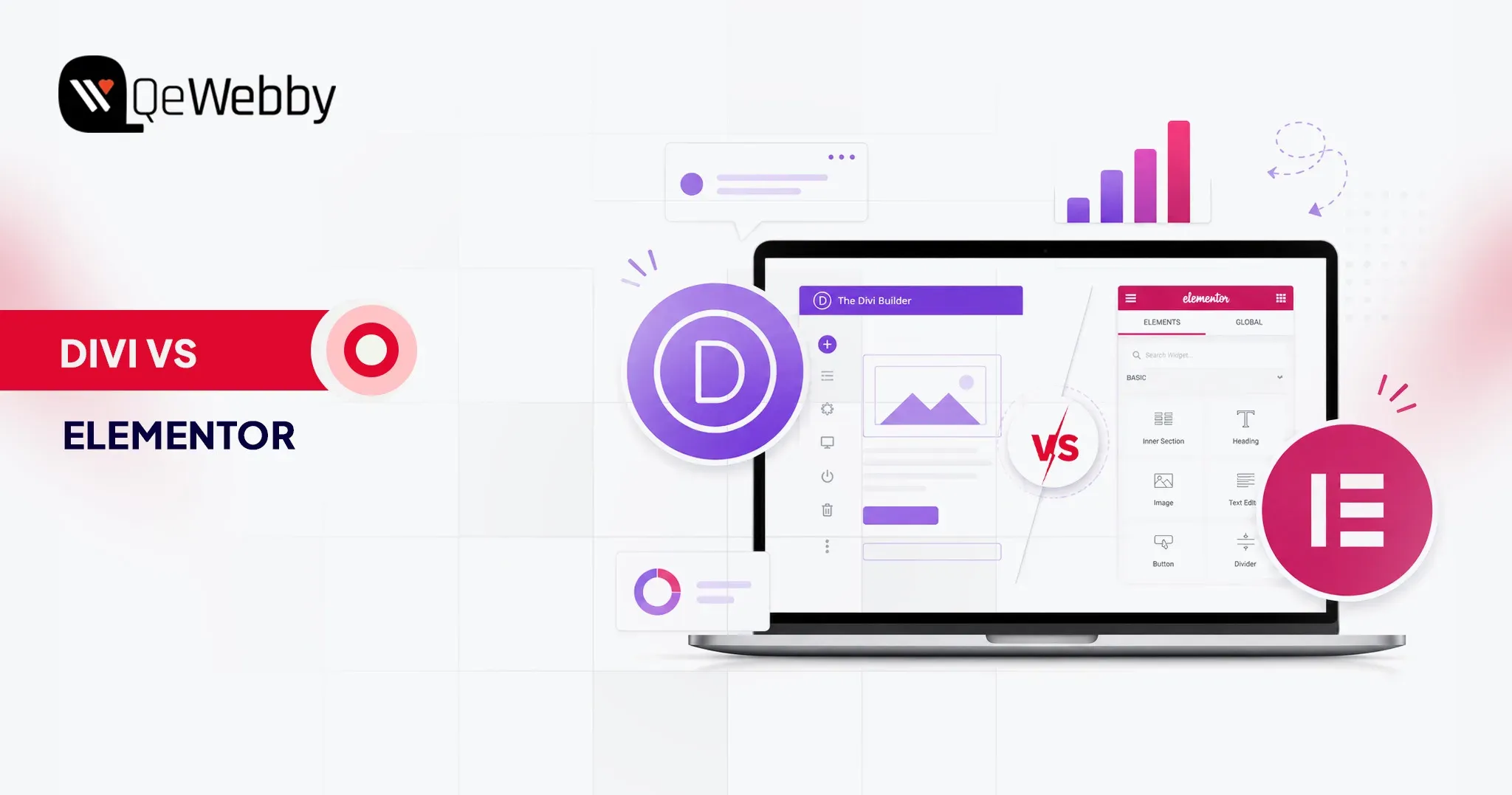
Choosing the right tools for your WordPress website can make or break your digital growth. Among those tools, page builders play a central role. They define how quickly you can design pages, how flexible your layouts are, and how well your site performs across devices. With dozens of options available, finding the best WordPress page builder is not as straightforward as it seems.
This is where the comparison of Divi vs Elementor becomes highly relevant. Both are powerful, widely used, and packed with features. Yet, they differ in how they handle speed, usability, customization, and scalability. What works perfectly for one business might create limitations for another. That is why understanding their strengths and trade-offs is critical before making a decision.
Selecting the wrong page builder can lead to slower load times, restricted design control, and higher maintenance effort over time. On the other hand, the right choice can streamline your workflow and improve user experience.
In this blog, we will break down Divi vs Elementor across key factors like performance, ease of use, pricing, and real-world usability, helping you confidently choose the best WordPress page builder for your needs.
Divi vs Elementor: Understanding the Builders Behind the Decision
Not all page builders deliver the same experience once you move beyond the surface. The Divi vs Elementor comparison is less about which has more features and more about which aligns better with your workflow, performance needs, and long-term goals. Before choosing the best WordPress page builder, it is important to understand how each one truly operates in real-world scenarios.
What is Divi?
Divi is a powerful visual builder developed by Elegant Themes, designed to simplify website creation without compromising on design depth. Known as the Divi WordPress builder, it combines a theme and a page builder into one unified ecosystem. This means you are not just editing pages; you are controlling the entire site structure with consistency. For users exploring Divi vs Elementor, Divi often stands out for its design flexibility and built-in editing experience that feels seamless and intuitive.
It is particularly favored by designers and agencies that want complete creative control while maintaining reusable design systems across projects.
Key Features of Divi
True visual front-end editing with real-time changes
Built-in theme builder for headers, footers, and templates
Extensive design modules and layout packs
Global elements and styles for consistency
Advanced responsive editing controls
Integrated A-B testing for conversion optimization
No dependency on third-party add-ons for core functionality
What is Elementor?
Elementor is one of the most widely adopted WordPress builders, powering millions of websites globally according to BuiltWith technology usage data. It focuses on ease of use, speed, and scalability, making it a strong contender for the best WordPress page builder. When comparing Divi vs Elementor, Elementor often appeals to users who want granular control through widgets and a lightweight editing experience that integrates smoothly with various themes.
Its ecosystem is vast, allowing users to extend functionality through plugins and third-party tools, which makes it highly adaptable for different project needs.
Key Features of Elementor
Intuitive drag and drop editor with a clean interface
Wide range of widgets for design and functionality
Theme builder for customizing site-wide elements
Popup builder for marketing and lead generation
Strong third-party plugin ecosystem
Advanced motion effects and animations
Flexible styling and typography controls
Divi vs Elementor: Feature-by-Feature Comparison That Impacts Your Choice
Feature
Divi WordPress Builder
Elementor
Ease of Use
Visual front-end editing, slightly complex at first
Clean UI with sidebar, beginner-friendly
Learning Curve
Moderate to high
Low to moderate
Design Flexibility
Highly customizable with deep styling controls
Flexible with structured widget-based design
Performance & Speed
Improved, but can be heavy if not optimized
Generally faster and lighter by default
Pricing Model
Yearly and lifetime plans
Subscription-based with multiple tiers
Value for Money
High for long-term and multiple sites
Good for short-term or single-site usage
Built-in Features
Extensive, fewer external plugins needed
Core features are strong, relies on add-ons
Integrations
Limited compared to Elementor
Large ecosystem of third-party integrations
WooCommerce Support
Strong customization options
Equally strong with more plugin flexibility
Global Design Controls
Advanced global styles and reusable elements
Available but less centralized
Support & Community
Good support, strong design-focused community
Massive global community and resources
Best For
Designers, agencies, branding-focused builds
Beginners, marketers, scalable projects
Picking the best WordPress page builder is rarely a quick decision. On paper, both tools promise speed, flexibility, and control. In reality, the experience can feel very different once you start building pages, managing layouts, and optimizing performance.
Ease of Use
According to Statista, mobile devices account for more than half of global website traffic, making mobile optimization a critical factor when selecting a WordPress page builder.
Ease of use is not just about drag-and-drop functionality. It is about how quickly you can move from idea to execution without second-guessing your steps. A builder that feels intuitive reduces rework, speeds up delivery, and improves overall productivity for teams and individuals.
The Divi WordPress builder offers a fully visual editing experience that places design controls directly on the page. This approach feels natural once you get used to it, especially for users who prefer real-time interaction. However, the interface includes multiple layers of settings, which can feel overwhelming in the beginning. It rewards users who invest time in learning its system.
Elementor follows a more structured layout with a fixed sidebar and clear widget-based controls. This separation makes navigation simple and predictable, especially for beginners. You can quickly locate elements, adjust settings, and preview changes without confusion. It is designed to reduce the learning curve and help users build faster from day one.
Design Capabilities and Flexibility
Design flexibility defines how unique and scalable your website can become. The best WordPress page builder should allow you to move beyond templates and create experiences that align with your brand and business goals.
Divi stands out with its deep design customization options. From advanced styling controls to global design settings, it allows you to fine-tune every element on the page. The ability to reuse layouts and apply global changes adds efficiency, especially for larger projects. It is particularly strong for users who want complete creative freedom within a single ecosystem.
Elementor offers powerful design capabilities through its modular widget system. Each widget can be customized with precision, giving users strong control over layout and styling. While slightly more structured than Divi, it provides enough flexibility for most use cases. Its third-party extensions further enhance what you can achieve visually.
Performance and Speed
Website performance directly impacts user experience, conversions, and search rankings. Even the most visually appealing design loses value if the site loads slowly or struggles to perform under real conditions.
Divi has made noticeable improvements in performance through features like dynamic CSS and optimized asset loading. However, complex designs with heavy modules can still increase load time if not optimized properly. It requires a more mindful approach to maintain speed and efficiency.
Elementor is generally perceived as more lightweight in its default setup. It delivers faster load times when paired with optimized themes and hosting. That said, overusing widgets or relying heavily on add-ons can gradually impact performance. Proper optimization practices are still essential.
Pricing and Value for Money
Cost is not just about the initial investment. It is about how pricing aligns with your long-term usage, scalability, and the number of projects you manage.
Divi offers a straightforward pricing structure with both yearly and lifetime plans. The lifetime option is especially attractive for agencies or freelancers working on multiple websites. It provides long-term value without recurring costs, making budgeting more predictable.
Elementor follows a subscription-based pricing model with multiple tiers depending on usage. This makes it accessible for beginners, but costs can increase over time as you scale. The value depends on how extensively you use its premium features across projects.
Integrations and Add-ons
Modern websites often rely on multiple tools working together. Integration capabilities determine how easily your builder fits into your broader tech stack.
Divi comes with a wide range of built-in features, reducing the need for additional plugins. While it supports integrations, its ecosystem is more self-contained. This can simplify management but may limit flexibility in certain advanced use cases.
Elementor excels in integrations and add-ons. Its open ecosystem allows you to extend functionality with a wide range of third-party plugins. Whether it is marketing automation, advanced design elements, or analytics tools, the possibilities are extensive.
Support and Community
Strong support and an active community can significantly influence your experience, especially when dealing with complex builds or troubleshooting issues.
Divi provides dedicated support along with detailed documentation and tutorials. Its community is active and particularly strong among designers and agencies. Users often benefit from shared resources, layouts, and practical insights.
Elementor has one of the largest communities in the WordPress space. From forums to tutorials and third-party resources, help is widely available. Official support quality varies by plan, but the overall ecosystem makes it easier to find solutions quickly.
Divi vs Elementor: Pros and Cons You Should Know Before Choosing
Before you finalize a page builder, it helps to look beyond features and understand the real advantages and limitations. The Divi vs Elementor debate often comes down to how each tool performs in everyday use, not just what it promises on paper. This section breaks down the pros and cons in a clear, practical way so you can evaluate what fits your workflow, team structure, and goals.
Pros of Divi
Strong visual editing experience that lets you design directly on the page
Deep customization controls for layouts, spacing, and styling
Built-in features reduce dependency on multiple plugins
Global elements and reusable styles improve consistency across pages
One pricing model with a lifetime option offers long-term value
Ideal for designers who want full creative control
Cons of Divi
Learning curve can feel steep for first-time users
The interface can become overwhelming due to multiple settings layers
Performance may require additional optimization for complex designs
Limited third-party ecosystem compared to competitors
Can feel heavier when handling large-scale or dynamic websites
Pros of Elementor
Clean and structured interface that is easy to navigate
Faster onboarding for beginners and non-technical users
Lightweight performance in default setups
Large ecosystem of third-party plugins and integrations
Flexible widget system for building dynamic layouts
Strong community support and learning resources
Cons of Elementor
Advanced features often require paid plans
Over-reliance on add-ons can impact performance
Design consistency may require more manual control
Pricing increases as you scale across multiple sitesc
Some customization limits compared to more design-focused builders
Divi vs Elementor: Who Should Use Which Builder?
Not every page builder fits every user. The real decision in the Divi vs Elementor comparison depends on how you work, what you prioritize, and how complex your projects are. The best WordPress page builder for you is the one that aligns with your workflow, not just the one with the most features. Here is how each builder fits different types of users and use cases.
Who Should Use Divi?
The Divi WordPress builder is best suited for users who want complete control over design and prefer an all-in-one ecosystem. It works well for those who value consistency, reusable design systems, and deeper customization without relying heavily on third-party tools.
Ideal for:
Design-focused freelancers who want pixel-level control and creative flexibility
Agencies managing multiple websites that benefit from global styles and reusable layouts
Business owners are focused on branding and want a visually unique website experience
Teams looking for long-term value with a one-time investment approach
Divi becomes especially powerful when you are building multiple pages with consistent design patterns. It rewards users who invest time in mastering its interface.
Who Should Use Elementor?
Elementor is a strong choice for users who prioritize ease of use, speed, and flexibility through integrations. It is often considered the best WordPress page builder for those who want to get started quickly while keeping the option to scale with additional tools.
Ideal for:
Beginners and non-technical users who need a simple and intuitive interface
Developers and marketers who rely on integrations and third-party plugins
Startups and small businesses looking for quick deployment and fast iterations
Agencies need flexibility across different types of client requirements
Elementor works best when you need adaptability. Its ecosystem allows you to extend functionality based on project needs without being locked into a single system.
Conclusion
The Divi vs Elementor decision is not just about selecting a tool. It is about setting the foundation for how your website evolves over time. The best WordPress page builder should support growth, simplify execution, and adapt to changing business needs without creating technical debt. That is why making the right choice early can save both time and resources later.
At QeWebby, we approach builders like the Divi WordPress builder and Elementor from a performance and scalability lens, not just design. Our focus is on aligning the right technology with your business goals to ensure long-term success. If you are planning your next build or migration, contact us to explore the right solution for your website.

![Migrate Your WordPress Sites: A Definitive Guide [Easy & Fast]](https://adminapi.qewebby.com/wp-content/uploads/2024/01/wordpress_migration_guide_b100ba337f.webp)