How to Monetize a WordPress Blog: 5 Strategies That Work in 2026

You have been publishing consistently. Traffic is slowly growing. The blog looks active. But the income dashboard is still empty.

That is where most “how to make money blogging” advice becomes frustrating. It tells you to add ads, join affiliate programs, write more posts, and wait. Technically true. Practically incomplete.

The truth of the matter is, only a handful of bloggers make their blog a profitable venture. The big money makers aren’t generating revenue by posting random content and hoping an audience magically appears.

For most new bloggers, ads are the slowest method to monetize. The revenue is typically based on sheer volume. If a blog earns $5 to $25 per 1,000 pageviews, making just $500 per month can require 20,000 to 100,000 monthly visitors.

Most new bloggers are not anywhere close to that amount. And this blog is the solution for anyone ready to skip the high-traffic waiting game. We are going to break down high-leverage strategies like targeted affiliate partnerships, premium digital products, and strategic consulting that actually turn a small, engaged audience into sustainable revenue.

Secret 1: Affiliate Marketing Done the Right Way

Why do Most Bloggers Get Affiliate Marketing Wrong?

Dropping random affiliate links into blog posts is not affiliate marketing. It is wishful thinking.

Real affiliate marketing for bloggers starts with buyer intent. The highest-converting posts are not generic informational articles. They are comparison posts, “best tools for” lists, honest reviews, tutorials, and alternative pages.

A reader searching “best email platform for beginner bloggers” is already evaluating options. That reader is far closer to buying than someone reading “what is email marketing?” That is the difference.

If you want to know how to monetize a WordPress blog with affiliate income, build content around decisions. Help readers compare. Help them choose. Make the recommendation clear.

How to Set Up Affiliate Marketing on WordPress Properly?

Start with affiliate programs that match your niche. Amazon Associates, ShareASale, Impact, PartnerStack, and niche-specific private programs are good starting points.

Then install a link management plugin such as ThirstyAffiliates or Pretty Links. These tools help you manage, cloak, organize, and track affiliate links from one dashboard.

Research matters more than most bloggers admit. Read Amazon reviews, Reddit threads, YouTube comments, and niche forums. Find what real buyers love, hate, and regret. That gives your content angles that generic roundups miss.

Feature DIY WordPress Maintenance Managed WordPress Maintenance
Cost (Estimation) $0–$100/month $100–$500+/month
Time Commitment 5–15+ hours/month (staffed) Minimal (provider handles most tasks)
Required Expertise Moderate to high technical troubleshooting skills Minimal WordPress usage/familiarity
Security & Risk Manual, expertise-dependent; higher exposure Proactive, expert auditing, 24/7 monitoring
Performance Manual optimization; plugin/setup dependent Server, CDN, cache optimized by experts
Scalability & Support Poor, increasingly complex with growth Automated scaling, multi-site support

Secret 2: Selling Digital Products Is the Highest Margin Method Nobody Talks About

Why Do Digital Products Change the Income Game?

Digital products change the math because you create once and sell repeatedly. No inventory. No shipping. No stock limits. Almost no cost per additional sale.

That is why selling digital products on WordPress can outperform ads for many bloggers. A $19 template only needs 27 sales to cross $500. A blog relying on ads may need tens of thousands of pageviews for the same result.

The best digital products solve one specific problem for one specific reader. “Blogging ebook” is weak. “30 Affiliate Review Templates for Food Bloggers” is clear. Precision sells because the buyer immediately understands the outcome.

What Actually Sells and How to Launch It on WordPress?

Product Type Realistic Price Range
eBooks $9 to $49
Notion templates $9 to $39
Spreadsheet planners $15 to $79
Printable toolkits $7 to $29
Mini courses $49 to $299
Swipe files $19 to $99

If you’re planning to build a full digital storefront, our WooCommerce Development Services can help you create a scalable selling experience.

Secret 3: The Membership Model Gives Bloggers Predictable Monthly Income

Why Are Memberships the Smartest Long-Term Revenue Play?

Ad income fluctuates with traffic. Affiliate income fluctuates with buying intent. Sponsored content depends on brand budgets. Membership income is different.

It provides a steady stream of income for bloggers. Assume 100 members who pay $10 monthly. This is $1000/monthly recurring income from a small number of readers who trust that the blogger will provide more than what they get for free.

This is one of the strongest WordPress blog monetization strategies for bloggers with a loyal audience.

What Goes Inside a WordPress Membership?

Membership Asset Example
Exclusive content Advanced tutorials or private guides
Templates Downloadable resources
Community access Private forum or group
Monthly calls Q&A, coaching, audits
Resource library Checklists, swipe files, examples

Put together a WordPress membership site with MemberPress or Paid Memberships Pro. BuddyPress can assist you to create your personal member space when the offer features community. Give a discount to the first 20 (or 50) people to build momentum and establish proof.

Secret 4: The Email List Is Worth More Than the Blog Itself

An email list is not an add-on. It is the revenue engine. Search traffic discovers you. Email lets you reach the reader again without waiting for Google, Pinterest, Instagram, or any platform algorithm.

That is why email list monetization should start from the first blog post. Not after the site is ready. Not after traffic grows. Not after 50 articles.

A targeted list of 1,000 subscribers can outperform a blog with 50,000 monthly visitors if the subscribers trust the writer and the offers match their problems.

Method How It Works
Affiliate promotions Recommend relevant tools directly
Product launches Sell templates, ebooks, or courses
Sponsored newsletters Let brands reach your audience
Membership invites Convert loyal readers into members
Service offers Sell audits, consulting, or setup help

Use any of ConvertKit, Mailchimp, FluentCRM, or MailPoet. Place opt-in forms in posts, at the end of articles, and on high-traffic pages. Provide a ‘freebie’ like a checklist, template, planner or mini email course.

If you plan to use a WordPress blog setup service, you will get a professional blog setup the right way from the beginning, including the technical aspects such as having fast-loading pages, capturing emails, lead magnets, analytics, product pages, and conversion paths.

More Than the Blog

Secret 5: Sponsored Content Pays Fast Even With a Small Audience

Sponsored Content can generate quicker income than almost any other monetization technique. No need to have a lot of followers. You must have the correct target market.

A food blog that has 3,000 loyal readers is more beneficial to a kitchen brand than a general lifestyle blog with 50,000 visitors who aren’t necessarily loyal to the brand. Attention, trust, and relevance are all paid for by brands.

This is the reason why a small niche blog may be able to secure sponsored content blog deals ahead of being accepted by an ad network. Traffic is useful. It is best to use audience fit.

Item What to Add
Monthly traffic Pageviews and sessions
Email list size Subscriber count and open rate
Audience profile Niche, location, interests
Content examples Best-performing posts
Sponsorship options Blog post, newsletter, bundle
Starting rates Clear pricing range

Include appropriate rel=sponsored or rel=nofollow attributes to paid links. If you are pitching brands on your WordPress website, before pitching brands or selling products, make sure your website looks trustworthy. Follow our WordPress Security Checklist to secure your site before approaching sponsors.

The Thing Every Blogger Searches For But Nobody Honestly Answers: How Long Before This Actually Makes Real Money?

Every monetization blog talks about methods. Very few give honest timelines. That matters because unrealistic expectations kill more blogs than bad writing.

Timeline What Usually Happens Realistic Income
Months 1 to 3 Setup, publishing, indexing, list building $0
Months 3 to 6 First affiliate commissions $50 to $300/month
Months 6 to 12 Affiliate income plus first digital product $300 to $1,000/month
Months 12 to 18 Email list grows, first brand deals, membership test $1,000 to $3,000/month
Month 18+ Multiple revenue streams working together $3,000 to $10,000+/month

Most bloggers quit before month 12. That is the painful part. The income is usually back-loaded. Early work compounds slowly, then suddenly the blog has search rankings, subscribers, affiliate posts, product pages, and brand credibility working at the same time.

Bloggers who want a professional monetization setup can use a WordPress website monetization service to handle payment gateways, membership configuration, email integrations, product pages, analytics, and sponsored content setup.

Plugin Quick Reference: What to Use for Each Monetization Method

Method Best Plugin Free Option
Affiliate Link Management ThirstyAffiliates Pretty Links
Digital Products Easy Digital Downloads WooCommerce
Memberships MemberPress Paid Memberships Pro
Email Capture ConvertKit Forms Mailchimp for WordPress
Display Ads Ad Inserter Advanced Ads
Sponsored Post Disclosure PublishPress Future Sponsored Post Disclaimer

As your blog grows, keeping plugins updated, improving performance, and maintaining security becomes just as important as publishing new content. Explore our WordPress Maintenance Services to keep your website running smoothly.

Stop Treating the Blog Like a Hobby and Start Treating It Like a Business

Bloggers who earn a consistent income are not always smarter or more talented. They simply made better operating decisions. They picked the right monetization method for their stage. They built their email list early. They created content around buyer intent. They sold simple digital products before building complicated funnels. They pitched sponsors once the audience became clear.

That is the real answer to how to monetize a WordPress blog. Pick one method from this list. Set it up this week. One live revenue stream is worth more than five monetization ideas sitting in a notebook.

Every subscriber, affiliate post, digital product sale, and sponsored deal compounds. Choose the method that fits where your blog is right now. Build it properly. Then let the next method stack on top.

Stop Treating The Blog

Top 8 WordPress Features to Include in Client Website

A client’s website launch day usually feels like the finish line.

The design is approved. The pages are live. The client is excited.

Then, two weeks later, the problems start.

This happens because many WordPress websites are built to look good, but they are not always prepared to perform.

According to Stanford Web Credibility Research, 75% of users admit they judge a company’s credibility based on its website design. However, credibility is only the first step. Website performance, usability, and functionality determine whether visitors continue engaging with the business.

A successful client website needs more than a modern design and a few pages. It needs the right foundation: security, speed, SEO, analytics, lead generation, and an easy management experience.

That is what separates a website that is simply published from a website that helps a client grow their business.

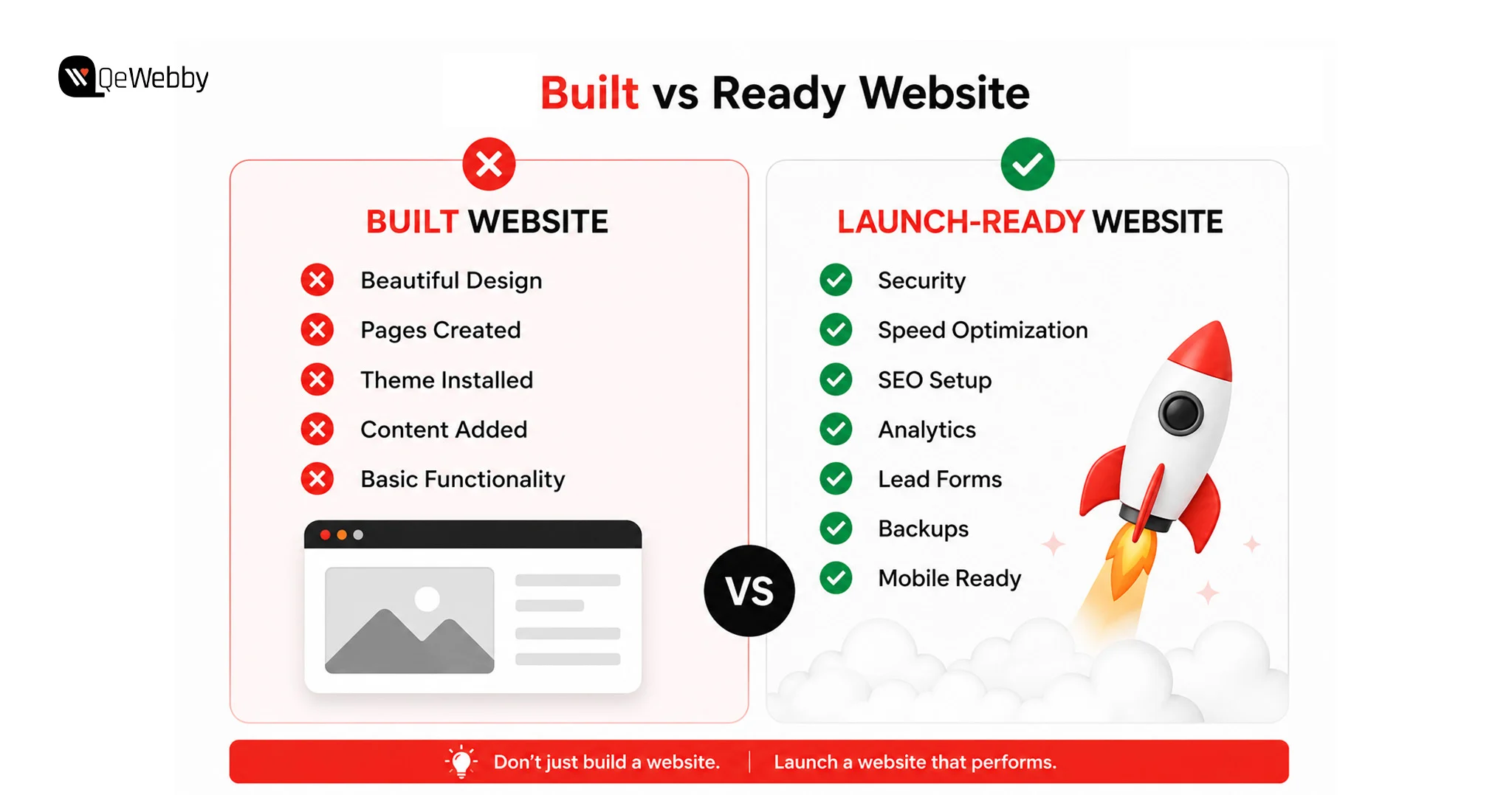
The Difference Between a Site That Is Built and a Site That Is Ready

There is a big difference between completing a website and preparing it for success.

A built website has:

  • Pages created
  • A professional design
  • Content uploaded
  • A working theme
  • Basic functionality

A ready website goes further.

It has:

  • Security protecting the website from threats
  • Speed optimization, keeping visitors engaged
  • SEO settings helping search engines discover pages
  • Analytics showing measurable results
  • Lead capture systems converting visitors
  • A client-friendly dashboard for easy updates
Built Ready Website

A complete WordPress development checklist for agencies should include everything needed for performance, usability, security, and long-term maintenance.

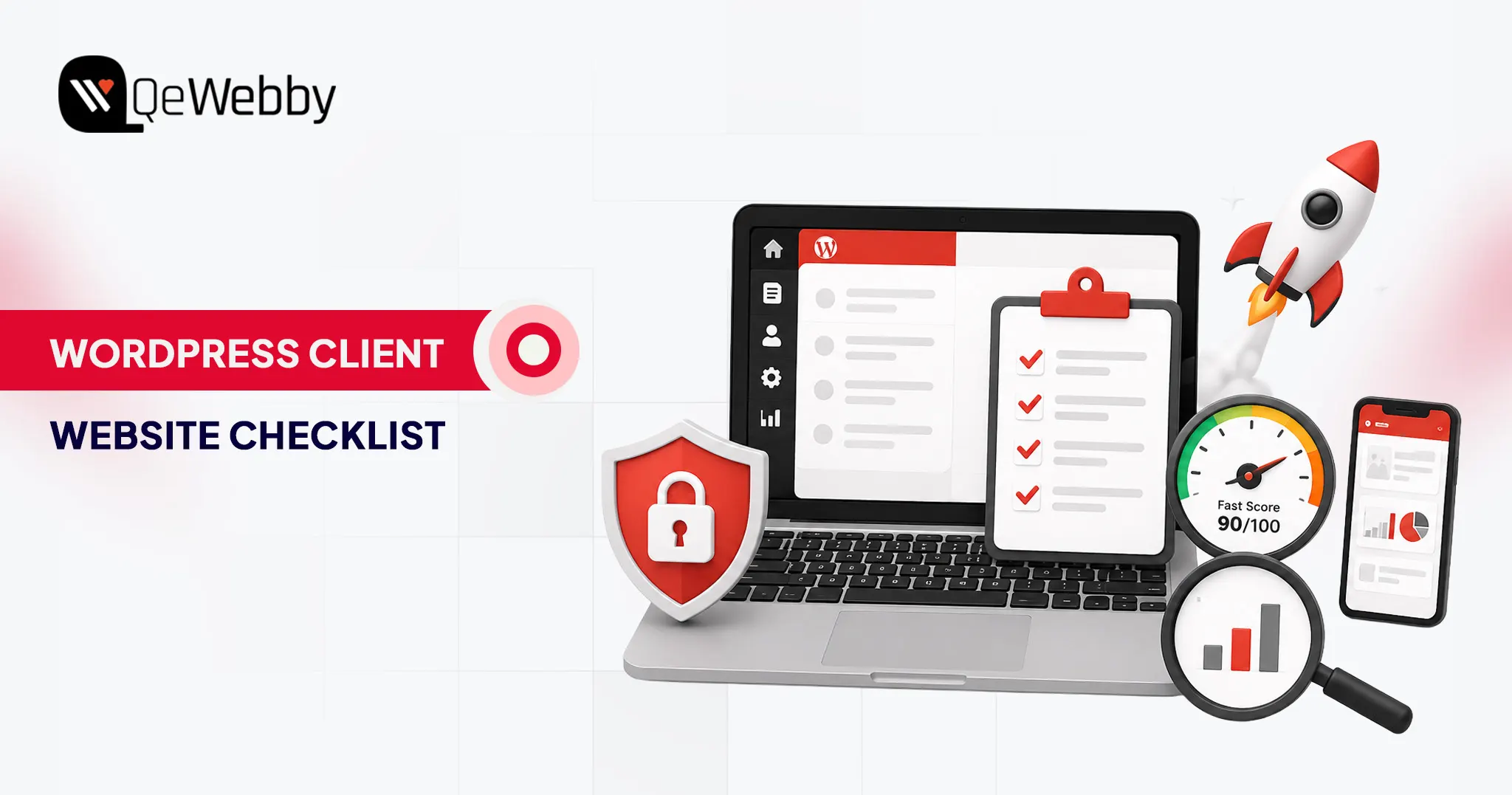
The 8 WordPress features below should be treated as a pre-launch checklist before any client website goes live.

8 WordPress Features Every Client Website Should Have

Feature Why It Matters
Secure login and user role management Protects the website while giving clients the right access
Client-friendly WordPress dashboard Makes website management easier after handoff
Speed and performance optimization Improves user experience and search visibility
Security and backup system Protects against data loss and website attacks
Mobile-responsive design Ensures the site works across devices
SEO foundation setup Helps Google understand and rank website content
Lead generation features Converts visitors into enquiries and customers
Analytics and reporting setup Shows whether the website is achieving results

Schedule a free consultation

Now let’s break down each feature.

#1. Login Setup

A WordPress website often starts with a simple mistake: giving clients more access than they actually need.

Most clients do not need full Administrator permissions.

When a client has complete admin access, they can accidentally:

  • Delete important plugins
  • Change theme files
  • Install conflicting tools
  • Modify settings that affect website performance

When something breaks, the developer is usually the first person they call.

A better approach is creating a secure WordPress client site setup where users only get access to the areas they actually manage.

For most clients, the Editor role is enough. They can update pages, publish content, and manage media without having access to critical website settings.

What Every Client Login Setup Should Include

Change the Default Login URL

The standard WordPress login page (/wp-admin) is targeted by automated bots.

Using a plugin like WPS Hide Login helps hide the default login location and reduces unnecessary login attempts.

Enable Two-Factor Authentication

Passwords alone are not enough protection.

Two-factor authentication adds another security layer by requiring users to verify their identity before accessing the dashboard.

Plugins such as WP 2FA make this easier to implement.

Limit Login Attempts

Repeated login attempts are one of the most common attack methods against WordPress websites.

Security plugins such as Wordfence can automatically block suspicious login activity and protect the client site.

Customize the Login Experience

A branded login page creates a more professional handoff experience.

Adding the client’s logo and removing unnecessary WordPress branding helps make the website feel like a dedicated business platform.

A secure login setup is one of the simplest WordPress security features for client websites, but it can prevent major problems later.

#2. Dashboard the Client Can Actually Use Without Calling for Help

The default WordPress dashboard is designed for developers, not everyday business owners.

After logging in, clients often see:

  • Plugin notifications
  • Theme settings
  • Developer tools
  • Technical options
  • Features they will never use

Too many options create confusion.

And a confused client usually means more support requests.

A client-friendly WordPress admin experience should make it easy for users to complete basic tasks without worrying about breaking something.

How to Create a Better Client Dashboard?

Remove Unnecessary Menu Items

Plugins like WP Adminify or Adminimize allow developers to hide:

  • Theme editor
  • Plugin settings
  • Technical tools
  • Unused dashboard sections

The client should only see what they need.

For example:

  • Pages
  • Posts
  • Media
  • Forms
  • Website analytics

Add a Welcome Guide

A simple welcome message can reduce future confusion.

Include:

  • Website update instructions
  • Important links
  • Contact information
  • A short training video

A five-minute Loom walkthrough can save hours of future support conversations.

Add Analytics Visibility

Clients want proof that their website is working.

Adding a dashboard analytics widget allows them to see:

  • Website visitors
  • Popular pages
  • Traffic sources
  • Leads generated

A well-organized dashboard improves the handoff experience and helps clients feel confident managing their website after launch.

#3. Speed Optimization

A website can have an impressive design, strong messaging, and all the right pages, but none of that matters if visitors leave before the page finishes loading. Research from Google shows that as page load time increases from 1 second to 5 seconds, the probability of a mobile visitor leaving increases by 90%.

Website speed is one of the first experiences users have with a brand. A slow website creates friction, reduces engagement, and can directly affect conversions. For businesses investing in a WordPress website, performance is not just a technical requirement; it is part of the customer experience.

Many developers focus heavily on design during the development phase and treat performance as something to fix later.

A proper WordPress speed optimization checklist ensures the website is built for performance from the beginning.

What Makes a WordPress Website Slow?

Most slow websites are not caused by one single issue. Performance problems usually come from multiple small factors working together.

Large image files increase page size. Too many plugins add unnecessary scripts. Poor hosting slows down server response times. Without caching, the website has to rebuild the same resources repeatedly for visitors.

The goal of optimization is not simply to achieve a better speed score. The goal is to create a website that feels fast and responsive for real users.
Optimize My Website

The Speed Setup Every Client Website Needs Before Launch

The first step is reducing unnecessary load on the website. Images should be compressed before uploading and converted into modern formats like WebP wherever possible. This reduces file size while maintaining visual quality.

Caching is another important part of performance optimization. A caching plugin stores frequently used website resources so pages can load faster instead of rebuilding everything with every visit. Tools like WP Rocket and LiteSpeed Cache are commonly used solutions for WordPress websites.

A Content Delivery Network (CDN) can further improve loading speed by delivering website assets through servers closer to visitors. Cloudflare is a popular option that also provides additional security benefits.

Before handing over the website, developers should always test performance using tools like Google PageSpeed Insights. This helps identify issues related to loading speed, mobile performance, and Core Web Vitals.

A fast website creates a better experience for visitors and gives clients a stronger foundation for SEO, conversions, and long-term growth.

Website speed improvements don’t end after launch. Regular performance audits help identify new bottlenecks caused by plugin updates, theme changes, or growing content libraries. Explore our WordPress Speed Optimization Services to keep your website fast as it grows.

#4. Security and Backups

Security is one of the most overlooked WordPress features for client websites.

A website can work perfectly for months and then suddenly face problems because of outdated plugins, weak passwords, malware, or failed updates. When that happens, the client does not see it as a technical issue. They see it as a business problem.

That is why security should be handled before launch, not after something goes wrong.

A professional WordPress client site setup should include both prevention and recovery. Protecting a website from threats is important, but having a reliable backup system is what helps restore operations quickly when unexpected issues occur.

Why Backups Should Be Ready Before Handoff

One of the biggest mistakes developers make is assuming clients will manage backups themselves.

Most clients are focused on running their business. They are unlikely to monitor backup schedules, check whether files are stored correctly, or test if a backup can actually restore the website.

A complete backup system should already be configured before the website is delivered.

Security plugins like Wordfence help protect websites through features such as firewall protection, malware scanning, and login monitoring. Automated backup solutions like UpdraftPlus help maintain copies of the website that can be restored when needed.

The backup location also matters. Keeping backups only on the same server as the website creates risk because a server issue can affect both the live site and the backup.

A reliable setup usually includes:

  • Automated scheduled backups
  • Off-site storage
  • Regular restore testing
  • Multiple recovery points

Beyond backups, basic security practices should also be completed before launch. SSL should be enabled, unnecessary plugins should be removed, administrator access should be limited, and features like the WordPress file editor should be disabled to reduce accidental changes.

For businesses that want ongoing protection after launch, a WordPress maintenance service for clients can provide continuous security monitoring, updates, backup checks, and technical support.

Website security requires continuous monitoring rather than one-time setup. Regular updates, malware scanning, uptime monitoring, and backup verification help keep your website protected long after launch. Learn how our WordPress Maintenance Services help businesses maintain secure and reliable websites.

#5. Mobile-First Design

A website that looks perfect on a desktop screen can still fail where many customers actually browse: mobile devices.

Mobile responsiveness is no longer an optional design feature. It is a core requirement of every WordPress website launch checklist. According to Statista, mobile devices generate more than half of global website traffic, making mobile optimization a core requirement rather than an optional improvement.

Visitors expect pages to load correctly, buttons to work easily, and content to remain readable regardless of the device they use.

Google also evaluates websites with a mobile-first approach, which means the mobile experience plays an important role in search visibility.

Why Mobile Testing Should Happen Before Launch

A common development mistake is building the entire website on a desktop and checking mobile only at the end.

This often creates avoidable problems.

A layout that works on a large screen may feel crowded on mobile. Buttons may become difficult to tap. Images may slow down the experience. Forms that work perfectly on desktops may become frustrating on smaller screens.

Testing mobile throughout the development process makes it easier to identify and fix these issues.

What Developers Should Review Before Delivery

Every important page should be tested on real devices, not only browser previews.

The homepage, service pages, contact forms, and conversion-focused sections should be checked to ensure:

  • Text remains easy to read
  • Navigation works smoothly
  • Buttons are easy to tap
  • Images display correctly
  • Forms function properly

Mobile speed should also be tested separately because performance on smartphones is often different from desktop.

A mobile-friendly website improves user experience, supports SEO performance, and helps clients avoid losing potential customers because of usability issues.

#6. SEO Foundation

A website launch is not complete when the pages go live.

It is complete when search engines can understand the website, users can discover it, and the business has a chance to attract organic traffic.

Many clients realize months after launch that their website is not generating visitors. The reason is often simple: SEO was considered a future task instead of part of the initial WordPress development checklist.

SEO needs to be built into the website foundation.

What Every Client Website Needs Before Going Live

The first step is configuring an SEO plugin such as Rank Math or Yoast SEO. These tools help manage important elements like metadata, XML sitemaps, and content optimization.

Every important page should also be reviewed before launch. The homepage, service pages, about page, and contact page should have clear titles, descriptions, proper heading structure, and content aligned with search intent.

Technical SEO settings also matter.

The XML sitemap should be submitted through Google Search Console so search engines can discover website pages efficiently. Schema markup should be added where relevant to provide more context about the business.

One simple setting can also prevent an entire website from appearing in search results. Developers should always confirm that the “Discourage search engines from indexing this site” option is disabled before moving a website from staging to live.

SEO is not something added after a website is finished. It is one of the core WordPress features that helps transform a website from a digital presence into a business growth tool.

Building a strong SEO foundation is only the beginning. Regular technical audits help identify crawl issues, indexing problems, broken links, and performance improvements that support long-term organic growth. Our Technical SEO Services help businesses maintain healthy, search-friendly WordPress websites.

#7. Contact Forms and Lead Capture

A client website is not built just to exist online. According to HubSpot, businesses that prioritize conversion optimization can significantly improve their ability to turn website visitors into leads. Small improvements in forms, CTAs, and user journeys can directly influence enquiry rates.

The website is built to help the business generate enquiries, bookings, sales, or conversations with potential customers.

This is where many websites fail.

They look professional, have impressive designs, and contain all the right information, but they make it difficult for visitors to take the next step. A missing contact form, unclear call-to-action, or broken enquiry process can turn valuable traffic into lost opportunities.

Lead generation should be treated as one of the most important WordPress features for client websites because it directly connects website performance with business outcomes.

Why Lead Capture Should Be Part of the Website Foundation

A common mistake is treating contact forms as a simple page element instead of a conversion system.

A well-designed website guides visitors toward action. It answers their questions, builds trust, and makes contacting the business simple.

For example, a visitor who lands on a service page should not have to search through the website to find a way to connect. The next step should be clear.

A strong lead capture setup includes more than just adding a form. Developers should consider where the form appears, what information it collects, how submissions are handled, and whether the client receives notifications properly.

Before handoff, every form should be tested from the user’s perspective.

Does the form submit correctly?

Does the client receive the enquiry?

Does the visitor get confirmation?

Small details like these often determine whether a website becomes a business tool or just an online brochure.

The Lead Generation Setup Every Client Website Needs

For most businesses, a simple and effective form works better than a complicated one.

Forms should collect only the information required to start a conversation. Asking for too many details can discourage visitors from completing the submission.

Plugins such as WPForms and Gravity Forms provide flexible options for creating professional contact forms.

A complete setup should include:

  • A clear call-to-action placed on important pages
  • Confirmation messages after submission
  • Email notifications for the client
  • Mobile-friendly form design
  • Conversion tracking for submissions

Adding options like WhatsApp contact buttons can also improve accessibility, especially for businesses that receive customer enquiries through mobile devices.

A website’s success is not measured by how many people visit it. It is measured by what those visitors do next.

#8. Analytics and Reporting

One of the biggest challenges after launching a website is proving that it is working.

Clients often ask:

“How many people are visiting?”

“Which pages are getting attention?”

“Are we receiving leads from the website?”

Without analytics, these questions become difficult to answer.

That is why the analytics setup should be completed before launch, not added months later.

A professional WordPress client website checklist should always include tracking systems that help measure performance from day one.

Why Analytics Matters After Website Launch

A website without analytics is like running a business without knowing where customers come from.

Analytics provides insights into:

  • Visitor behaviour
  • Traffic sources
  • Popular pages
  • Conversion activity
  • User engagement

This information helps businesses understand what is working and where improvements are needed.

It also changes the client conversation.

Instead of discussing whether the website “feels successful,” developers and clients can look at actual data.

The Analytics Setup Every Client Site Needs

Google Analytics 4 should be connected before the website goes live. This allows businesses to start collecting visitor data immediately.

Tools like MonsterInsights make it easier for non-technical clients to view important information directly inside WordPress.

Google Search Console should also be connected because it provides valuable insights into search visibility, keywords, and website indexing.

The most important step is tracking conversions, not just visitors.

A client does not only need to know that 5,000 people visited the website. They need to know how many people filled out a form, requested information, or completed a valuable action.

For agencies offering a WordPress website development service, including analytics setup and performance reporting, creates additional value. Clients are more likely to invest in long-term improvements when they can clearly see results.

Recommended Plugins for a Complete WordPress Client Website Setup

Choosing the right plugins is an important part of building reliable WordPress websites.

However, the goal should not be installing dozens of tools. Too many plugins can create maintenance issues, slow down the website, and make management more complicated.

A better approach is selecting plugins that solve specific business needs.
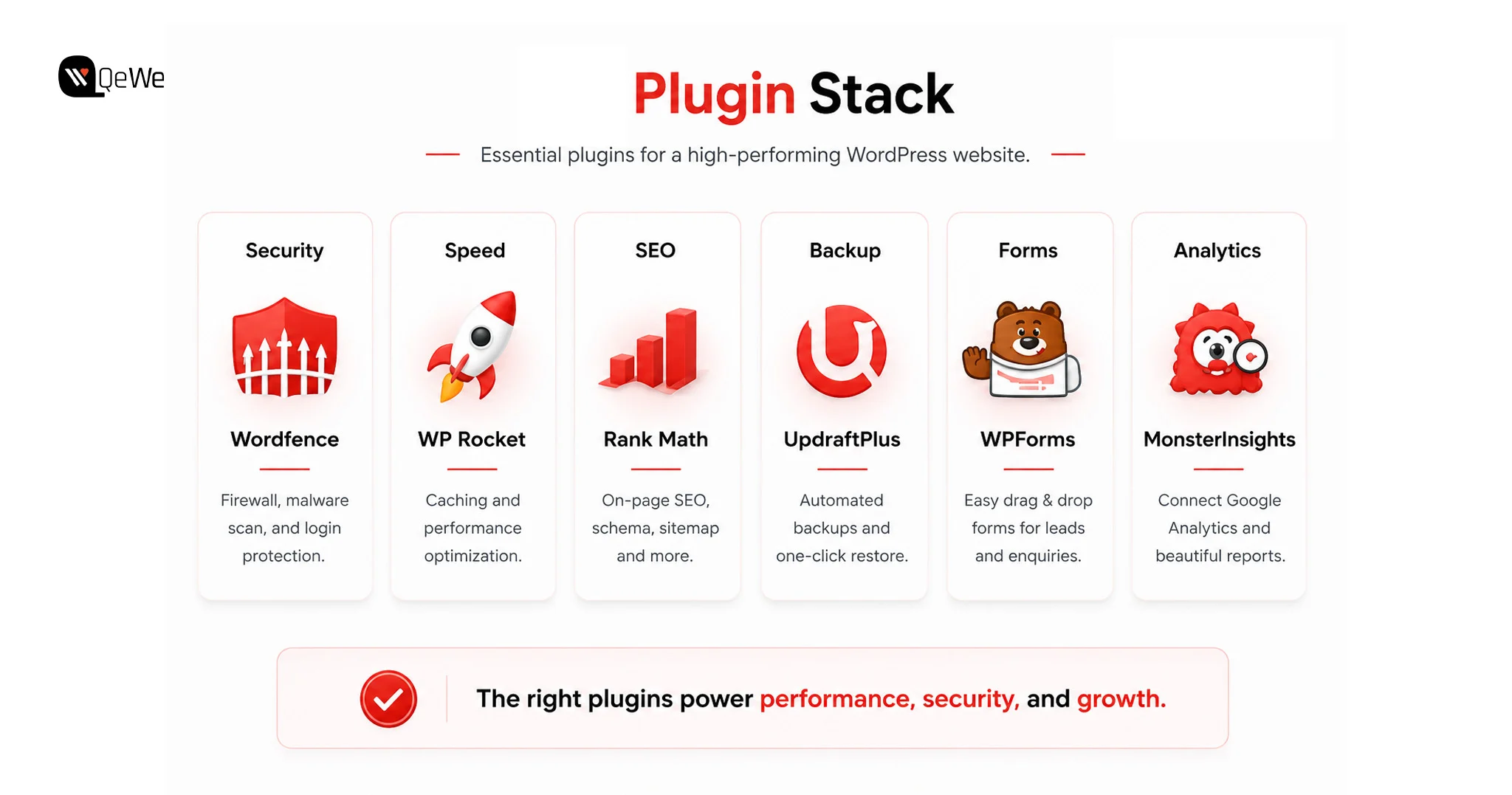
Plugin Stack

Website Need Recommended Plugin Options
Security Wordfence, Solid Security
SEO Rank Math, Yoast SEO
Speed Optimization WP Rocket, LiteSpeed Cache
Backups UpdraftPlus
Contact Forms WPForms, Gravity Forms
Analytics MonsterInsights, Google Site Kit
Login Protection WP 2FA, Loginizer
Dashboard Management WP Adminify, Adminimize

The right plugin stack supports the website without creating unnecessary complexity.

Mistakes Developers Make When Delivering WordPress Client Websites

Building a website is only one part of the job. The handoff process determines whether the client feels confident or frustrated.

Many common problems happen because important steps are skipped before delivery.

One mistake is focusing only on appearance. A beautiful website without SEO, analytics, security, or lead capture is incomplete.

Another mistake is giving clients unrestricted access without explaining what they should manage. Full administrator access may create unnecessary risks if users accidentally change important settings.

Ignoring maintenance planning is another missed opportunity. Websites require ongoing updates, security monitoring, and performance checks after launch.

A professional developer does not just deliver a website. They create a system that continues working after the project ends.

What Happens After You Hand Over the Website? The 30-Day Client Success Window

Most WordPress guides focus on building the website.

But the real test begins after launch.

The first month after handoff is when many client relationships are either strengthened or damaged.

During the first few weeks, clients usually experience similar challenges.

They log in and wonder where to make updates. They see plugin update notifications and are unsure whether clicking “update” is safe. They upload large images without understanding how they affect speed. Eventually, they ask whether anyone is visiting the website.

This is where proper preparation makes a difference.

Build WordPress Client Websites That Work Beyond Launch Day

A successful WordPress website is not defined by how it looks on launch day. It is defined by how well it supports the client’s business months later.

The strongest WordPress client websites combine design with the features that matter behind the scenes: security, speed, SEO, analytics, lead generation, and easy management.

Using this WordPress client website checklist before every launch helps developers deliver more reliable projects, reduce support issues, and create better long-term relationships with clients.

A website should not just be delivered.

It should be prepared to perform.
Talk to WordPress Expert

Conclusion

A successful website is not only measured by its launch but by how well it adapts as a business grows. The right foundation allows businesses to add new content, improve customer experiences, and make informed decisions without rebuilding everything from scratch. This is where strategic WordPress development makes a difference.

QeWebby helps businesses create WordPress solutions that are structured for performance, scalability, and easier management. With a focus on thoughtful development practices and business-driven outcomes, QeWebby enables clients to build websites that support their evolving digital needs.

Whether you’re launching a new website or improving an existing one, combining a structured WordPress QA Checklist, regular maintenance, and technical audits helps create a website that’s ready for long-term growth.

To discuss how you can create a website built for long-term success, contact us and explore the right WordPress solution for your business.
WordPress Maintenance vs Managed Hosting: What’s the Difference and do You Need Both?

A WooCommerce checkout breaks after a plugin update. Your theme stops rendering correctly on mobile. Customers cannot complete purchases. You contact your hosting provider and receive a familiar response: “The server is running normally.”

That’s because managed hosting and WordPress maintenance solve different problems. Hosting keeps the infrastructure online. Maintenance keeps the WordPress application functioning properly.

The server can be healthy while the website is broken.

At revenue-generating sites, there’s no choice of words. Managed hosting is not the same as WordPress maintenance; where one stops, the other begins.

What is WordPress Maintenance?

WordPress maintenance services are regular maintenance schedules that control all the elements above the server: Plugins, themes, core files, database integrity, and security. This is typically offered in monthly WordPress support packages, ranging from the level of your site to the amount of time you will receive support. The top layer is the application layer, and it is called the scope. Not the hardware that’s under it.

That’s something many website owners don’t realize. Managed hosting is responsible for keeping the server online, while comprehensive WordPress maintenance services focus on keeping the website itself secure, updated, optimized, and functioning properly. They solve different problems at different layers of the stack.

What’s inside a WordPress maintenance plan:

  • All plugin updates are also tested in a ‘staging’ environment before being deployed to production. This is the one thing that most managed hosting plans out there don’t have, and that’s why most of the site breakages can be attributed to plugin conflicts.
  • WordPress core updates include security fixes, as well as new features. These releases are also tested and scheduled by maintenance providers, instead of being pushed automatically to live environments where an unexpected release may break any custom functionality.
  • Theme updates, though it might seem otherwise, are more disruptive. Theme updates have the potential to mess up custom CSS, break layouts of page builders, and reset the header/footer settings. A maintenance provider approves the visual rendering before the update gets to the live site.
  • Security monitoring includes malware scanning, login attempt monitoring, file integrity monitoring, and suspicious code injections. Partial scanning might be provided by managed hosts. The maintenance providers fix what they find.
  • Backups mean daily or real-time off-site copies with tested restore procedures. The operative word is tested. A backup nobody has verified isn’t a backup strategy. It’s an assumption waiting to fail at the worst possible time.
  • Performance checks address database optimization, image compression audits, plugin load time analysis, and wordpress seo performance optimization, including Core Web Vitals monitoring and page speed improvements. These aren’t optional maintenance tasks for revenue-generating sites. Slow-site degradation compounds quietly until it starts costing conversion rates.

What is Managed WordPress Hosting?

Managed WordPress hosting isn’t a premium tier of generic hosting. It’s a server environment built and operated specifically for WordPress workloads. The hardware, network architecture, and software stack are configured for WordPress, not shared across a hundred unrelated applications running on commodity infrastructure. Managed WordPress hosting pricing reflects that specialization, and the performance gap over self-managed VPS setups is real for any operator without a dedicated DevOps function.

What it does well, it does very well. Infrastructure-level performance and security sit in a different category from what most site owners can replicate independently. What it doesn’t do is touch the WordPress application running on top of that infrastructure. That boundary is where most buyers get into trouble.

What’s inside a managed WordPress hosting plan:

  • Server management covers operating system updates, server software patching, PHP version management, and hardware resource allocation. The provider owns this layer completely.
  • CDN serves content from edge nodes geographically close to each visitor, cutting page load times without any configuration on your end. Most managed hosts include CDN natively or through a Cloudflare integration.
  • Caching combines server-side page caching, object caching via Redis or Memcached, and opcode caching to absorb traffic spikes without creating database bottlenecks. This is where managed hosting earns its cost premium at scale.
  • Infrastructure security runs Web Application Firewalls, DDoS protection, IP reputation filtering, and network-level threat blocking. Outside-in protection: threats stopped before they reach WordPress. What it doesn’t cover is the application logic running inside.
  • Uptime monitoring backs a provider SLA, typically 99.9% at standard tiers and 99.99% at premium. The distinction worth noting: providers monitor their infrastructure. They don’t monitor whether your site is functioning correctly on top of it.

WordPress Maintenance vs Managed Hosting Comparison

Put these two services side by side, and the gaps become obvious. The confusion in the market isn’t about what managed hosting does; it’s about what it doesn’t do, and whether buyers notice that absence before something breaks.

Feature Maintenance Managed Hosting
Plugin Updates Full (staged) Limited (automated only)
Core Updates Tested Partial (auto-push)
Backups Off-site, tested Server-level
Hosting Infrastructure Not included Full management
Malware Monitoring Detect + Remediate Partial (detect only)
Technical Support App-layer issues Server-layer issues
Database Optimisation Included Not standard
Staging Environment Standard Sometimes included

Get a Free Consultation

Pricing Comparison in 2026

Understanding website maintenance cost versus managed WordPress hosting pricing separately is useful; understanding them together is more useful still. These are not competing budget lines; they cover different functions. Most growing businesses end up running both, which is why combined planning matters.

Monthly Cost Breakdown

Website Type Maintenance Managed Hosting
Small Business $20-$100/mo $20-$80/mo
Growing Business $100-$500/mo $50-$300/mo
Enterprise $500-$2,000+/mo $300-$5,000+/mo

What’s Included at Each Pricing Tier?

WordPress maintenance pricing and hosting costs don’t scale uniformly. What you’re actually buying at each tier is different in kind, not just in volume.

Budget tier ($20–$100/mo maintenance | $20–$80/mo hosting)

Automated backups, core and plugin updates, uptime monitoring, and monthly reporting. Support runs on a ticket system with 24–48 hour response windows. Hosting at this level covers shared or entry-level managed environments with CDN and basic caching. WordPress maintenance pricing here rarely includes staging environments, which means updates go straight to production untested. Workable for brochure sites and low-traffic blogs where a broken checkout isn’t a business event.

Growth tier ($100–$500/mo maintenance | $50–$300/mo hosting)

Staged updates are tested before deployment, malware remediation, performance optimization, priority support, and dedicated account management. Hosting shifts to dedicated resources with staging environments and faster SLA response times. This is where WooCommerce maintenance services typically land. Transactional sites carry update risk that budget plans aren’t built to handle. Staged testing and faster remediation aren’t upsell features at this level; they’re the baseline requirement for any site processing revenue.

Enterprise tier ($500–$2,000+/mo maintenance | $300–$5,000+/mo hosting)

Full-service maintenance with custom development hours, dedicated support engineers, SLA-backed response commitments, advanced security auditing, and proactive performance management. Hosting runs on isolated server environments with multi-region redundancy and enterprise-grade SLAs. Agencies operating white-label WordPress maintenance programs for multiple clients work in this tier. The pricing reflects accountability, not just capability.

Can You Use Managed Hosting and Maintenance Together?

Not only can you generate revenue from any site, but running both is the baseline standard. These services aren’t redundant. They cover different layers of the same stack, and the gap between those layers is exactly where sites break.

Why Hosting Doesn’t Replace Maintenance

Managed WordPress support at the server level tells you when the infrastructure is down. It doesn’t tell you when a payment gateway plugin conflict introduced during an automated update is silently failing your WooCommerce checkout. It won’t clean malware injected through a vulnerable contact form plugin. It won’t touch a database that has bloated to 2GB of autoloaded data.

According to WPScan’s WordPress Vulnerability Database, over 97% of WordPress vulnerabilities originate in plugins and themes, not the server. No managed host is scoped or paid to resolve application-layer problems. That’s a maintenance function.

Why Maintenance Doesn’t Replace Hosting

A maintenance provider manages your WordPress application on whatever server infrastructure you give them. If that server is under-resourced, misconfigured for WordPress workloads, or running on shared hosting with noisy neighbors throttling performance, plugin update management won’t fix it. Infrastructure constraints sit outside the scope of any care plan. A maintenance provider operating on a poorly configured server is competent work applied to the wrong constraint.

Best Combined Setup for Growing Businesses

The professional standard for revenue-generating sites: a premium managed host, WP Engine, Kinsta, Flywheel, or Cloudways, handling infrastructure performance, paired with a dedicated WordPress maintenance services provider managing the application layer. The host owns the server. The maintenance provider owns the site. Each vendor’s accountability is clear, and no coverage gap exists between them.

Agencies serving multiple clients often formalize this model through white-label WordPress maintenance programs, outsourcing application management to a specialist while retaining the client relationship. Maintenance labor is predictable at scale, and white-label providers price to reflect that predictability.

Businesses migrating from shared hosting often combine managed hosting with professional wordpress migration services before implementing ongoing maintenance.

WordPress Maintenance vs Managed Hosting: Who Is Responsible When Something Breaks?

Issue Managed Hosting Maintenance Provider
Server outage ✓ ✗
Plugin conflict ✗ ✓
Theme issue ✗ ✓
Database cleanup ✗ ✓
Malware cleanup Sometimes ✓
PHP updates ✓ ✗
Core Web Vitals optimization Partial ✓

Hidden Costs Most Website Owners Miss

Advertised WordPress maintenance pricing and managed WordPress hosting pricing are starting points, not total costs. Both categories carry expenses that only surface when something breaks or when the site outgrows its initial plan scope.

Maintenance costs that don’t appear in the plan:

Emergency fixes sit outside most WordPress support plans. Urgent remediation for a broken WooCommerce checkout during a product launch typically runs $200 to $500 per incident, billed separately from the monthly care plan.

Malware cleanup follows the same pattern: basic plans detect the problem; remediation, especially forensic cleanup across hundreds of pages of injected SEO spam, is a separate line item.

Custom development is another gap buyers miss. Care plans cover updates and monitoring. When a plugin conflict requires a code-level fix, that’s development work billed outside the plan entirely. Content updates follow the same logic: most maintenance plans don’t include them, and assuming otherwise leads to invoices that weren’t in the budget.

Hosting costs that don’t appear in the plan:

Traffic overages are the most common surprise. Plans price at bandwidth or visitor thresholds, and a product launch or press mention driving 10x normal traffic can generate overage charges that exceed the monthly plan cost.

According to Kinsta’s managed hosting documentation, overages are calculated per visit above the tier limit, which compounds quickly under unexpected traffic spikes. Storage upgrades hit media-heavy sites faster than expected, priced per increment with no retroactive adjustment.

Migration costs add a one-time $150 to $500 charge when switching hosts, regardless of “free migration” language in the plan terms, which typically applies to one site, one direction, one time.

The pattern across both categories: the advertised price covers the predictable scenario. Every edge case is an add-on.

Which Option is Right for Your Business?

The answer depends less on budget than on what’s currently broken and what failure mode you’re most exposed to. A slow server is a hosting problem. A plugin conflict is a maintenance problem. Most sites eventually face both.

Choose Maintenance If:

  • You’re already satisfied with your hosting performance and uptime
  • You need to update management and staged deployment to prevent site breakages
  • You need ongoing managed WordPress support for plugin conflicts, security incidents, and troubleshooting
  • You’re running a complex plugin stack where automated updates carry genuine risk

Choose Managed Hosting If:

  • Your current host is slow, and performance is the primary complaint from users
  • You’re experiencing uptime instability or unplanned outages
  • You need infrastructure-level support: server configuration, PHP versions, caching
  • You’re migrating from shared hosting and need a WordPress-optimized environment

Choose Both If:

  • You operate a revenue-generating website where downtime has a direct cost
  • You run a WooCommerce store. WooCommerce maintenance services plus managed hosting is the minimum viable setup for transactional sites.
  • You’re an agency managing multiple client sites and need reliable, scalable coverage.
  • You run a membership platform, LMS, or subscription site where application stability is critical.

Schedule a WordPress Audit

Typical Service Provider Categories

The market for both services has stratified significantly. Knowing which provider type fits your situation prevents overpaying for complexity you don’t need or underinvesting in coverage that matters.

DIY Maintenance Tools

With plugins such as ManageWP, MainWP and WP Umbrella, technically competent operators will have dashboard control over updates, backups and uptime monitoring for multiple sites.

They are suitable for the developer/agency who wants control but not the expense of a managed care plan. The downside of this is that human decision-making and remediation continues to rest on the operator.

WordPress Maintenance Agencies

Full-service WordPress maintenance companies can provide updates, security surveillance, custom development, content assistance, and more. They’re ideal for companies looking to have one place to monitor the health of applications, but that they don’t have to create it themselves. Basic plans are $50 per month, enterprise level is $2,000+/month.

White-Label Maintenance Providers

White label WordPress maintenance services are the same services provided under a different name, often by a web design agency who would like to offer maintenance services under their own brand without having to create an internal maintenance service. The agency is responsible for the client relationship, the white-label provider is responsible for the work. For agencies with 10+ client sites, the financial sense of outsourcing maintenance becomes clear, and this model makes sense.

Managed Hosting Providers

These providers, such as WP Engine, Kinsta, Flywheel, and Cloudways, prioritize infrastructure performance and reliability. The price of managed WordPress hosting from these providers starts at $20/month and can climb as high as $500+/month for enterprise-level hosting. Their value proposition is a (WordPress optimized) server stack, their scope is everything above the server layer.

Enterprise Hosting Platforms

For enterprises that have compliance needs, multi-environment workflows, and integration needs with DevOps, there are three options: Pantheon, Acquia, and WP VIP. These are platforms that combine hosting and maintenance capabilities with developer tools, pipelines and professional services and charge an appropriately high price with such capabilities.

WordPress Maintenance vs Managed Hosting: Final Decision Matrix

Most businesses complicate this decision by treating it as a single choice. There are two choices, one for each layer of the stack. Use this matrix to identify where you currently have gaps.

Scenario Recommended Solution
Brochure Website (low traffic, few plugins) Managed Hosting alone (handle updates manually)
Growing Business Site (10+ plugins, moderate traffic) Both maintenance + managed hosting
WooCommerce Store Both WooCommerce maintenance services + managed hosting are non-negotiable
Enterprise Site (compliance, high traffic) Both enterprise hosting platform + dedicated maintenance plan
Infrastructure Problems Only (slow server, outages) Managed Hosting upgrade
Application Problems Only (plugin conflicts, malware) WordPress maintenance services
Agency Managing Multiple Clients Both white-label WordPress maintenance + managed hosting per client

The Bottom Line

Managed hosting and WordPress maintenance services solve different problems at different layers of the same stack. Confusing one for the other is how revenue-generating sites end up exposed at exactly the layer nobody’s watching. The server being up doesn’t mean the site is working. For any business where downtime carries a real cost, the right question isn’t hosting or maintenance. It’s which provider owns which layer, and whether that accountability is clearly defined before something breaks.

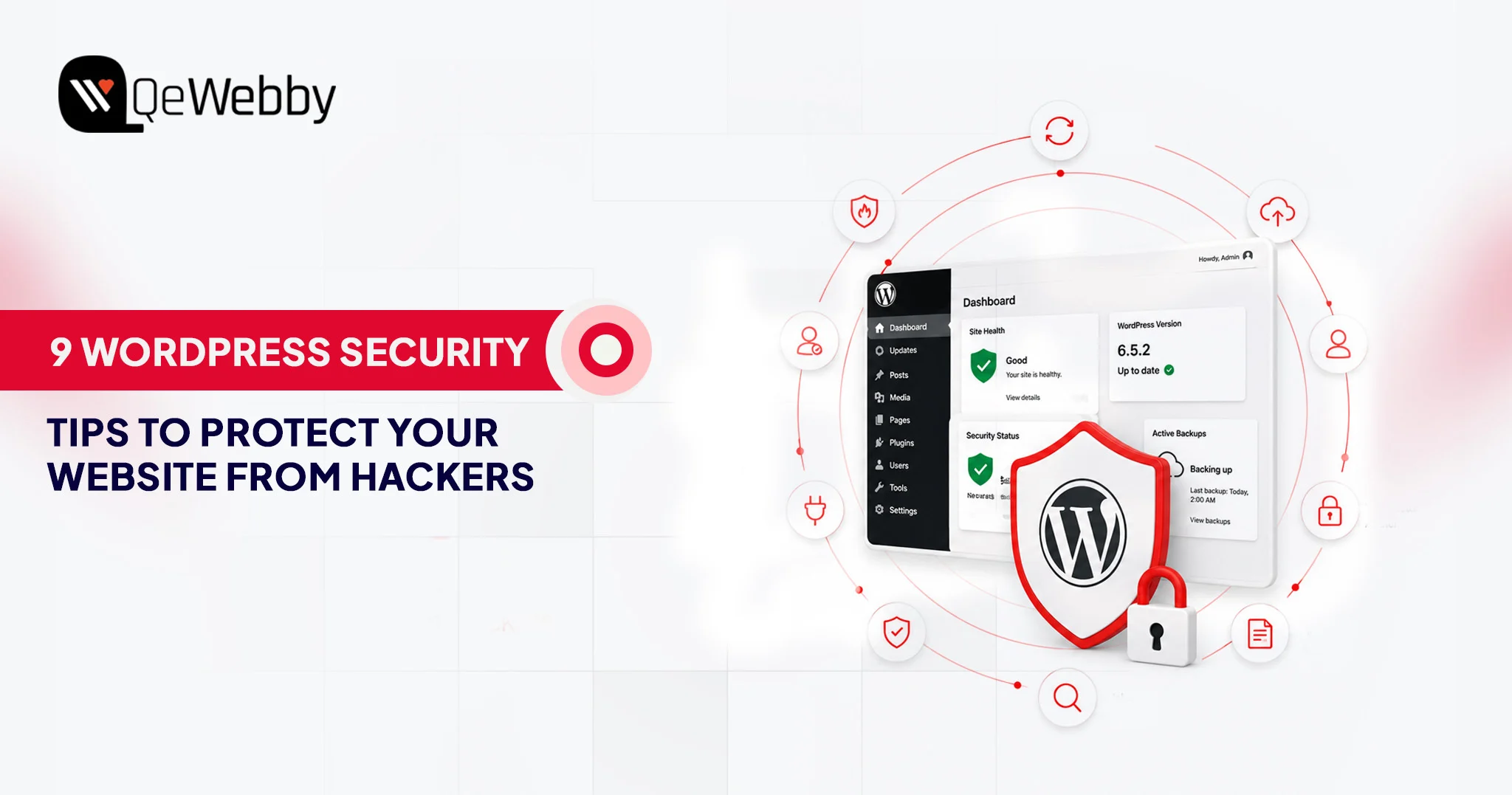
9 WordPress Security Tips to Protect Your Website From Hackers

WordPress runs more than 43% of all websites on the internet. That dominance is what makes it the most targeted platform in the world.

Most site owners know security matters. Far fewer treat it as the ongoing, active discipline it actually needs to be. Attackers are not waiting for you to get around to it.

According to Patchstack’s State of WordPress Security 2025 report, 11,334 new vulnerabilities were identified in the WordPress ecosystem in 2025 alone. That is a 42% year-over-year jump. The median time between a vulnerability’s public disclosure and an attacker’s active exploitation is now just 5 hours.

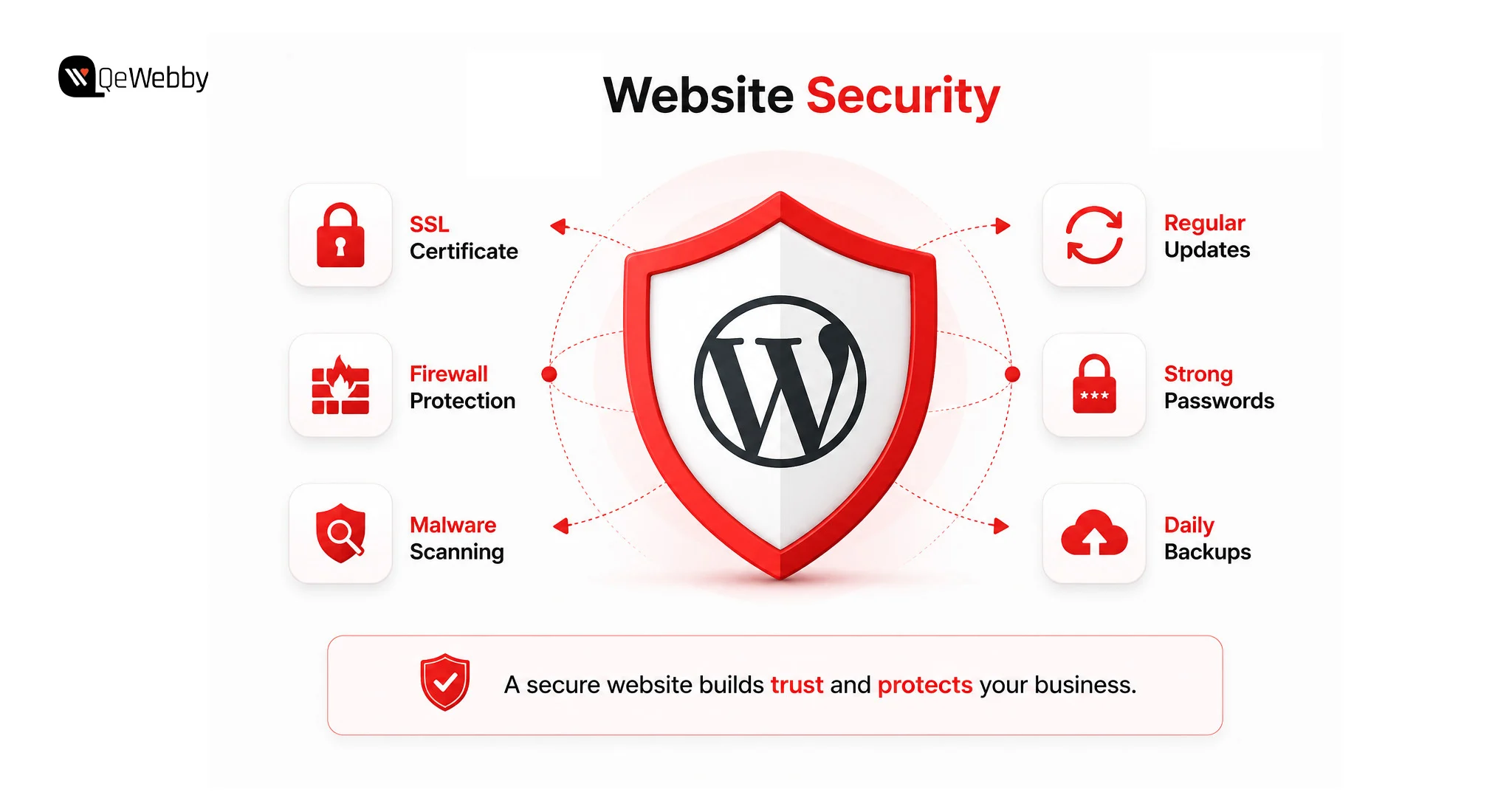
This guide covers practical WordPress security tips that move the needle: regular updates, strong access controls, two-factor authentication, secure hosting, reliable backups, and a few hardening steps that most sites skip. By the end, you will have a clear WordPress security checklist you can act on today, not someday.

Why WordPress Security Is Critical?

WordPress’s dominance as a platform makes it the most targeted in the world, with new vulnerabilities primarily in plugins identified daily. Ignoring security can lead to persistent threats such as brute-force attacks and cross-site scripting (XSS), which often require no authentication to exploit. A breach is costly, resulting in lost search rankings, account suspensions, and high recovery fees, underscoring the necessity of proactive security measures.

The Platform’s Size Makes It a Permanent Target

WordPress does not get attacked because it is poorly built. It gets attacked because the math works out in the attacker’s favor. A single vulnerability in a plugin installed on 500,000 sites lets an automated scanner find and attempt to exploit it across all those sites within hours. That is a structural problem no individual site owner can solve at the platform level.

Ninety-one percent of vulnerabilities found in 2025 came from plugins rather than WordPress core itself, per Patchstack’s research. Core WordPress is actively maintained and patched quickly. The risk concentrates in the plugin ecosystem: vast, inconsistently maintained, and often abandoned by developers years before anyone notices.

Common Attack Types That Target WordPress Sites

The attack surface on a WordPress site is broader than most owners think. Brute-force login attempts are constant background noise on any public WordPress installation. SQL injection through vulnerable plugin forms still works reliably against unpatched sites.

Cross-site scripting (XSS) flaws in themes let attackers inject code that runs in your visitors’ browsers. And broken access-control vulnerabilities, which became the most-exploited class in 2025, let attackers perform admin-level actions with zero credentials.

43% of new WordPress vulnerabilities in 2025 required no authentication to exploit, according to Patchstack. An attacker does not need your password to use these vulnerabilities. They just need your site to be running an outdated plugin.

What Does a Breach Actually Cost?

A hacked site is not just a technical mess. Search engines blacklist compromised sites, wiping organic rankings that took months to build. Customer data exposure triggers regulatory consequences. Hosting providers suspend accounts when malware is detected. Rebuilding from a compromised state, without a working backup, regularly costs more in recovery time and contractor fees than a year of proper security maintenance would have.

Recovering lost rankings after a security incident can be a lengthy process, which is why security and WordPress SEO should be treated as complementary parts of a long-term website strategy.

Accenture’s State of Cybersecurity Resilience 2025 report found that only 1 in 10 organizations globally are adequately prepared to defend against current cyber threats. For small business site owners, that gap between confidence and actual readiness tends to be wider still.

Why Core WordPress Updates Are Non-Negotiable?

Regular updates are a fundamental security discipline, as every patch publicly announces a vulnerability that attackers immediately start exploiting. Core WordPress updates are non-negotiable, while plugin and theme updates require discipline and testing, ideally in a staging environment, to prevent compatibility issues while eliminating known vulnerabilities.

Every WordPress update that patches a security issue is, implicitly, also a public announcement of the vulnerability that was just fixed. The moment that announcement goes live, automated scanners start testing every site on the internet for the unpatched version. A site running an older WordPress release after a security patch is out is a visible, searchable target.

Updating WordPress core takes under two minutes through the dashboard. For sites where manual update management is not reliable, enabling automatic background updates for minor releases in wp-config.php is a straightforward hardening step. The line is:

define(‘WP_AUTO_UPDATE_CORE’, ‘minor’);

Plugin and Theme Update Discipline

Plugin updates require more judgment than core updates because they occasionally create compatibility issues. That said, leaving a plugin unpatched because you are worried about breaking something trades a certain risk for an uncertain one.

For businesses that do not have the time or technical resources to manage updates, backups, and monitoring internally, managed WordPress maintenance can help ensure security best practices are applied consistently.

A known vulnerability in an installed plugin is a guaranteed exposure. A compatibility issue from an update is a possibility you can test and roll back if needed.

The practical approach: maintain a staging environment to test updates before pushing to production. For agencies managing multiple client sites, this is standard practice. For individual owners, it is worth the setup time.

Use Strong Passwords and Manage User Roles Carefully

Weak passwords remain a reliable attack vector, not because attackers are especially sophisticated, but because so many sites still use them. Passwords for WordPress admin accounts should be at least 16 characters and include uppercase and lowercase letters, numbers, and symbols. Password managers like 1Password or Bitwarden generate and store these without requiring anyone to memorize them.

User role management is the piece most site owners skip. WordPress has five default roles: Administrator, Editor, Author, Contributor, and Subscriber. Every account on your site should have the minimum access level needed to do the job.

A copywriter who publishes blog posts does not need Administrator access. Giving it by default, for convenience, doubles your attack surface. If that account gets compromised, the role determines what an attacker can do with it.

Auditing your user list periodically takes about five minutes. Remove stale accounts. Downgrade roles that were set to Administrator without much thought. These are small actions that meaningfully reduce your exposure.

Implement Two-Factor Authentication (2FA)

Two-factor authentication is a login verification method that requires a second proof of identity beyond the password, typically a time-sensitive code from an authenticator app. Even if an attacker obtains a valid password through phishing or a leaked credential database, they cannot access the account without the second factor.

For WordPress, enabling 2FA on all Administrator and Editor accounts is one of the most efficient security changes available. Plugins like WP 2FA, Google Authenticator, or Wordfence’s built-in module handle this without custom development. Setting up a site with multiple admin users takes under half an hour.

One point that often gets missed: if your hosting provider offers 2FA at the hosting account level, enable it there too. A compromised hosting account bypasses WordPress entirely, granting direct file system access. The hosting layer needs to be as protected as the WordPress layer.

Two Factor Authentication

Install a Trusted Security Plugin and Configure It Properly

A WordPress security plugin is a monitoring and enforcement tool. It is not a passive, install-and-forget solution. Many site owners install one, see a green status dashboard, and assume they are covered. The plugin is only as useful as its configuration.

Wordfence Security, Sucuri Security, and iThemes Security Pro are three consistently solid options. Each provides a web application firewall (WAF), malware scanning, login attempt monitoring, and IP blocking.

Wordfence’s free tier is genuinely capable when configured correctly. The firewall needs to be in enforced mode, not learning mode, which it often defaults to after installation.

Regardless of which plugin you use, verify that the firewall is active in enforced mode, that malware scans run at least weekly, that login attempt limits are set, and that email alerts are active for high-severity events. A security plugin that generates no alerts and runs no scans is not protecting your site.

Use HTTPS and Choose Secure WordPress Hosting

Establishing a secure foundation for your site requires using HTTPS to encrypt data in transit and choosing a robust hosting environment. HTTPS is non-negotiable for security and search visibility. The choice of host determines the security floor, with managed WordPress hosting offering isolation and server-level protection that significantly reduces the risk inherent in shared hosting environments.

HTTPS Is the Baseline, Not an Advanced Feature

HTTPS encrypts data transmitted between your visitors’ browsers and your server. Without it, passwords, contact form submissions, and other data travel across the network as readable plain text. Search engines have treated HTTPS as a ranking signal since 2014. In 2025, a site running HTTP has both a security gap and a search visibility disadvantage.

Most reputable hosting providers include free SSL certificates through Let’s Encrypt. Installation is typically a single click in the hosting control panel. If your site still runs on HTTP, this is the first item to address.

Your Hosting Environment Sets the Security Floor

The quality of your hosting environment determines how much protection you can build on top of it. Shared hosting environments pool resources across thousands of accounts. A vulnerability in another tenant on the same server can, in some configurations, expose your files. That cross-contamination risk sits outside your control.

Managed WordPress hosting from providers like Kinsta, WP Engine, or SiteGround’s managed tier provides server-level firewalls, automatic malware scanning, PHP version management, and infrastructure isolation. The price premium over shared hosting is genuine. So is the security difference.

If your current hosting environment lacks modern security controls, migrating to a more secure infrastructure may be the safest long-term option. A structured WordPress migration ensures the transition happens without data loss or downtime.

Back Up Your Site Regularly and Test the Restoration Process

A backup is only valuable if it works when you need it. That point sounds obvious and gets ignored constantly. Many site owners discover that their backups were incomplete, pointing to an incorrect storage location, or simply broken, only when a breach makes restoration urgent.

The minimum for any WordPress security checklist: daily automated backups stored in at least two locations, one of which is off-site. Plugins like UpdraftPlus, BlogVault, or WP Time Machine handle scheduling and cloud storage integrations with services like Dropbox, Google Drive, or Amazon S3. Backup frequency should match the frequency with which your content changes.

Test it. Once a quarter, restore a recent backup to a staging environment and confirm the site loads, forms work, and no content is missing. That restoration test is the only way to know the process functions. Without it, you have a backup file that may or may not be usable when you actually need it.

Disable File Editing in the WordPress Dashboard

WordPress ships with a built-in code editor accessible through Appearance > Theme Editor and Plugins > Plugin Editor. It exists for convenience. It also creates a significant risk.

If an attacker gains access to any Administrator account, the file editor gives them direct access to your site’s PHP code through the dashboard. They can inject malware, plant backdoors, and modify core functionality without touching the server directly. Disabling the editor removes this escalation path entirely.

One line in wp-config.php does it: define(‘DISALLOW_FILE_EDIT’, true);

This does not affect any front-end functionality. Legitimate developers can still update files through FTP or server-side file management. The dashboard editor is the only thing removed, and it should not be used in production environments anyway.

Following secure development practices is equally important when making theme or plugin customizations. Experienced WordPress development services help ensure new functionality is implemented without introducing unnecessary security risks.

This is one of the most underused items on any WordPress security checklist. It takes thirty seconds and eliminates a meaningful category of post-breach damage.

WordPress Security Checklist: Quick Reference

  • Keep WordPress core updated
  • Update plugins and themes monthly
  • Use 16+ character passwords
  • Enable 2FA
  • Install a security plugin
  • Enable HTTPS
  • Use managed hosting
  • Run daily backups
  • Disable file editing
  • Remove unused plugins
  • Limit login attempts
  • Test backup restoration quarterly

Building a WordPress Security Checklist That Holds Over Time

A one-time hardening pass is not a security strategy. WordPress security problems compound when attention lapses: plugins get installed and forgotten, user accounts accumulate, backup schedules break silently, and hosting environments drift. Maintenance has to be ongoing; otherwise, it does not hold.

A working WordPress security checklist for ongoing maintenance looks like this: monthly review of user accounts and roles, monthly verification that all plugins and themes are up to date, quarterly backup restoration tests, quarterly review of security plugin logs for unusual activity, and annual review of the hosting environment and SSL certificate status.

For agencies managing client sites, this checklist should be included in a service agreement. For individual owners, a recurring calendar reminder is enough. The discipline matters more than the tool you use to track it.

Many agencies incorporate these security processes into their white-label WordPress development workflows, helping clients maintain secure, well-managed websites without expanding internal technical teams.

The Sites That Get Hacked Are Not Unlucky. They Are Unprepared.

The WordPress security tips in this guide are not advanced. None of them requires deep technical knowledge. What they require is consistency: keeping software current, managing access with intention, maintaining tested backups, and using the right tools configured properly.

Most breached sites in 2025 were not under-resourced. They were under-prioritized. Security was something to get to later, and later arrived at the wrong moment.

If you manage your own WordPress site, the WordPress security checklist above gives you a concrete place to start. If you manage sites for clients, these practices are the standard they are paying you to uphold.

And if you want professional WordPress security services that treat this as an ongoing discipline rather than a one-time task, QeWebby’s WordPress team is built to do exactly that.

That Get Hacked Today