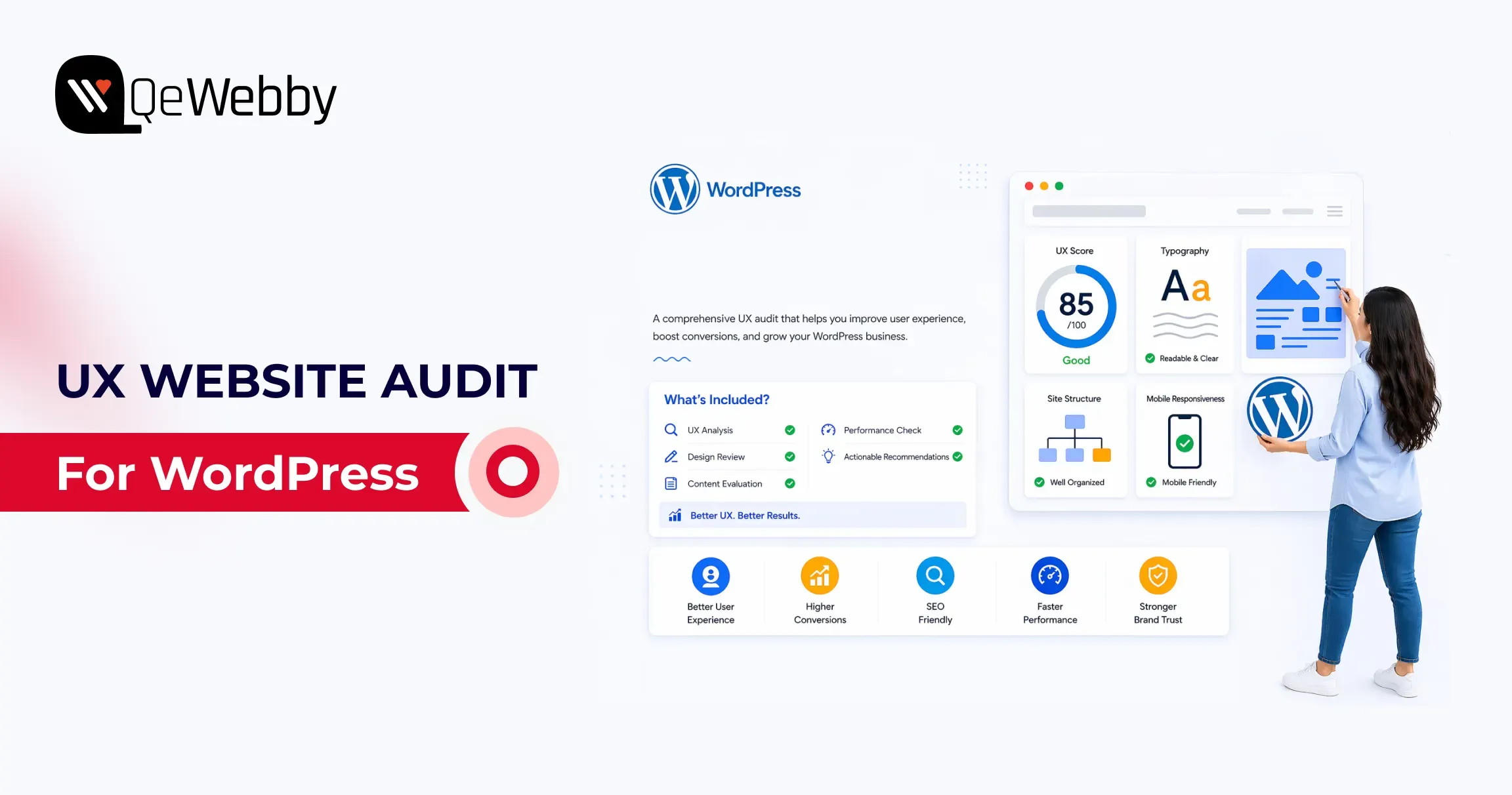
UX Website Audit: How to Improve Conversion Rates on WordPress

WordPress powers a massive share of the web, with a 42.5% CMS market share. However, there is a cost to scale. Founders and marketing teams need to understand, when using WordPress at scale, that traffic alone is not growth if users bounce before they act.

This guide is based on real audit frameworks used to improve conversion performance across WordPress websites.

How do you ensure users don’t leave before completing key actions?

A UX website audit helps gain measurable diagnosis, tying design, performance, and usability issues to revenue events. A structured website conversion audit helps you pinpoint churn points, which you can fix by using expert UI/UX design and development services.

In this guide, we break down practical strategies to improve conversion rates and optimize WordPress user experience. So, let’s get started with the ultimate WordPress UI/UX audit guide.

What is a UX website audit?

A UX website audit is a structured analysis of user behavior, performance, and usability to identify where users drop off and how to improve conversion rates.

Start a WordPress UX Website Audit by Defining Conversion Goals

A conversion goal is a measurable action tied to business value, not a visual preference. For lead generation sites, macro conversions include demo requests, consultation bookings, and form submissions. For WooCommerce sites, macro conversions include completed purchases and checkout completion rate.

Micro conversions matter because they predict macro outcomes. Track add-to-cart rate, pricing-page views, click-to-call actions, scroll depth, and newsletter signups as leading indicators. Google’s documentation on GA4 purchases and eCommerce reports, and key events setup, gives the minimum event architecture you need before auditing UX.

If GA4 key events are not correctly configured, your audit is mostly guesswork. You might improve aesthetics and still lose revenue because no one measured task completion in the first place.

Audit the First 5 Seconds: Consent UX and Privacy Friction

Before a user ever sees your value proposition, they interact with your compliance layer. Large companies live and die by GDPR and CCPA, but poorly designed cookie banners are massive conversion killers.

Audit your Consent UX:

  • Does the banner block the Largest Contentful Paint (LCP) on mobile?
  • Is the opt-in seamless, or does it force users to hunt for the “Accept” button?

If your privacy compliance frustrates users immediately, your bounce rate will spike before the user even begins their journey.

Analytics Shows Where Users Leave, UX Analysis Explains Why

Analytics shows symptom location, not root cause. A drop on a contact page tells you where failure occurs, but not whether the issue is unclear value proposition, poor field design, weak trust signals, or mobile friction.

#1. Build a website conversion audit from GA4 funnel drop-offs

Start with the landing page report, device category split, source-medium quality, and funnel exploration. If paid traffic exists on mobile landing pages at a higher rate than desktop, you likely have mobile readability, hierarchy, or CTA visibility issues, not just “bad traffic.”

#2. Connect website conversion audit findings to user intent gaps

Map every high-drop page to the user’s job on that page. A pricing page job is not about browsing; it is about plan comparison and confidence-building. A contact page job is not reading; it is a low-friction submission that reassures about response time and privacy.

#3. Prioritize website conversion audit pages by revenue proximity

Review pages that directly impact revenue, such as checkout, lead forms, pricing, and high-intent landing pages. This is where small UX improvements usually return faster gains than broad redesign work.

What Is a Website Conversion Audit?

A website conversion audit analyzes user journeys, funnel drop-offs, and interaction data to identify friction points that reduce conversions.

get-ux-audit-report

Core Web Vitals Reveal Hidden Performance Friction on WordPress Sites

Core Web Vitals are user experience thresholds tied to perceived speed and interaction quality. web.dev defines healthy targets as LCP at or below 2.5s, INP at or below 200ms, and CLS at or below 0.1 at the 75th percentile.

On WordPress, performance debt often comes from heavy themes, page builder bloat, render-blocking scripts, oversized media, excessive third-party tags, and a weak caching strategy. The WordPress Hosting Performance Handbook is useful because it frames optimization as system design, not plugin roulette.

Poor CWV is not only an SEO problem, but it is also a trust problem. If the first viewport stalls, users infer risk before they read your offer.

What Is a Conversion Optimization Audit?

A conversion optimization audit focuses on improving high-impact areas like forms, checkout flows, and CTAs to increase task completion and revenue.

Mobile UX Often Determines Whether Visitors Ever Reach the CTA

According to report, 53% of mobile users abandon a website if it takes longer than 3 seconds to load.

Mobile-responsive means layouts technically resize. Mobile-optimization means users can complete tasks comfortably on small screens, with a clear hierarchy, readable type, and touch-friendly interactions.

  • Audit your mobile flow for menu depth, sticky header behavior, tap target sizing, above-the-fold CTA visibility, form fatigue, and friction caused by intrusive pop-ups.
  • Use Chrome DevTools and real-device checks because simulated tests miss thumb-zone and visual density issues.

Google’s mobile speed perspective and web.dev vitals guidance both reinforce that delay compounds abandonment. Most WordPress sites fail mobile not because teams ignore users, but because desktop-first blocks get stacked without mobile task prioritization. That is a design governance issue, not a single bug.

Forms and Checkout Flows Are the Highest-Value Audit Zones

Research from the Baymard Institute shows that the average cart abandonment rate is around 70%, often caused by complex checkout processes and poor usability.

Form and checkout design decide whether intent becomes revenue. Baymard’s checkout research and benchmarks are still the most practical evidence base for eCommerce teams, including the widely cited cart abandonment benchmark and checkout findings.

For lead-gen forms, reduce field count, clarify labels, use inline validation, and add contextual trust copy near submit actions. For WooCommerce checkout, support guest checkout, reveal costs early, simplify error recovery, and keep order review obvious.

A conversion optimization audit should prioritize these changes over cosmetic refreshes because they directly affect completion rates. The highest-converting checkouts are usually visually calm, predictable, and intentionally boring.
fix-my-funnel

Accessibility Improvements Often Become Conversion Improvements

The WebAIM Million report found that over 95% of homepages have detectable accessibility issues, many of which impact usability and conversion performance.

Accessibility is a measurable usability quality, not a legal afterthought. WebAIM’s 2025 Million report found detectable WCAG failures on most analyzed home pages, and the same failure patterns often reduce conversion clarity for everyone.

Check CTA contrast, form label association, keyboard navigation, focus visibility, alt text coverage, empty button labels, and readable error messaging. Align your reviews with WCAG guidance from W3C, including practical implications of modern focus and target-size expectations.

The commercial angle is direct: inaccessible interactions increase cognitive load, and cognitive load kills action completion. Fixing accessibility frequently improves mobile completion rates, form success, and trust signals in one move.

A Strong Audit Prioritizes Fixes by Revenue Impact and Effort

Prioritization converts findings into outcomes. Use a simple matrix with effort on one axis and business impact on the other.

Quick wins include CTA contrast correction, image compression, form label clarity, and clarity of the above-the-fold message. Medium initiatives include simplifying navigation, aligning landing page intent, and reducing checkout steps. Large initiatives include theme refactor, page-builder cleanup, or full WooCommerce flow redesign.

Run a conversion optimization audit backlog with an impact x effort model

A conversion optimization audit backlog should be treated like a growth roadmap, not a design wishlist. Define owner, expected KPI movement, implementation effort, and validation window for each item before development starts.

A/B testing belongs after instrumentation and traffic reality checks. If your sample size is small, sequential UX improvements plus before/after cohort measurement are usually more reliable than underpowered split testing.
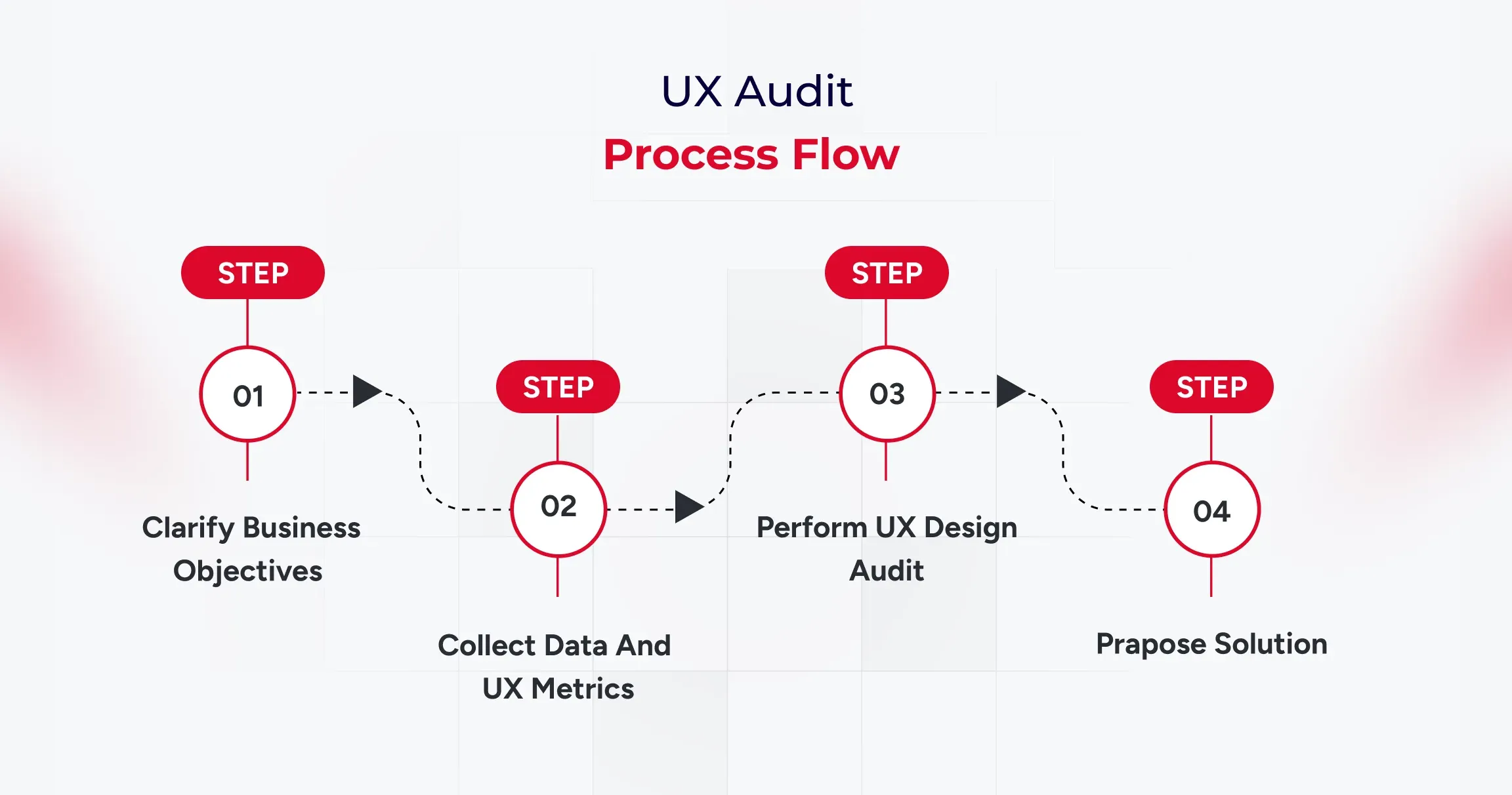
ux-audit-process-flow

User Testing Validates What Analytics and Expert Review Cannot Prove

Heuristic evaluation and usability testing answer different questions. It is fast and cost-efficient for expert diagnosis. On the other hand, task-based testing with five representative users reveals internal friction that teams overlook.

Use task scripts tied to conversion intent: find pricing, submit a lead form, complete checkout, recover from an input error, and locate policy reassurance. Then compare observed friction against analytics drop points and fix the priority list.

This is where a website conversion audit matures into confidence in decisions. You move from “we think this is better” to “users completed the task faster, with fewer errors, on the pages that matter.”

Conclusion

A strong WordPress audit sequence is clear: goals first, then analytics, then CWV, mobile UX, forms and checkout, accessibility, prioritized fixes, and user validation. That framework gives business owners and growth teams an execution roadmap, not a generic design critique.

A UX website audit is most valuable when it ends with accountable implementation decisions, which is exactly where experienced UI/UX design and development services deliver measurable lift in leads and sales.
get-a-custom-audit-plan

Top Benefits of Outsourcing WordPress Development (Beyond Just Saving Money)

Someone hires a WordPress developer. Three months later, the site still isn’t live. Feature velocity stalls. Technical debt piles up until delivery grinds down. The paycheck clears every two weeks. The launch date keeps sliding. The business ends up worse off than when it started.

Nobody likes admitting how often this happens. Especially in the “velocity-first” trap: teams that look fast out of the gate, then stall once they hit a codebase they never understood.

That’s why most companies get outsourcing wrong. They treat it like a coupon to dodge a salary line, nothing more. That framing skips the mechanics that decide whether a project ships or turns into a slow bleed of lost rankings and drained ad income.

Hiring in-house is expensive. Offshore development often costs less. Everyone knows that part. What rarely makes the pitch is the engagement model. How the work’s structured matters more than where the developer sits. Someone embedded in your process, who understands the codebase before touching it, tends to succeed.

This guide covers both the cost savings everyone expects and the operational advantages that usually become obvious after a few months. Protecting your revenue through deployment discipline. Keeping full ownership of your assets and credentials.

What Outsourcing WordPress Development Actually Means in Practice

In practice, outsourcing WordPress development means handing site builds, customizations, and maintenance to outside specialists who bring operational elasticity and technical chops you don’t have to build in-house. It’s not one transaction. It’s a spectrum: bounded freelance tasks on one end, dedicated offshore engineers sitting inside your Slack and Jira on the other.

1. The Three Primary Engagement Models

The structure you pick determines the risk you’re carrying, not the other way around.

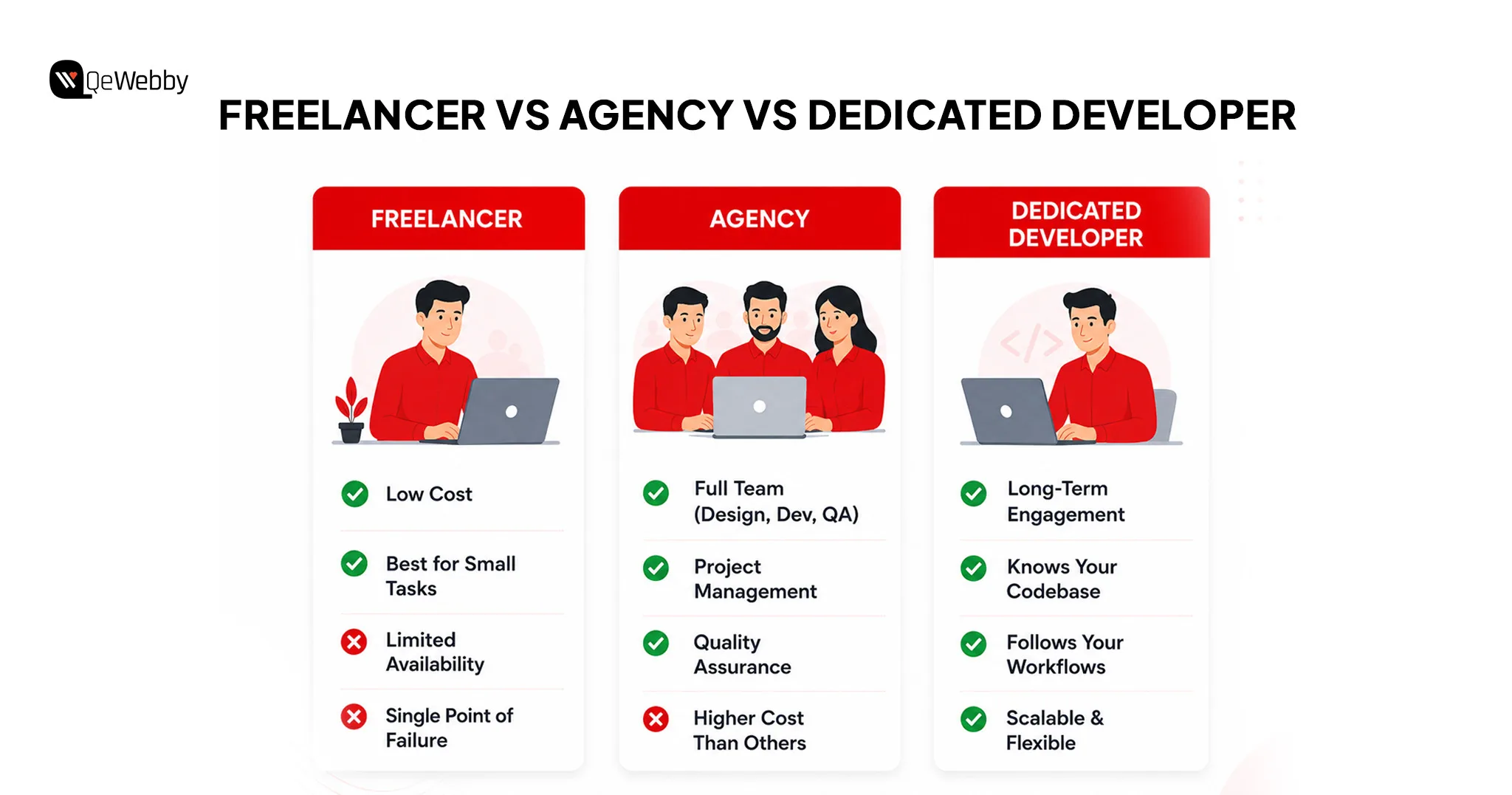
  • Freelancers (Task-Based): Good for a bounded fix with a clear finish line. Cheap, sure. But the “bus factor” is real. One person disappears, and the project stalls.
  • Agencies (Project-Based): Makes sense for multi-discipline builds (design, dev, QA) under a tight deadline. You’re paying for someone else to absorb the coordination overhead. That shows up in the blended rate.
  • Dedicated Offshore Developers (Integrated): Where most SMBs and agencies land for ongoing work. The developer works exclusively for you, learns your codebase, workflows, and engineering standards. This is the model that actually holds up over time, unlike distant vendors working strictly off a ticket queue with zero context.

Freelancer Agency Developer

2. Operational Elasticity and the “Follow-the-Sun” Model

Scale up for a launch. Scale down once things settle. No long-term hire to unwind when the busy season ends.

In practice, this usually runs on a follow-the-sun loop. Internal teams hand off tasks at the end of their day. Offshore teams in India, Southeast Asia, or Eastern Europe pick up the work overnight. By morning, it’s sitting there ready for testing. Your development cycle effectively continues around the clock.

3. The “Revenue Firewall”: Deployment Discipline

At scale, outsourcing stops being about “just building” and becomes about enforced deployment controls. Here’s why that matters: a bad deploy on a high-traffic site isn’t a support ticket. It’s a revenue event. Ad income and search rankings can take a hit within hours, not weeks.

  • Deployment Constraints: Serious partners work inside strict pipelines (the kind WordPress VIP mandates), which means pre-production code review and continuous performance monitoring, not a quick push and a prayer.
  • SEO as Engineering: Treated as a technical deliverable. Commits get checked against structured data and Core Web Vitals before they ship, not after something breaks.

4. Architectural Optimization (The “Plugin Diet”)

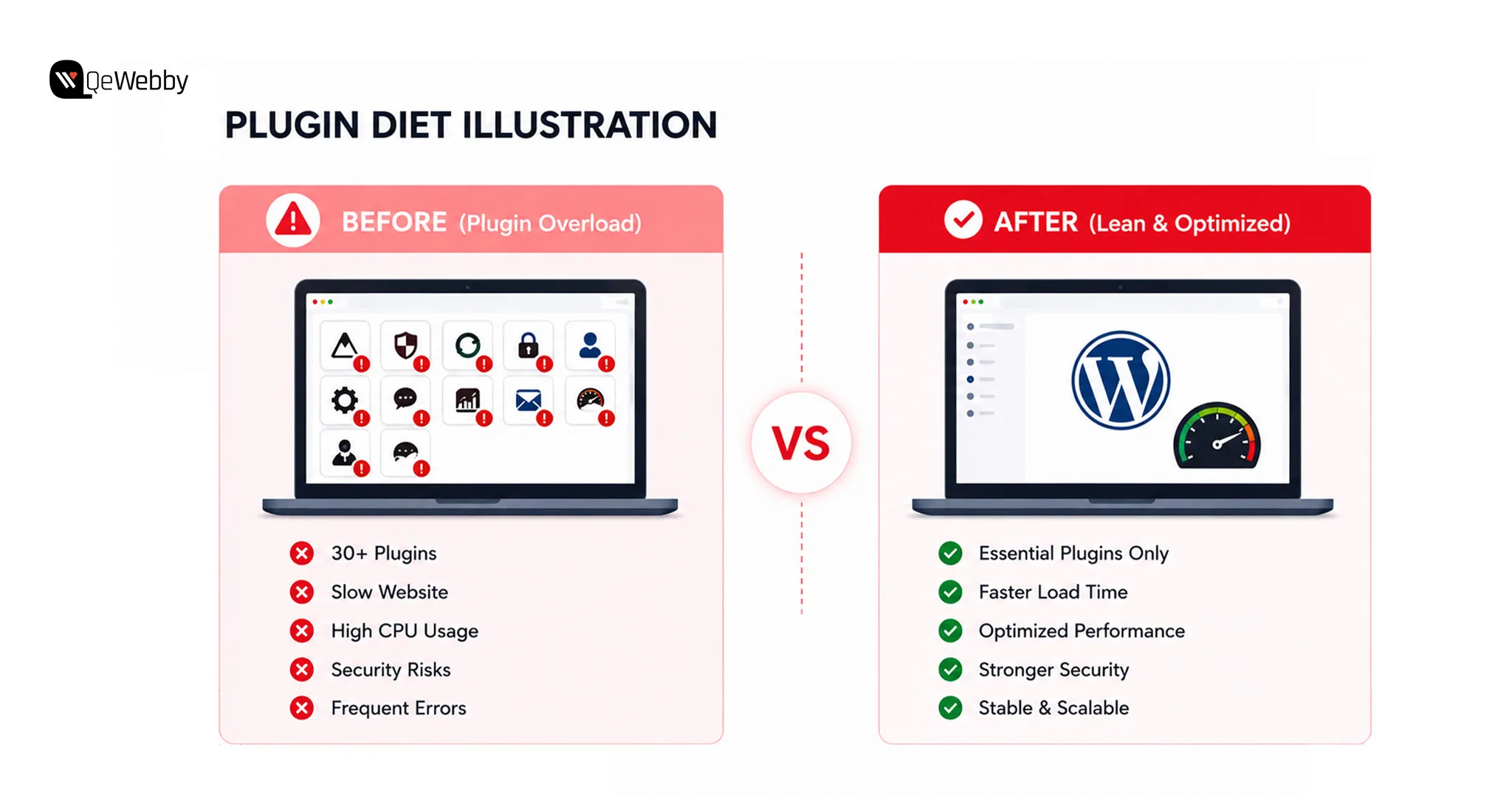
Professional outsourcing tends to strip out technical debt and plugin bloat. Amateur builds lean on heavy plugins for features that barely matter, chewing through CPU and PHP resources they don’t need to.

Experienced developers move that weight off the WordPress application layer entirely. Security firewalls, image optimization, caching: pushed to the server or edge network instead. The site ends up leaner. Faster. More stable.

Plugin diet illustration

5. What Must Remain In-House

Even in a fully outsourced setup, a few things stay close to home.

  • Site Strategy: Hosting stack decisions, architectural direction, which plugins actually carry weight in the build.
  • Asset Ownership: Full ownership of source code, hosting panel, domain registrar, DNS. No exceptions.
  • Brand Voice: Content direction and messaging hierarchy stay internal. Nobody outside the business should be deciding how it sounds.

The Expected Benefits (That Everyone Already Knows)

It Costs Less Than an In-House Developer

Hiring in-house starts weeks before anyone writes code. Scope the role. Build the application process. Post it. Screen resumes. Interview. Onboard. None of that ships a single feature. And that’s before salary, benefits, and overhead even show up on the spreadsheet.

Outsourcing skips all of it. The business pays for work when it needs the work, not a fixed headcount sitting there during a slow quarter.

Is it cheaper for defined-timeline projects specifically? Almost always, yes, because benefits, office space, and equipment costs disappear entirely. That’s the structural reason the savings number from the intro holds up whether the business has five employees or five hundred.

It Gives Instant Access to Specialists

Outsourcing puts a business in front of a global bench of developers who’ve already solved the exact WordPress problem the business is hitting for the first time. Custom themes, advanced functionality, the stuff an internal generalist genuinely cannot pull off no matter how sharp they are.

One in-house hire usually knows a bit of everything. Outsourcing flips that. Now it’s specialists who do one narrow thing extremely well, every day, across dozens of client sites.

Top 6 Unexpected Benefits Nobody Talks About Until After They Try It

The following, however, is what comes on the calendar after three months of planning for the outsourcing arrangement, and it’s really why companies that attempt outsourcing hardly ever come crawling back to the traditional approach.

Unexpected Benefit 1: The In-House Team Suddenly Achieves More

Few businesses realize this before they outsource. When the company sets up its own WordPress team, all the technical problems become everyone’s problem. A malfunctioning plug-in isn’t just a headache for the developer.

It’s also a problem for the marketing manager who needs a page launched right now, the founder dragged into a Slack channel against their will, and the sales team watching helplessly as the promised landing page fails to launch.

Move development outside the building, and the marketing team markets. Sales sells. The founder actually gets to think about strategy instead of getting looped into a debugging session over a plugin conflict nobody understands.

Outsourcing web development buys agility, and it lets a business scale operations without adding headcount. Internal attention stays locked on the work only internal people can do, while the outside team handles execution.

Unexpected Benefit 2: Development Happens While the Business Sleeps

Offshore teams often sit in a completely different time zone. By the time the internal crew logs on, a full development cycle has usually already happened overnight.

That gap isn’t a scheduling headache to work around. Used right, it means development and support run around the clock instead of going quiet at 6pm.

For anything deadline-driven, or an urgent fix that can’t wait until Monday, that overlap is a genuine edge. No single-time-zone in-house team, however good, can match it.

Unexpected Benefit 3: The Site Gets Built Faster Than Any Internal Team Could Manage

Outsourced agencies start immediately. The team already exists. Compare that to hiring in-house, where finding one qualified WordPress developer can eat most of a two-month project window before a single line gets written.

Experienced outsourced teams have already shipped dozens, sometimes hundreds, of WordPress projects. They show up with workflows, starter templates, and processes that have already absorbed the trial and error that slows down a first-time internal build.

Four months for an internal team. Six to ten weeks for a specialized outsourced one, doing the same job. Not because anyone’s cutting corners. Because the team has run this playbook enough times to know exactly where the delays hide.

Unexpected Benefit 4: Built-In Quality Control the Business Does Not Have to Manage

Professional outsourced agencies bring their own QA process, code review, and testing protocol to every project by default. Quality stops being something a business owner has to invent from scratch.

That means functionality tests, cross-browser checks, security audits, and performance passes, all measured against actual WordPress coding standards, not just whatever the last developer happened to know.

Something breaks after launch? A reputable agency fixes it. Not the business owner, alone, on a laptop at 11 pm trying to remember which plugin update caused the mess.

Unexpected Benefit 5: Scale Up or Down Without a Single HR Conversation

Outsourcing lets a business dial development effort up or down based on actual demand, no long-term contract required. For anything with seasonal swings or a sudden growth spurt, that’s hard to overstate.

One month the business needs a full team for a major launch. Next month, just routine maintenance. Outsourcing absorbs both without redundancy costs or an uncomfortable conversation about cutting hours.

This matters most for agencies juggling several client projects on unpredictable timelines, where a fixed in-house headcount either sits idle or gets buried depending on the week.

Unexpected Benefit 6: The Business Gains a Security Advantage It Did Not Budget For

WordPress gets targeted constantly, simply because it runs so much of the web. Bring in a team with dedicated security chops, and proactive measures against data breaches and unauthorized access come standard, not bolted on afterward.

Only 22% of companies handling WordPress security in-house actually have a documented breach response plan. Outsourced agencies that specialize in this tend to be better equipped by default. Security is the job, not a side task someone’s developer squeezes in between features.

Ongoing outsourced maintenance means plugin updates happen on schedule, vulnerabilities get patched before bots find them, and backups actually get verified instead of just assumed to be running somewhere in the background.

First-time outsourcers often start small, a single contained project through a WordPress development service, instead of jumping straight into a long-term commitment. Low risk, and it lets the business judge code quality, communication speed, and delivery discipline before scaling anything. For what a site needs before it even gets to this stage, see our breakdown of must-have WordPress features for a client website.

Outsourcing vs In-House: The Honest Comparison Nobody Wants to Do

What the Real Numbers Look Like Side by Side

Factor In-House Developer Outsourced Team
Monthly cost $3,831 to $7,045 $500 to $3,000 depending on scope
Time to start 4 to 12 weeks to hire 1 to 5 days to onboard
Skill range One person’s knowledge Full team of specialists
Scalability Fixed headcount Flexible up or down instantly
Quality control Business manages it Agency manages it
Time zone coverage Business hours only 24-hour development possible
Risk Business owns all of it Shared via contract and SLA

When In-House Still Makes More Sense

Outsourcing isn’t right for every business. Pretending otherwise helps nobody. In-house tends to win when:

  • The product IS the WordPress site, as with a SaaS platform where development is the core business activity rather than a supporting function
  • Daily work requires deep knowledge of internal proprietary systems an external team cannot realistically access
  • The business has already built a strong internal development culture worth preserving
  • The budget comfortably supports a full-time senior developer and their long-term retention without strain

Book a Free Strategy Consultation

The Hybrid That Most Growing Businesses Land On

Most companies don’t end up fully in-house or fully outsourced. They land somewhere in between: one internal developer or technical lead owns strategy, requirements, and review, and an outsourced team handles execution.

That setup gives the business control without the full overhead, plus specialist skills on demand without paying for them year-round. Leverage expertise from wherever it happens to sit, deliver strong results to clients, and keep internal focus exactly where it belongs, on what only the internal team can actually do.

How to Outsource WordPress Development Without Getting Burned?

Here are some of the key steps that you can follow to ensure efficient outsourcing of WordPress development.

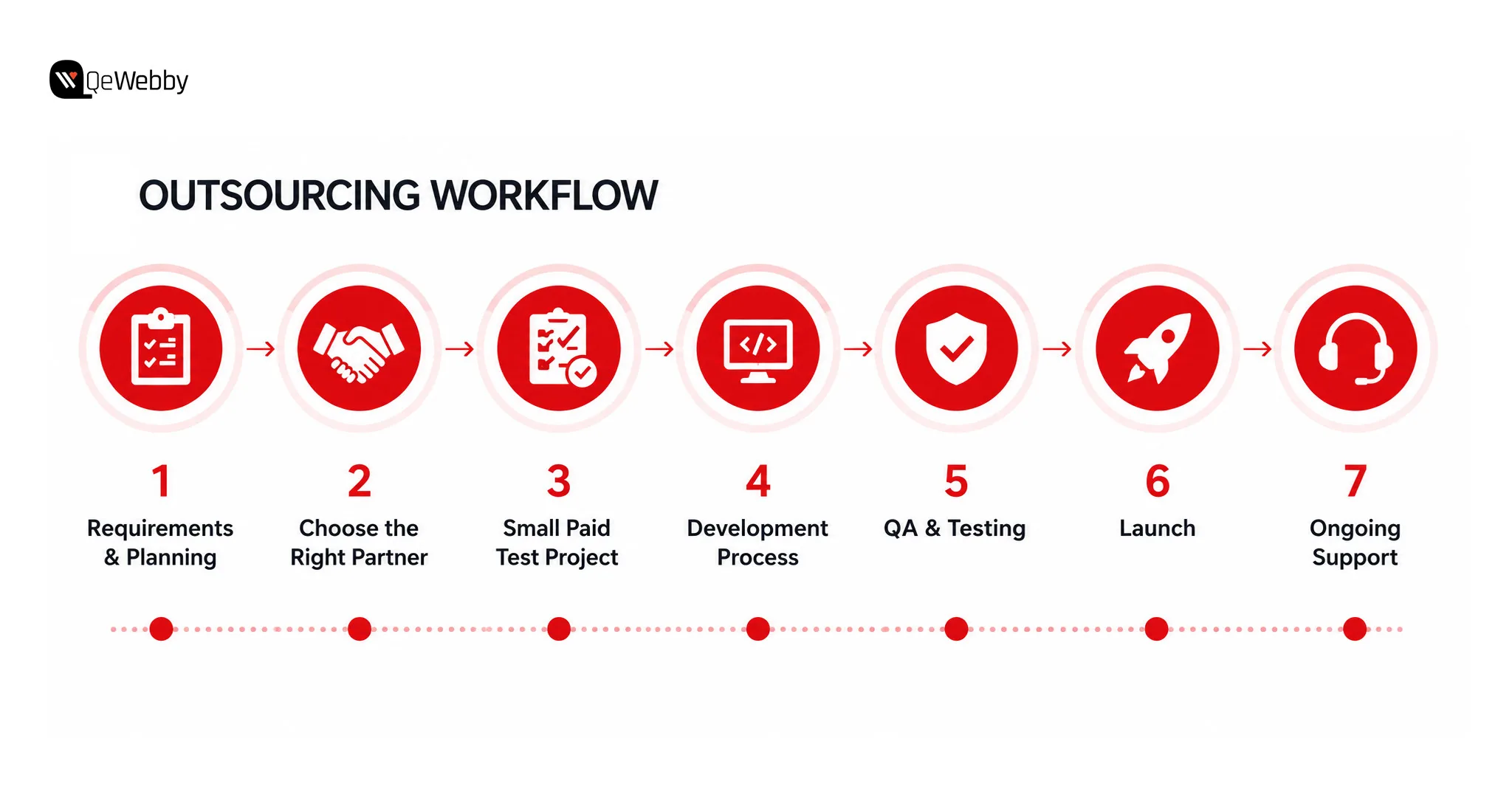
Outsourcing Workflow

Define Exactly What Is Needed Before Talking to Anyone

The most common outsourcing mistake happens before the first vendor call. Businesses start pricing conversations before they actually know what the project requires.

Write a one-page brief. Project goal, pages or features needed, a realistic budget range, timeline, and any technical requirements tied to existing systems. A clear brief gets an accurate quote. A vague one gets an inflated quote padded with contingency buffers to cover everything the vendor can’t predict.

Evaluate Agencies on the Right Things

Look for a WordPress-specific portfolio, verifiable client reviews, a QA process they can actually explain, and a documented post-launch support policy.

Read the reviews. Check the case studies. Strong testimonials, especially from other agencies rather than anonymous reviewers, are a decent signal the provider hits deadlines and communicates clearly under pressure.

Ask for two or three references before signing anything. Then actually call them. Most businesses skip this step. Most of them regret it exactly once.

Start With a Paid Test Before Committing to a Long Engagement

Send a small, clearly scoped paid task before signing anything long-term. It reveals quality and communication style faster than any portfolio review or interview ever will.

For agencies specifically, ask for examples of past agency partnerships. A reliable WordPress provider follows documented coding standards and runs a clear QA process without needing to be asked twice.

Use milestone-based payments tied to specific deliverables. Never pay the full project cost upfront, no matter how confident the agency sounds on the sales call.

Agencies that resell WordPress development work to their own clients often lean on a white-label WordPress development service to make the model work. The outsourced team builds under the agency’s brand, the agency delivers to its client, and the end client never learns a third party touched the project. It’s how small agencies take on bigger, more numerous clients without hiring full-time staff they can’t yet justify.

Talk to a wordpress consultant

The Question Every Business Asks Before Outsourcing: “What If It Goes Wrong?”

Most outsourcing articles stay relentlessly upbeat and skip the part sitting behind every business owner’s hesitation: what actually happens when it goes sideways. That deserves a straight answer, not another list of upsides.

The Real Risks of Outsourcing WordPress Development

  • Poor quality code that is difficult to maintain or hand over to a different developer later
  • Communication breakdowns that cause delays and missed deadlines
  • IP and data security concerns tied to sharing hosting credentials and content access with an outside team
  • Dependence on a single organization, where the project comes to a halt the instant the organization goes silent
  • Hidden expenses due to scope creep, additional revision costs, or regular fees which were never made clear at the beginning

How to Safeguard the Business While Outsourcing?

Put down everything into an agreement including deliverables, deadlines, revision cycles, code ownership, and post-launch support policies in black and white. No exceptions.

Develop in a staging environment and never give outsourced developers access to the live site until they have proved themselves on a different project first.

Ensure that it is clearly stated in the agreement that the business holds 100% ownership of the code and assets provided

Green Flags That Tell the Business an Agency Can Be Trusted

  • They ask detailed questions about the project before quoting, not the other way around
  • They can explain their QA and testing process clearly without being asked
  • They provide a written contract without the business needing to request one
  • Communication is fast, professional, and specific from the very first interaction
  • They have verifiable client reviews on third-party platforms like Clutch, Google, or Upwork, not just testimonials sitting on their own website

Before signing with anyone, it’s worth running through our WordPress security checklist, so the business knows exactly what to ask a prospective vendor about their security practices.

Hire Dedicated WordPress Developers

Outsourcing WordPress Development Is Not a Cost Decision. It Is a Growth Decision.

The businesses that outsource WordPress development and never look back aren’t doing it because they ran out of budget for an internal hire. They’re doing it because they figured out the internal team’s time is worth more than any WordPress problem.

However, the question was never really whether outsourcing costs less. It does. What matters more is what the business does with the time and budget it just got back.

Write down every WordPress task that ate up internal time last month. That list is exactly what an outsourced team should be handling, and exactly what the internal team should never have been doing in the first place. If the list runs long, a conversation with a WordPress development service is worth having before next month looks identical.

Still deciding between a dedicated freelancer and a full outsourced team?

Our comparison of dedicated vs extended team WordPress breaks down which structure fits which stage of growth, and pairs with any new build.

How to Choose a WordPress Theme for Your Business Website

Most business owners don’t land on the wrong WordPress theme because they have bad taste. They pick by scrolling demos, not by checking what’s under the hood. And the hood is exactly what breaks six months later.

WordPress.org alone hosts more than 14,000 free themes, and once you count the premium marketplaces, the number rockets past six figures. That much choice is paralyzing. Worse, almost every theme conversation gets stuck on how things look. But the best theme isn’t a design pick at all. It’s an infrastructure decision, and it touches speed, crawlability, and whether your plugins play nice together.

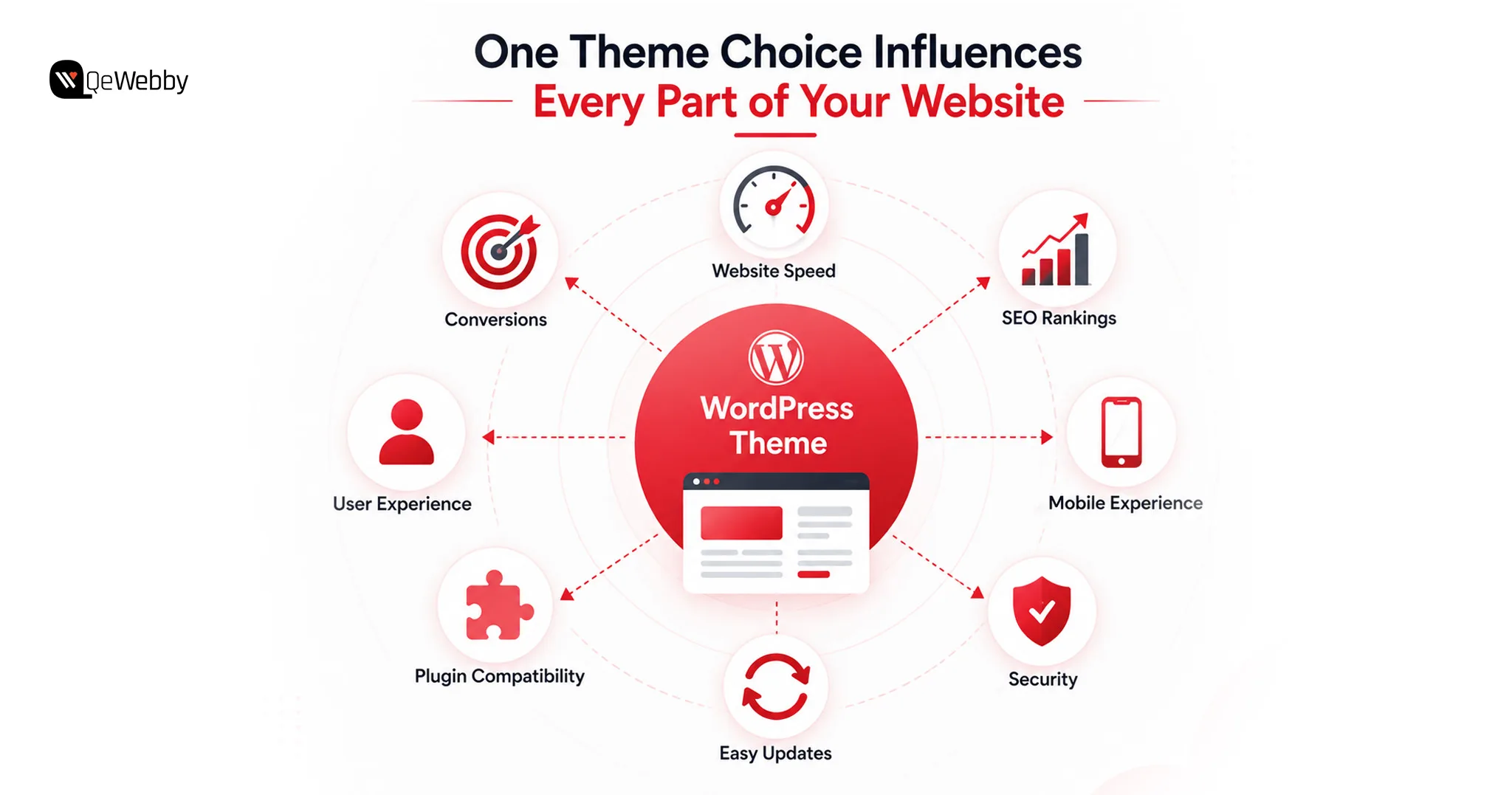
Choosing the wrong WordPress theme doesn’t just affect how your website looks. It influences page speed, SEO, mobile usability, plugin compatibility, maintenance costs, and even how easily your team can update content. A good theme becomes the foundation for everything that follows.

This guide walks through what to check before you install anything: a pre-purchase checklist, an honest free-versus-premium breakdown, the strongest options available right now, and the one mistake nearly every owner makes the moment the theme goes live.

Your Theme Isn’t a Design Choice. It’s the Foundation Everything Else Sits On

One Theme Choice

Your WordPress theme isn’t a design decision. It’s a technical foundation. You set it on day one, before a single word of content or a single plugin ever touches the site.

Most people judge a theme by scrolling the demo and asking, does it look good? That’s the wrong question. The theme decides how fast every page loads, how the browser paints it, and how long a visitor stares at nothing before something finally shows up. Looks should be the last thing you weigh, not the first.

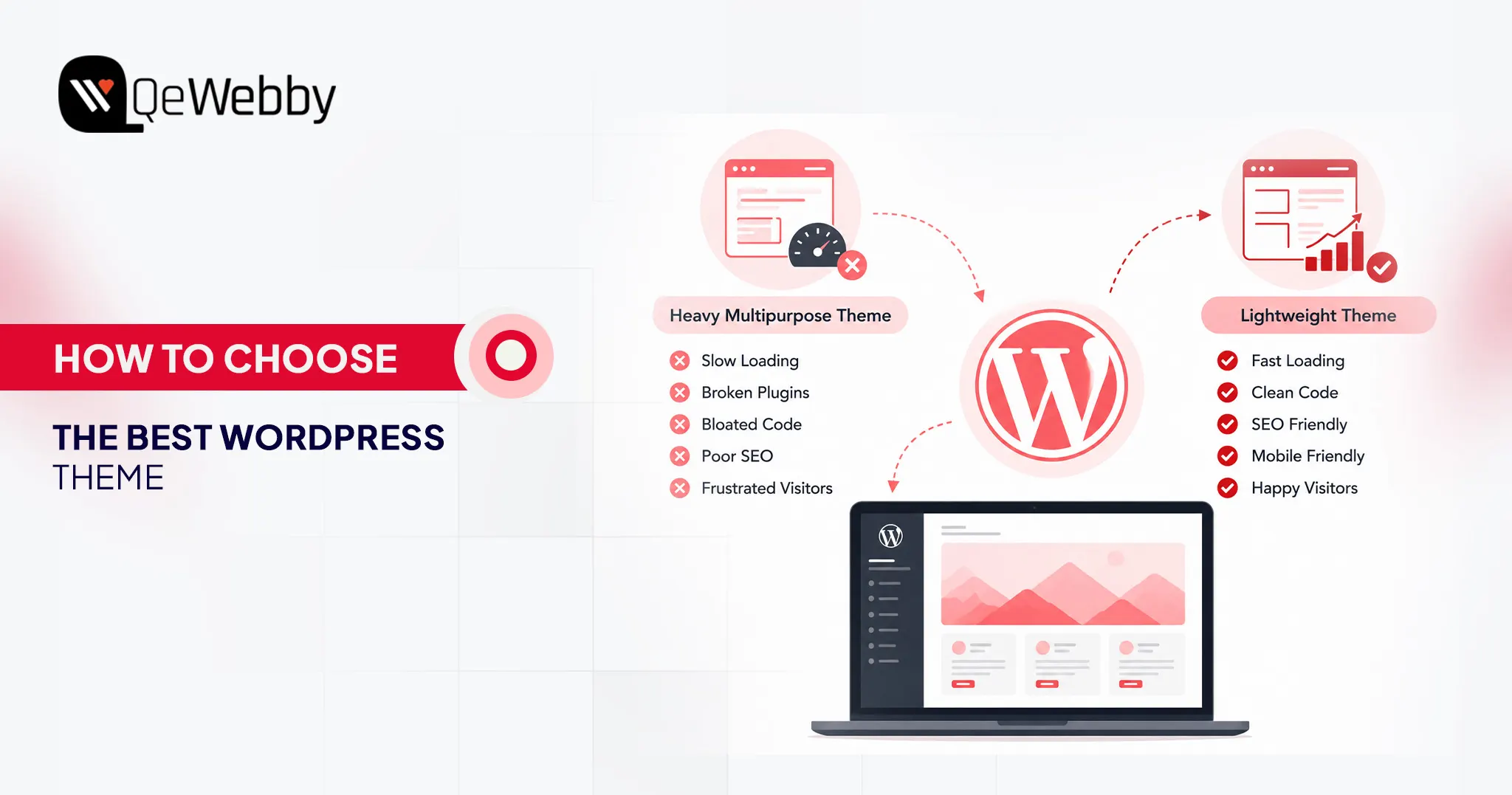
Here’s where it all goes sideways. Those flashy “multipurpose” themes promise you everything at once. Sliders. Animation libraries. A dozen design modules. Page builders stacked on page builders. Sounds generous. It’s the opposite of generous.

Every one of those features ships as extra CSS and JavaScript that your browser has to download and parse, whether you ever use it or not. And most of it you never will. The browser has no way of knowing that. So it loads the whole payload anyway, chokes, and your load time picks up the tab.

Once you’re stuck on a bloated theme, you can’t optimize your way back out. Install a caching plugin. Lazy-load your images. Minify the scripts. Buy a faster host. None of it repairs the foundation. A slow, poorly coded theme stays slow, and you end up patching a structural problem with surface-level tools.

So flip the priority. Fast sites start with lightweight themes built on clean, minimal code. The good ones use modular architecture, which is a fancy way of saying they load a resource only on the page that actually needs it. Nothing ships by default. Nothing loads “just in case.”

Before You Browse a Single Theme, Answer Three Questions

Here’s how each question maps to the technical calls that decide whether your site ends up fast or slow.

1. What Is This Site Actually For?

The site’s core job doesn’t just shape the layout. It dictates your whole hosting and caching strategy, and those two calls matter more than the theme itself.

Service and content-first sites are the easy case. They serve mostly static pages to anonymous visitors, so a lightweight theme plus edge caching, something like Cloudflare APO, can deliver those pages almost instantly anywhere on earth while barely touching your server.

WooCommerce and membership sites are a whole different animal. Everyone checks whether a theme looks good with WooCommerce, and that’s the part that matters least. These sites run on dynamic, personalized content: shopping carts, user profiles, account pages. That content skips standard page caching entirely. You simply can’t cache a cart.

So you push the caching down a level. Server-side object caching with Redis is what soaks up the flood of complex database queries these setups throw off. Skip it, and the database turns into your bottleneck no matter how clean the theme underneath is.

2. Who Manages The Site Day-To-Day?

The manager’s technical comfort decides whether you build on a page builder or on native WordPress tools. That one fork has huge consequences for speed.

Non-technical owners drift toward Elementor and WPBakery for an obvious reason. They’re easy. Drag, drop, done. But a page builder isn’t a feature. It’s an entire framework bolted on top of WordPress, and it injects heavy, render-blocking CSS and JavaScript into every page you publish. The convenience is real. So is the tax.

Want that usability without paying the tax?

Skip the heavy builders and lean on the native Gutenberg block editor instead. Pair Gutenberg with a performance-first theme, GeneratePress, Astra, Neve, or Kadence, and you can build genuinely complex layouts at file sizes that often land well under 50KB. Same result on screen. A fraction of the weight underneath it.

3. What Plugins Does The Business Actually Need?

Map your plugin stack before you commit to a theme, because quality beats quantity every single time, and it isn’t close. One badly coded plugin will drag your site down harder than a dozen well-built ones running side by side.

While you’re mapping, cut the resource-heavy gimmicks. Image sliders and carousels are the worst offenders. They pull in multiple heavy JavaScript files and oversized images, wreck your Largest Contentful Paint scores, and trigger layout shifts, all while posting some of the lowest engagement numbers in web design. You’re paying a steep performance price for something almost nobody clicks.

Defining your exact needs upfront, contact forms, SEO, booking, whatever the business truly runs on, does one more thing for you. It stops you from stacking overlapping plugins that fight each other, bloat your database, and multiply your HTTP requests. Fewer moving parts. Fewer things waiting to break.

Before choosing plugins, it’s also worth reviewing the essential WordPress features every business website should include so your theme supports the functionality your website will actually need from day one.

The pattern across all three questions is the same. Decide what you need before you choose what you build on. Not after.

The Six Checkpoints That Separate a Theme That Lasts From One You’ll Replace by Q3

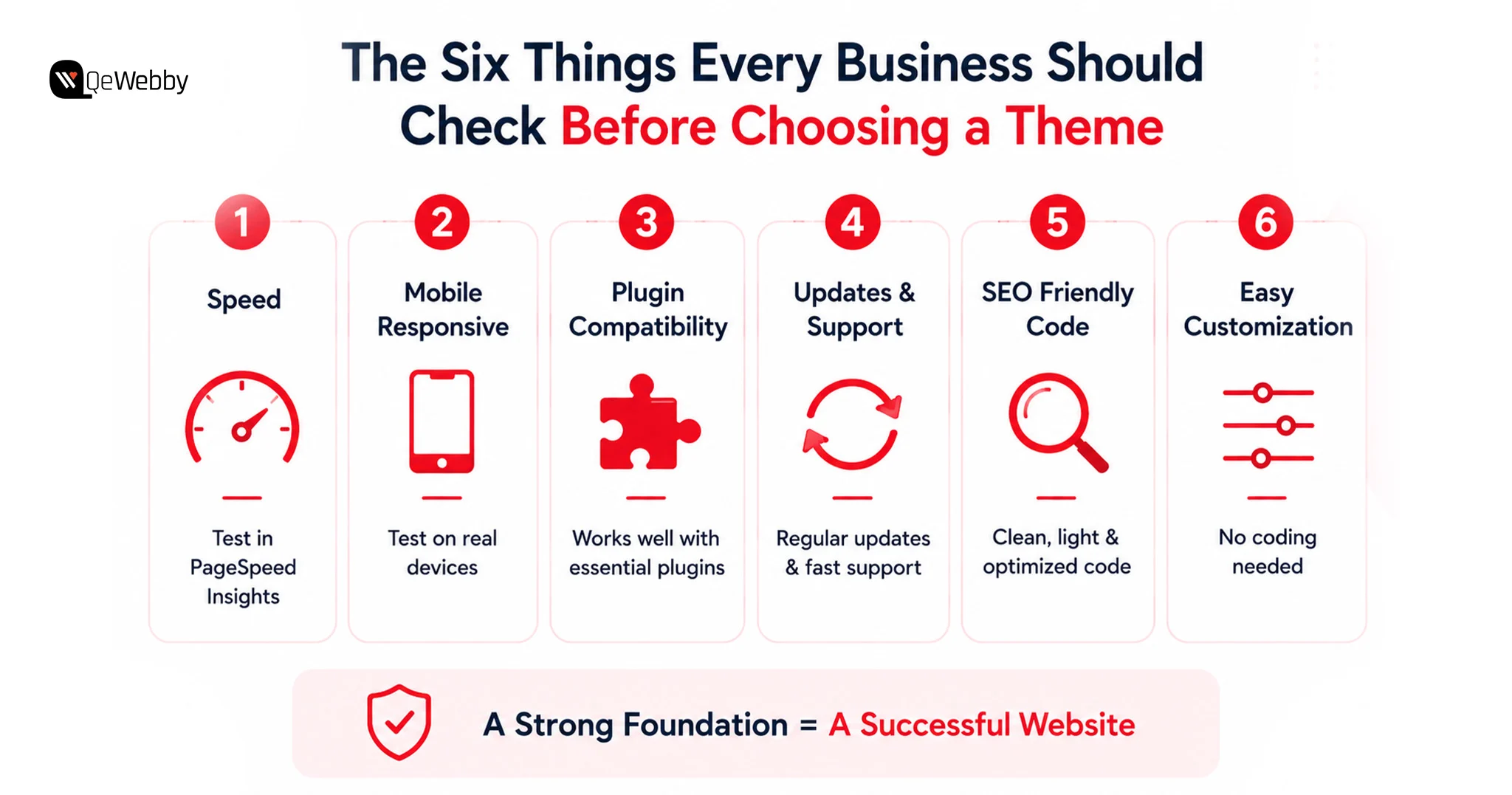
These six checkpoints do the one thing most theme checklists never manage. They connect what you’re checking to why it decides the outcome.

Each one maps straight onto the technical reality of a fast site, from Core Web Vitals down to whether the thing still scales two years from now.

Here’s how each checkpoint translates into the architecture underneath a site that actually performs.

Six Things Every Business Should Check

1. Speed: Test The Demo Before You Buy

Run the demo through Google PageSpeed Insights before you spend a dollar. Not optional. The theme sets your absolute performance ceiling, and here’s the part people miss: if it’s already bloated in its clean, empty state, it only gets worse from there.

All that render-blocking CSS and JavaScript is baked in from the start. Add real content, real images, real plugins, and the numbers slide further down. Look for themes built for speed and sold as “lightweight,” usually under 1MB.

Astra, GeneratePress, Neve, and Kadence all clear that bar. They run on modular architecture, and a well-configured page can sometimes load with under 50KB of resources.

Even the fastest theme benefits from ongoing optimization. Our WordPress speed optimization service helps improve Core Web Vitals, reduce load times, and maximize website performance after launch.

2. Mobile Responsiveness Isn’t Optional

Test on a real phone. Not the browser’s mobile preview, an actual device, because that’s where themes quietly come apart. Phones have weaker CPUs and slower networks, so a theme that flies on your desktop can flunk Google’s Interaction to Next Paint metric on mobile with no warning at all. The usual culprit is JavaScript.

When the menus, animations, or formatting all lean on heavy scripts, every tap and scroll comes with a lag. Mobile visitors feel it before they can even name what’s wrong.

3. Match The Theme To Your Builder

Pairing the theme with the right builder avoids the obvious technical conflicts, and you’re right to check for it. But the faster move is to skip the heavy page builders altogether whenever you can. A builder isn’t a plugin. It’s a second framework stacked on top of WordPress, and it drags the whole site down with it.

The native Gutenberg block editor is cleaner and quicker, full stop. If you genuinely need Elementor, at least pair it with a stripped-down, blank-canvas theme like Hello Elementor or Astra, so the theme isn’t wrestling the builder for the same resources.

4. Updates And Support Response Time

An abandoned theme isn’t just a broken-features problem. It’s a security hole and a performance anchor at the same time. Themes the developer walked away from stop keeping pace with new PHP versions, and that traps you.

To keep the old theme breathing, you end up running an old, unsupported PHP version, which forces your server to process every request the slow way.

That’s a free speed upgrade you’re tossing in the bin, because modern PHP handles two to three times the requests per second. You’re leaving real performance on the table just to protect code nobody maintains anymore.

Keeping your theme updated is only one part of maintaining a healthy website. Following a comprehensive WordPress security checklist helps protect your site against outdated plugins, malware, weak login security, and other common vulnerabilities.

5. SEO-Friendly Code Structure

Clean code decides whether the browser can paint your page fast or has to crawl through it. Watch for themes that load external scripts, tracking pixels, and web fonts on every single page, used or not. Each one is another HTTP request, and each request blocks the first render.

Stack enough of them, and you’ve gutted your Time to First Byte and your Largest Contentful Paint, the exact scores that both search engines and visitors notice. The tell is simple: a theme that loads everything everywhere, just in case.

6. Customization Without Developer Intervention

A friendly customizer matters if you’re not technical. No argument there. But watch how the theme buys you that flexibility. Too many pay for their “easy customization” with visual gimmicks, built-in sliders, carousels, and animated hero modules, and those come at a real cost. They demand multiple large images and heavy JavaScript, wreck your load times, and cause the jarring layout shifts that tank your Cumulative Layout Shift score.

All of that, for features with some of the lowest engagement numbers on the web. Pick a theme that’s genuinely easy to edit but leans on clean, static hero images instead of interactive modules that look impressive and do nothing.

Free vs. Premium: The Comparison Most Guides Won’t Give You Straight

Most guides simply compare free and premium themes feature by feature. The better question is when each option actually makes sense for your business.

A free theme is a smart and sensible option for a straightforward 5-page brochure site, a webpage that is still learning, and also a business introducing a concept prior to investing real money. Official WordPress.org themes are pre-reviewed for quality and security before they enter the official WordPress.org directory. For now, the best free options are Astra Free, GeneratePress Free, Kadence Free, and Blocksy Free.

The moment reliable support, frequent updates, and design quality begin to turn a profit (most of the time for business sites and eCommerce stores) is among the reasons that Premium is expensive.

Generally, the hours of time you save will cost around $50 to $100. Premium themes also offer more secure shipment by using teams that practice standard shipping practices. This can slow down free themes and leave their support to the community forums.

Schedule a Free Consultation

Discover the best WordPress Business Themes that are currently used.

  • Astra: It is the all-rounder, with over 2 million active users. Elementor, Divi, and Gutenberg are all fast, lightweight, and clean. The free version is pretty solid on its own, and Astra Pro further provides a sophisticated header/footer builder and more in-depth WooCommerce support.
  • GeneratePress: The theme that has always been one of the fastest builders out there due to its minimal design. Core Web Vitals affect the page rank of the website, particularly in developer and corporate websites with lots of content.
  • Kadence: Natively built forthe WordPress block editor, which means it provides a fast, flexible editing experience with no separate page builder to clutter the mix. Out of the box, a solid integration of WooCommerce. It’s the perfect match for anyone who wants to stick with native WordPress solutions in the long term.
  • Avada: It is one of the world’s highest-selling premium themes, with its own Fusion Builder and hundreds of pre-built designs. As a part of the purchase price, lifetime updates and dedicated support are provided.

Why Your Site Never Looks Like the Demo, and Nobody Tells You Why

A businessman sets up a theme, gets its pages published and then wonders, “What’s the point if it looks nothing like the thing that sold me?” Despite being one of the most frequent grips in the entire WordPress community, it is almost never tackled in a head-on fashion by any theme guide.

The demo sites feature staged content to demonstrate the possibilities of a theme. As soon as it’s installed, a real site replaces that staging, and it can be a painful experience until you are able to tweak your menus, medi,a and pages just so they look right. Premium stock photography is used to create demo content by professional designers, and most businesses cannot manage to get that polish without any assistance.

Eliminating the gap isn’t difficult. It’s just deliberate. Import the demo content before you start to import your own. Themes with good quality are normally one-click import. Replace all the sample pictures with actual photos; there’s nothing like a good quality, free Unsplash photo or real photo over a shoddy phone photo.

The typography is the most obvious and easily replicated visual element, so follow the demo’s font combinations as closely as possible. Limit your layouts to a basic design. Attempting to duplicate a complex demo without design experience will necessarily tend to make things harder rather than easier.

Many businesses discover that installing the right theme is only the first step. If you want your finished website to match the quality of the demo while reflecting your own brand, our WordPress website design service for small businesses can help with professional layouts, typography, imagery, and customization.

Expert’s Take: Select the theme with the minimalism demo, which fits the business, not the most gorgeous one. A well-designed, simple theme is better than a complicated, poorly designed theme, and that’s always true.

Talk To Our Designers

Common Mistakes When Choosing a WordPress Theme

Most businesses don’t regret choosing WordPress. They regret choosing the wrong theme.

The mistake usually isn’t obvious on launch day. It appears months later when the website becomes difficult to update, loads slowly, conflicts with new plugins, or no longer reflects how the business has grown.

1. Choosing a Theme Based Only on the Demo

The homepage demo is designed to sell the theme, not represent what your website will look like after installation.

Professional demos use premium photography, carefully written copy, custom graphics, and hours of design work. Installing the same theme won’t automatically recreate that experience.

Instead of asking, “Does this demo look impressive?” ask:

  • Does this layout support my business goals?
  • Can I realistically recreate it?
  • Will it still look good with my own content?

A simple, well-designed theme customized properly almost always performs better than a complicated demo that’s impossible to replicate.

2. Ignoring Website Speed

Many business owners fall in love with themes packed with animations, sliders, videos, and visual effects.

Unfortunately, every additional feature usually means more CSS, JavaScript, and larger files that visitors must download before the page becomes usable.

Before purchasing any theme, run its demo through Google PageSpeed Insights.

If the demo loads slowly before you’ve added your own content, it will almost certainly load even slower after launch.

3. Forgetting About Plugin Compatibility

A website rarely relies on the theme alone.

Most business websites also use plugins for:

  • SEO
  • Contact forms
  • WooCommerce
  • Booking systems
  • Memberships
  • Marketing automation

Choosing a theme without checking compatibility often leads to layout issues, broken functionality, and expensive development work after the website goes live.

4. Choosing a Theme That’s Difficult to Maintain

Some themes offer hundreds of customization options but require constant developer involvement to make even small updates.

If your team plans to manage content internally, choose a theme that allows you to update:

  • Text
  • Images
  • Colors
  • Fonts
  • Page layouts

Without writing code.

5. Ignoring Updates and Support

A WordPress theme isn’t something you install once and forget.

Themes need regular updates to remain compatible with:

  • New WordPress releases
  • PHP updates
  • Security improvements
  • Plugin changes

Before choosing a theme, check:

  • When it was last updated
  • Whether the developer actively maintains it
  • How quickly support questions receive responses

An abandoned theme can quickly become both a security risk and a maintenance headache.

6. Switching Themes Directly on a Live Website

Many businesses underestimate how much a theme controls.

Changing themes without testing first can break:

  • Navigation menus
  • Widget areas
  • Page layouts
  • Custom styling
  • WooCommerce pages

Always test a new theme in a staging environment before replacing your live website.

The Right Theme Makes Everything Easier

The theme is the foundation on which everything else sits. Speed, SEO, mobile experience, conversions- they all start right here. Five things outweigh how impressive any demo looks: speed, mobile responsiveness, page builder compatibility, regular updates, and plugin support.

Choose for the business goal and for whoever manages the site day to day. Not for the polished screenshot on the sales page.

Next step: open Google PageSpeed Insights, paste in the demo URL you’re eyeing, and check the score before you buy.

That’s 60 seconds against weeks of headaches down the road. If you’d rather avoid the trial and error altogether, a professional WordPress website development service can help you choose the right theme, customize it around your business goals, optimize performance, and launch a website that’s built for long-term growth.

Book a free strategy call

The Bottom Line

The best WordPress theme isn’t necessarily the one with the most impressive demo or the longest list of features. It’s the one that aligns with your business goals, performs well, works with your existing tools, and remains easy to manage as your website grows.

Choosing carefully today is far easier and far less expensive than rebuilding your website six months from now.